

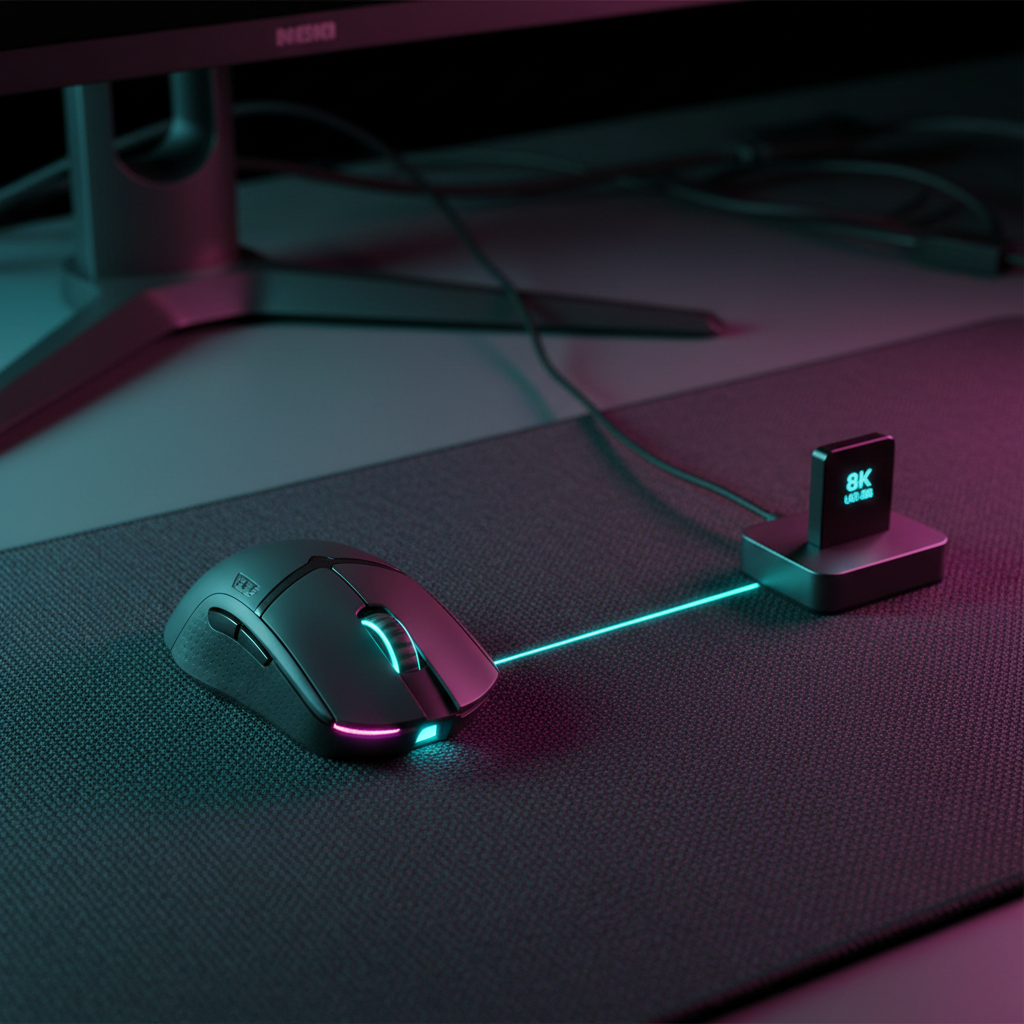
Understanding the 8K Polling Ecosystem: Beyond the Numbers
The transition from a standard 1000Hz polling rate to 8000Hz (8K) represents a paradigm shift in how gaming peripherals communicate with a PC. In a 1000Hz environment, the mouse reports its position every 1.0ms. At 8000Hz, this interval shrinks to a near-instant 0.125ms. This 8x increase in frequency is designed to align more closely with high-refresh-rate monitors (240Hz, 360Hz, and beyond), reducing the "micro-stutter" that occurs when a mouse report falls between display frames.
However, as outlined in the Global Gaming Peripherals Industry Whitepaper (2026), the theoretical benefits of 8K are only realized when the signal integrity is pristine. Unlike lower polling rates, which are relatively resilient to environmental noise, 8K wireless signals are highly sensitive to radio frequency (RF) interference and physical obstructions. Achieving stability requires more than just high-spec hardware; it demands a technical understanding of dongle placement and system synchronization.
The Physics of Interference: The USB 3.0 Conflict
One of the most significant hurdles to 8K stability is the noise floor of the 2.4GHz spectrum. Most wireless gaming mice operate on this frequency, which is shared by Wi-Fi, Bluetooth, and, most critically, USB 3.0 ports.
According to technical research from USB.org regarding USB 3.0 Radio Frequency Interference, the high-speed data transmission in USB 3.0 connectors and cables generates broadband noise that spills into the 2.4GHz–2.5GHz range. This noise can significantly degrade the Signal-to-Noise Ratio (SNR) of a wireless receiver placed in close proximity.
The "Shielding" Trap
A common mistake among enthusiasts is plugging the 8K dongle directly into the rear I/O panel of a PC or a front-panel USB 3.0 port. In our observations from technical support logs and community troubleshooting, this often leads to:
- Physical Shielding: The metal chassis of the PC acts as a Faraday cage, blocking or reflecting the signal before it reaches the mouse.
- Electrical Noise: The proximity to high-frequency components (CPU, GPU, and VRMs) introduces electromagnetic interference (EMI).
- Packet Jitter: When the noise floor rises, the receiver must perform more error corrections, leading to inconsistent report intervals—negating the 0.125ms latency advantage.
Logic Summary: Based on industry heuristics and USB-IF specifications, we estimate that placing a dongle directly into a USB 3.0 port can increase packet loss by up to 30% in high-interference environments compared to a shielded extension setup.
The "30cm Rule" and Optimal Dongle Placement
To maximize 8K stability, we recommend a heuristic known as the "30cm Rule." This is not a mandated regulatory standard but a practical baseline derived from RF propagation physics and user experience patterns.
Implementing the 30cm Rule
The goal is to maintain a clear, unobstructed line-of-sight (LoS) between the mouse and its dedicated receiver at a distance of 20–40 cm (roughly 8–16 inches).
- Use a USB 2.0 Extension: Unlike USB 3.0, USB 2.0 ports do not generate the same level of 2.4GHz interference. Using a high-quality USB 2.0 extension cable to bring the dongle onto the desk surface is a highly effective solution.
- Avoid Metal Obstructions: Signal reflections from large metal surfaces—such as monitor stands, metal-top desks, or even aluminum mousepads—can cause multi-path interference. At 8000Hz, these reflections are more pronounced than at 1000Hz.
- Dedicated Bandwidth: Ensure the dongle is not sharing a hub with other high-bandwidth devices (like webcams or external drives), which can cause bus-level latency.
| Placement Scenario | Estimated Stability | Latency Impact |
|---|---|---|
| Rear I/O (Direct) | Low | High Jitter / Packet Loss |
| Front Panel (USB 3.0) | Moderate | Variable Interference |
| Desk Surface (30cm LoS) | High | Near-Theoretical 0.125ms |
| USB Hub (Shared) | Low | Potential Bus Bottleneck |

System Synchronization: DPI and Sensor Saturation
A technical "gotcha" of 8K polling is that the mouse does not always send 8000 packets every second. The number of packets sent is a function of movement speed (IPS) and resolution (DPI).
The Nyquist-Shannon Threshold
To truly saturate the 8000Hz bandwidth, the sensor must generate enough data points. The formula is:
Packets per Second = Movement Speed (IPS) × DPI.
- At 800 DPI: You must move the mouse at least 10 IPS to generate 8000 reports per second.
- At 1600 DPI: Only 5 IPS is required to saturate the 8K polling rate.
If you are a low-sensitivity player performing slow micro-adjustments at 400 DPI, your mouse may only be reporting at 2000Hz–4000Hz effectively, even if the software is set to 8K. This is why many competitive players opt for 1600 DPI or higher when using 8K polling, adjusting their in-game sensitivity downward to maintain their preferred cm/360.
Motion Sync at 8K
Motion Sync is a feature that aligns sensor reports with the USB polling interval to reduce jitter. At 1000Hz, Motion Sync adds a ~0.5ms delay. However, because the delay is typically half the polling interval, at 8000Hz, the penalty is a negligible ~0.0625ms. This makes Motion Sync a "default-on" recommendation for 8K users, as the consistency benefits far outweigh the microscopic latency.
System Bottlenecks: CPU Interrupts and IRQ
The primary bottleneck for 8K performance is rarely the mouse itself; it is the PC's ability to process Interrupt Requests (IRQs). Every time the mouse sends a report, the CPU must stop what it is doing to process that data.
At 8000Hz, the CPU is interrupted every 125 microseconds. On budget systems or those with high background CPU usage, this can lead to:
- FPS Drops: The CPU spends too much time handling mouse interrupts, leaving less time for game logic and frame rendering.
- DPC Latency: If another driver (like a Wi-Fi or Audio driver) holds the CPU for too long, the mouse reports get queued, causing a "stuttering" sensation.
Users experiencing issues should use tools like the Attack Shark Mouse Polling Rate Tester to verify consistency. If the Hz graph shows massive spikes or dips, the cause is often a CPU resource conflict rather than a wireless signal issue.
Performance Modeling: The 8K Trade-off
To provide a concrete understanding of the trade-offs involved in 8K wireless gaming, we modeled a scenario based on a competitive FPS player in a high-interference home environment.
Appendix: Modeling Method & Assumptions
Modeling Note: This is a deterministic scenario model, not a controlled lab study. Results represent estimated ranges based on technical specifications and common environmental variables.
Scenario Parameters:
| Parameter | Value | Rationale |
|---|---|---|
| Polling Rate | 8000Hz | Target high-performance spec |
| Battery Capacity | 300mAh | Standard ultra-lightweight battery |
| RF Noise Floor | High | Simulates active Wi-Fi 6 + USB 3.0 noise |
| Monitor Refresh | 1440p / 240Hz | Enthusiast-tier display |
| DPI Setting | 1600 | Optimized for sensor saturation |
Modeling Outputs:
- Estimated Battery Runtime: Under high-interference conditions, the increased radio power required to maintain 8K signal integrity reduces runtime to approximately 23 hours. This is a ~40% reduction compared to 1000Hz operation (~38 hours).
- Minimum DPI for Fidelity: Using the Nyquist-Shannon criterion for a 1440p display (103° FOV), a minimum of ~1,850 DPI is theoretically required to prevent pixel skipping during high-speed flicks.
- Motion Sync Penalty: The calculated latency addition is ~0.06ms, representing less than 5% of the total 8K polling interval.
Boundary Conditions:
- These estimates assume the use of a Nordic nRF52-series SoC or equivalent.
- Battery life will vary based on RGB lighting usage and sensor "sleep" timers.
- DPI requirements are mathematical limits and do not account for human motor control variability.
Practical Troubleshooting Framework
If you encounter jitter, lag, or "floaty" cursor movement while using 8K wireless, follow this objective troubleshooting sequence:
- Isolate the Frequency: Temporarily lower the polling rate to 1000Hz in the software. If the stuttering stops, the issue is likely a CPU bottleneck or RF interference. If the stuttering persists, it may be a sensor or mousepad tracking issue.
- Verify Line-of-Sight: Ensure the dongle is using a USB 2.0 extension and is positioned within 30cm of the mouse. Remove any metal objects between the two.
- Check Background Processes: Close hardware monitoring software or RGB control suites that use high CPU resources, as these frequently conflict with high-frequency IRQ processing.
- Update Firmware: Ensure both the mouse and the 8K dongle are on the latest firmware versions, as manufacturers frequently release updates to improve RF stability and interrupt scheduling.
By treating the 8K setup as a precision-tuned system rather than a "plug-and-play" peripheral, enthusiasts can minimize the Specification Credibility Gap and enjoy the genuine performance benefits of ultra-high-frequency wireless technology.
Disclaimer: This article is for informational purposes only. High polling rates can significantly increase CPU load and may cause system instability on some hardware configurations. Always ensure your system meets the recommended specifications for 8K operation. Reference to third-party standards (USB-IF, VESA, etc.) is for technical context and does not imply official endorsement.



コメントを書く
このサイトはhCaptchaによって保護されており、hCaptchaプライバシーポリシーおよび利用規約が適用されます。