


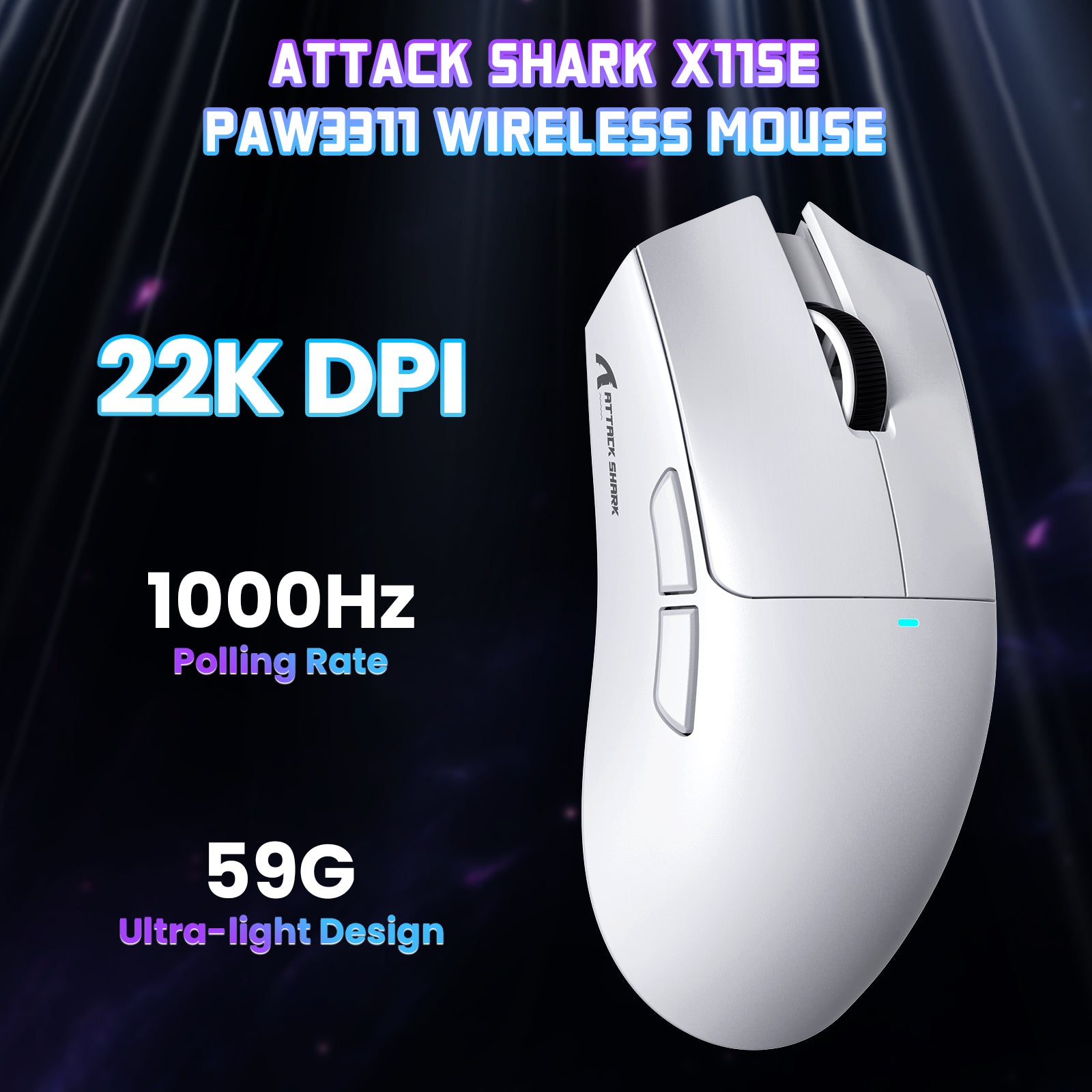

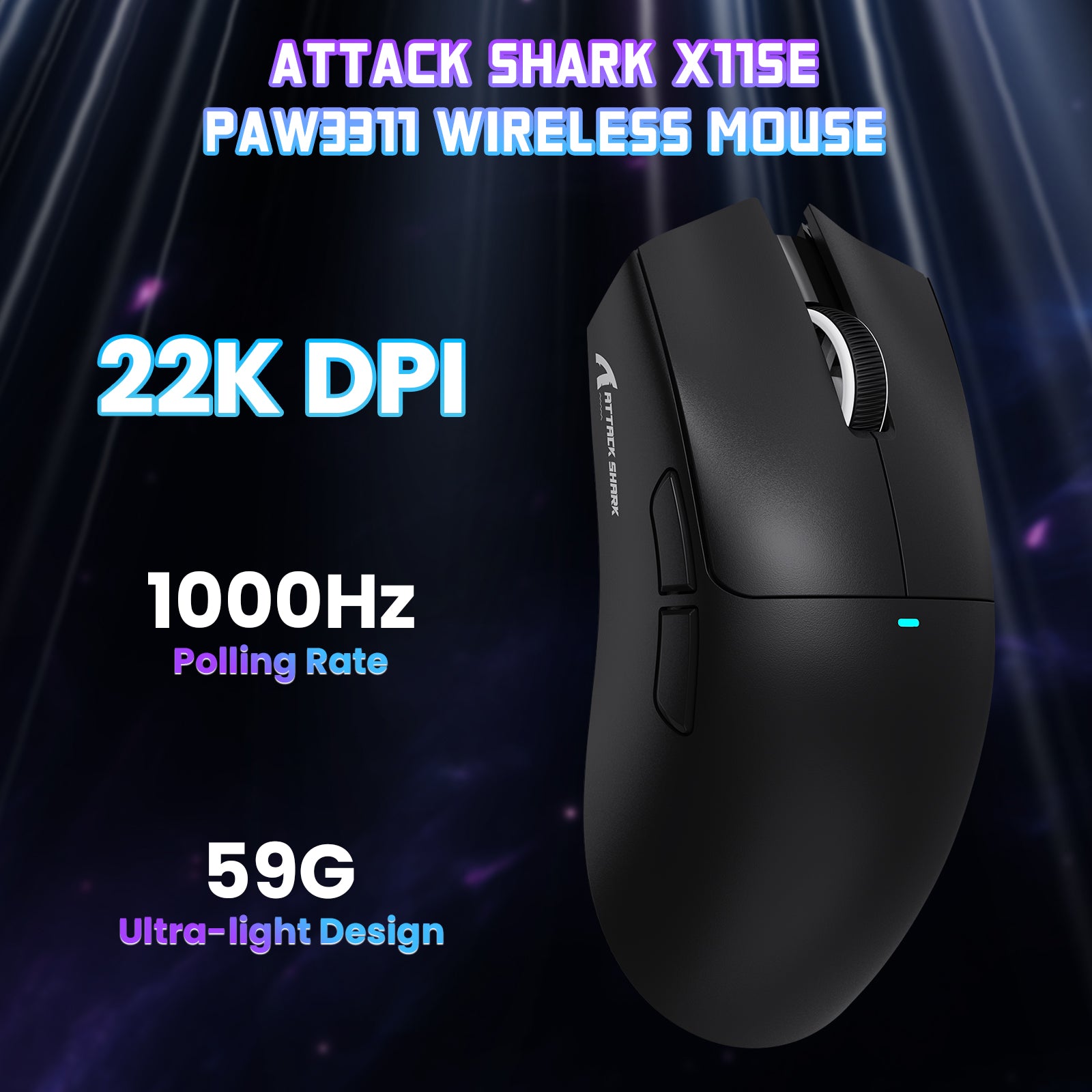

















ATTACK SHARK X11SE ワイヤレスゲーミングマウス
- Share:
-

-

-

-


Technical Specifications
WEB DRIVER
製品比較
| モデル | X11 チェックする | X11SE |
|---|---|---|
| センサー | PAW3311 | |
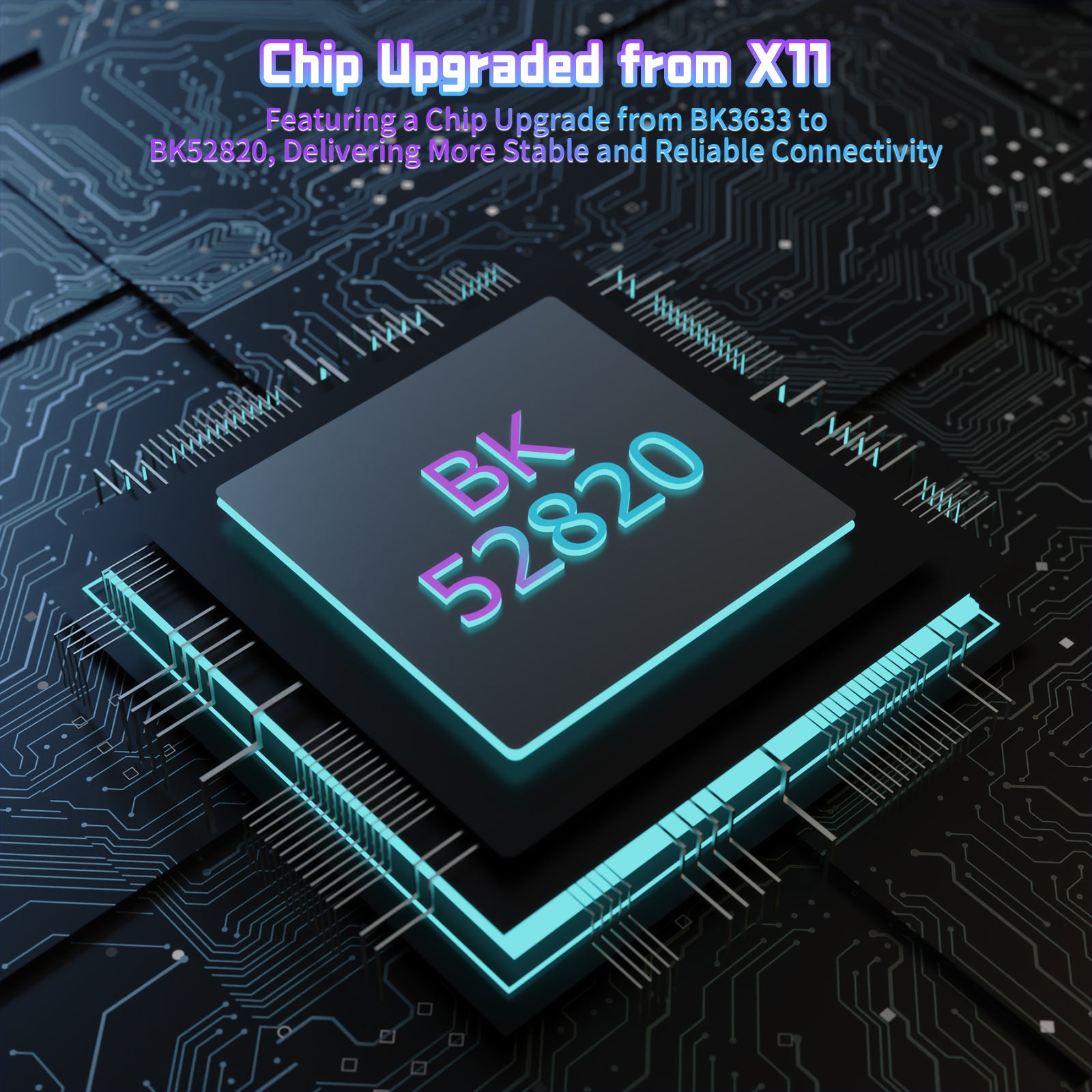
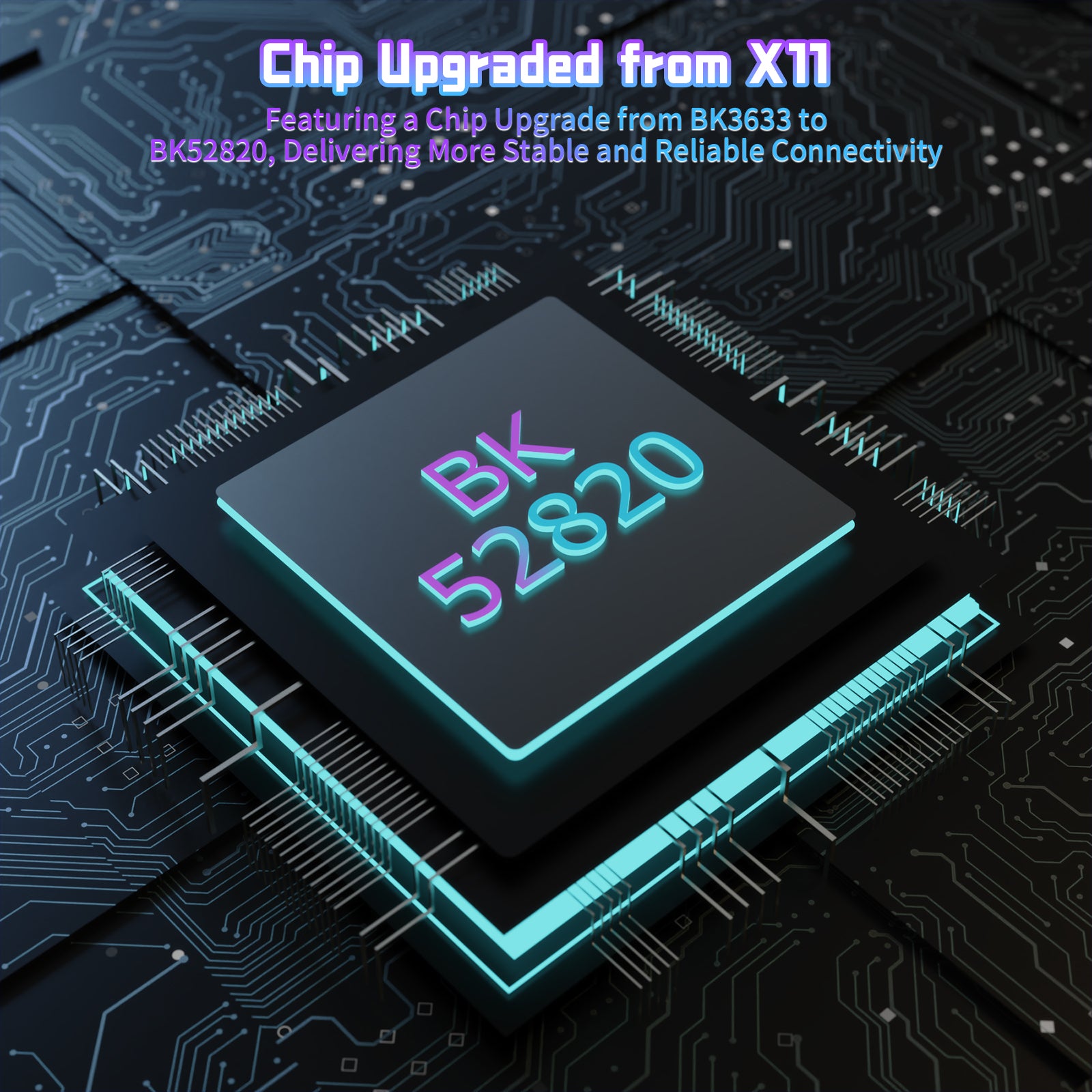
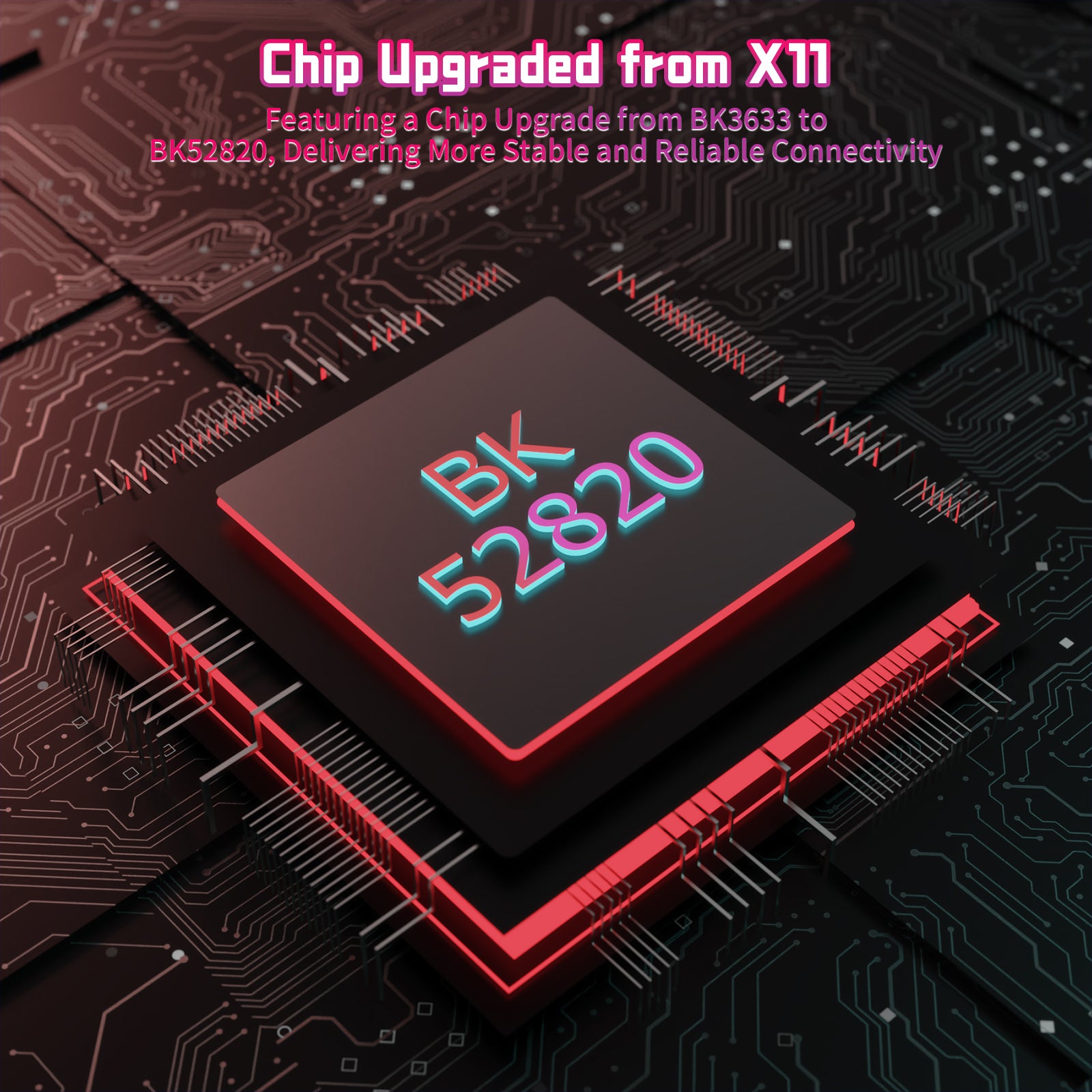
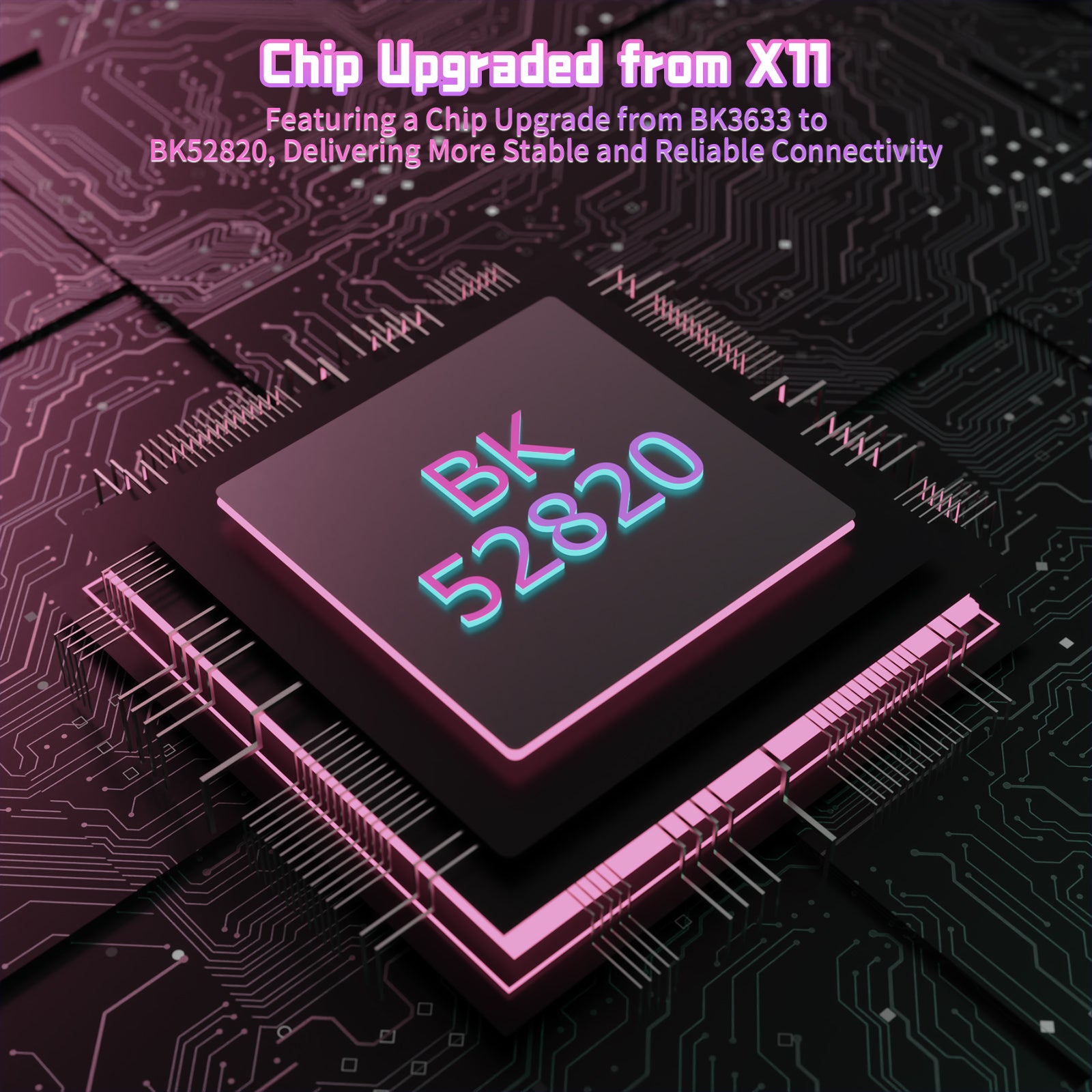
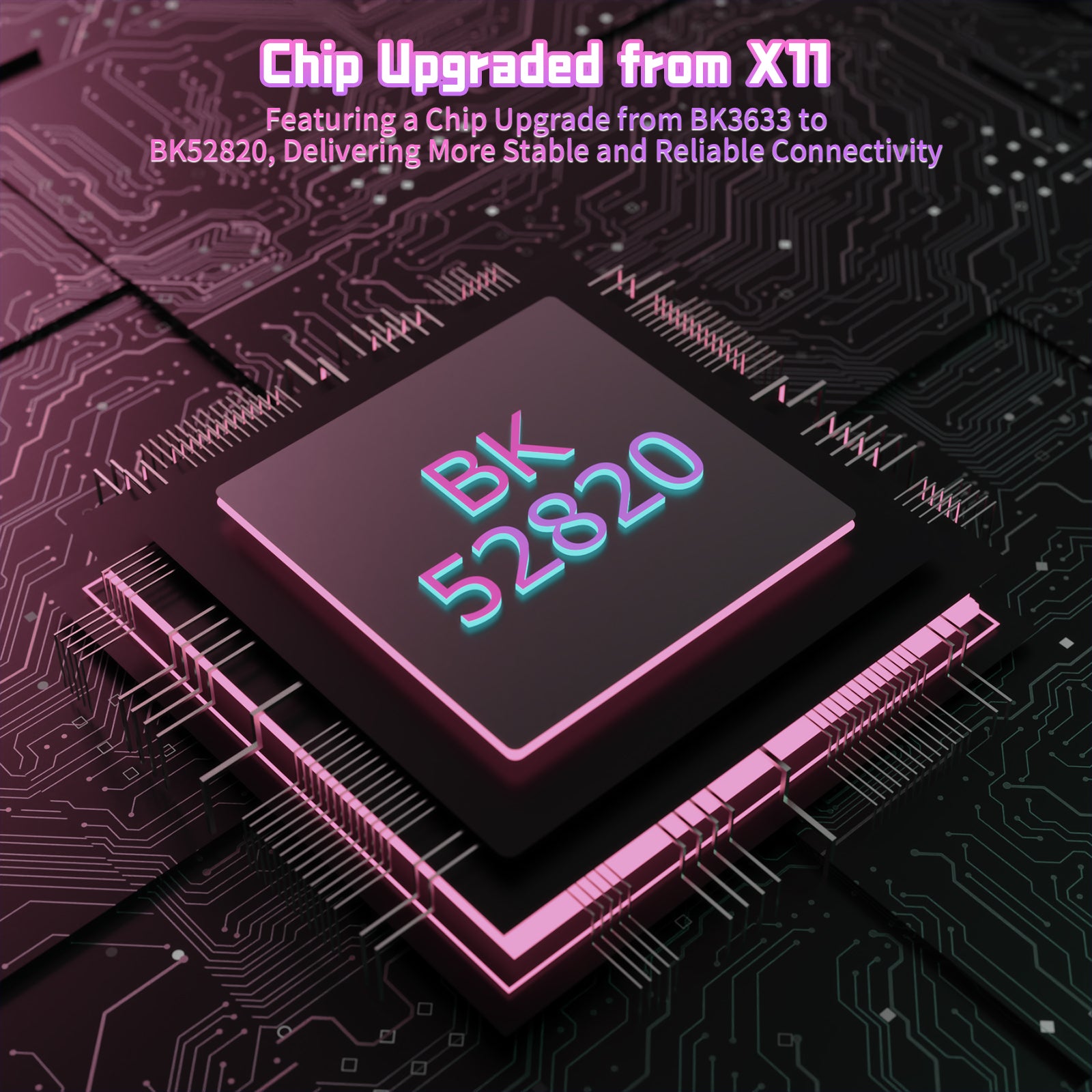
| MCU | BK52820 MCU | |
| マイクロスイッチ | HUANOマイクロスイッチ:2000万回クリック | HUANOマイクロスイッチ:2000万回クリック |
| スクロールホイール | TTCスクロールホイール:30K回転 | F-SWITCHスクロールホイール:30K回転 |
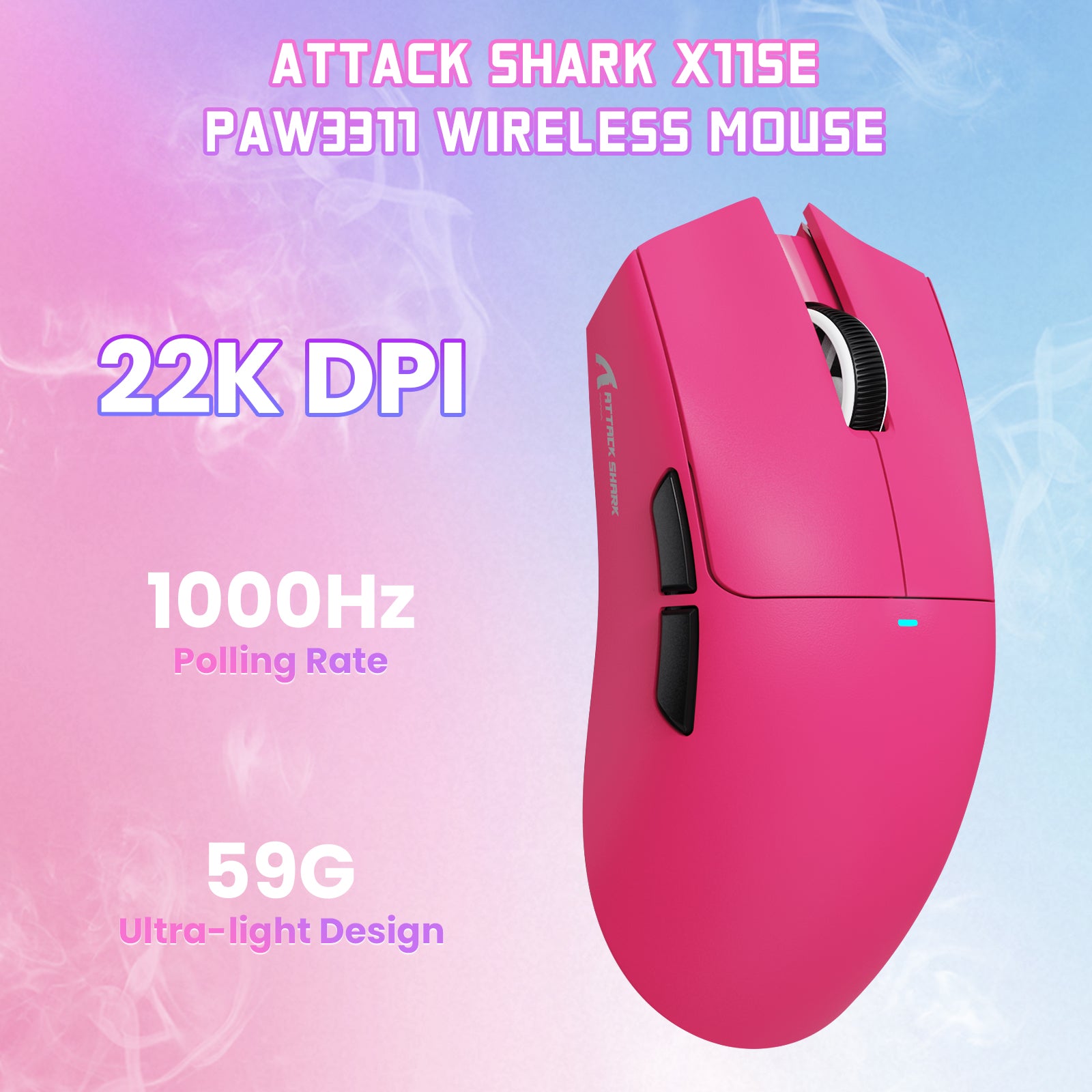
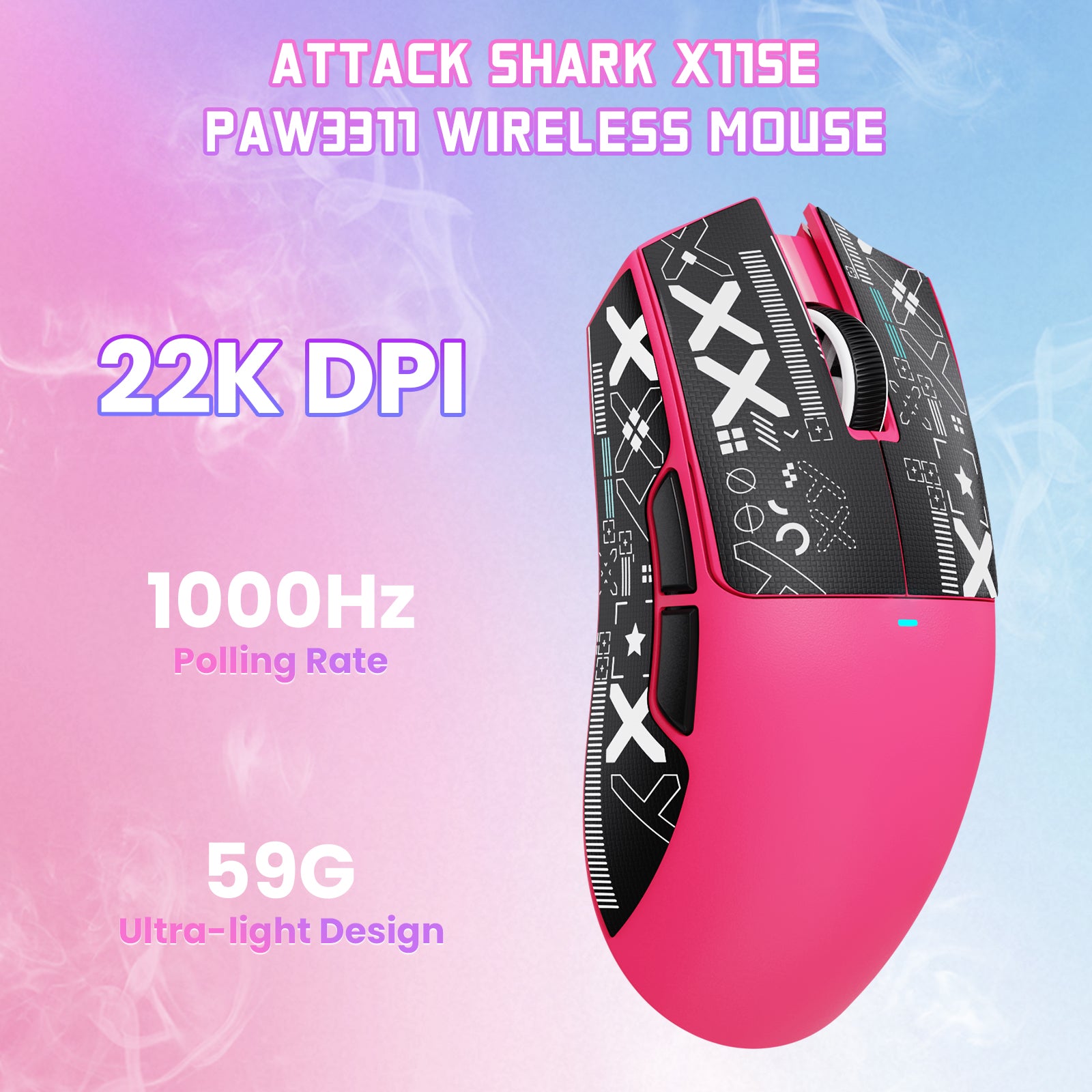
| ポーリングレート | 1000 Hz | |
| DPI | 22000 | |
| 最大加速度 | 40G | |
| 最大トラッキング速度 | 400 IPS | |
| 充電ドック | RGBマグネット充電ドック | なし |
| ソフトウェア対応 | Webベースの設定ツール & PCソフトウェア | |
| レシーバー | NANOレシーバー | |
| 接続方式 | Bluetooth / 2.4GHzワイヤレス / 有線 | |
| バッテリー | 300 mAh | |
| マウスソール | PTFEソール | |
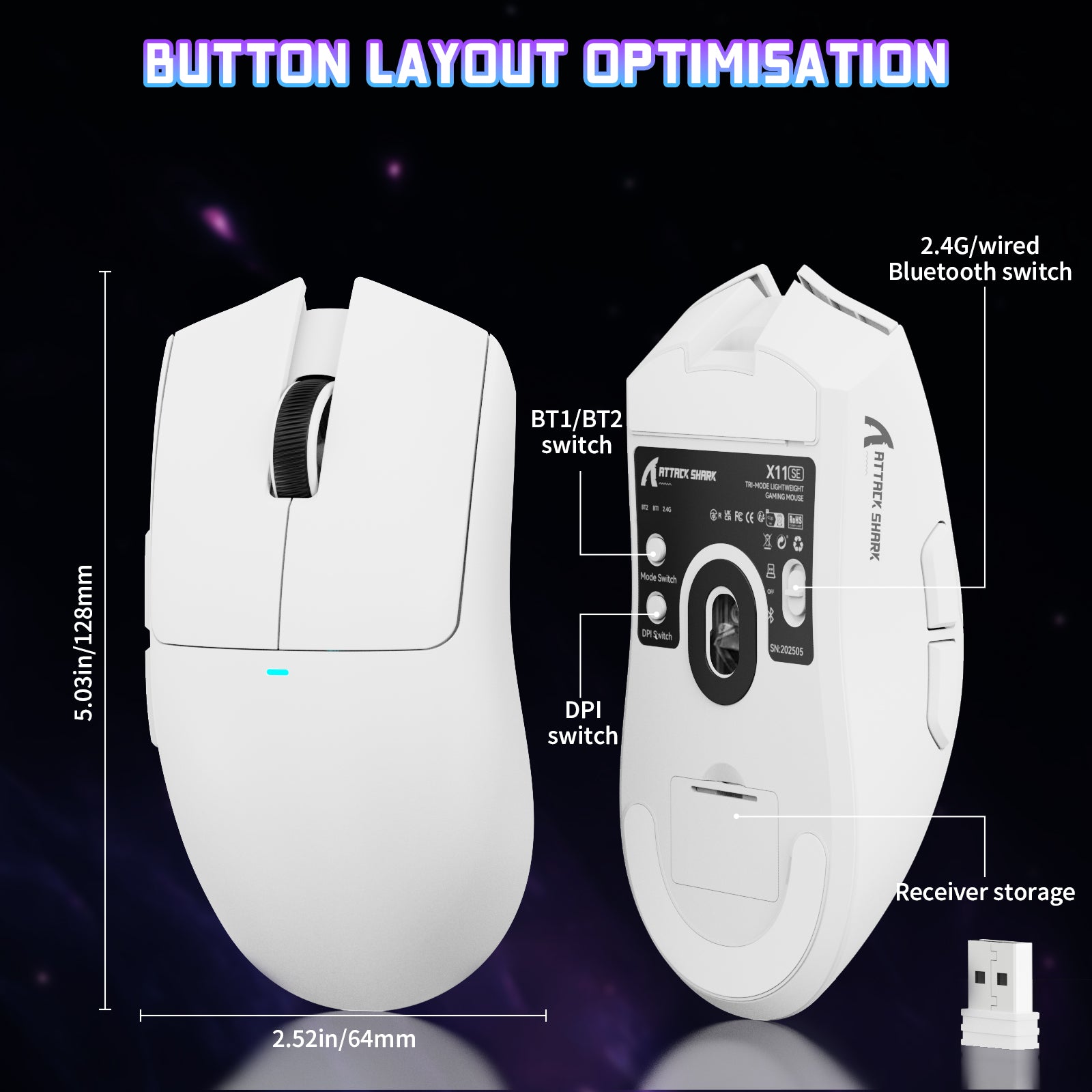
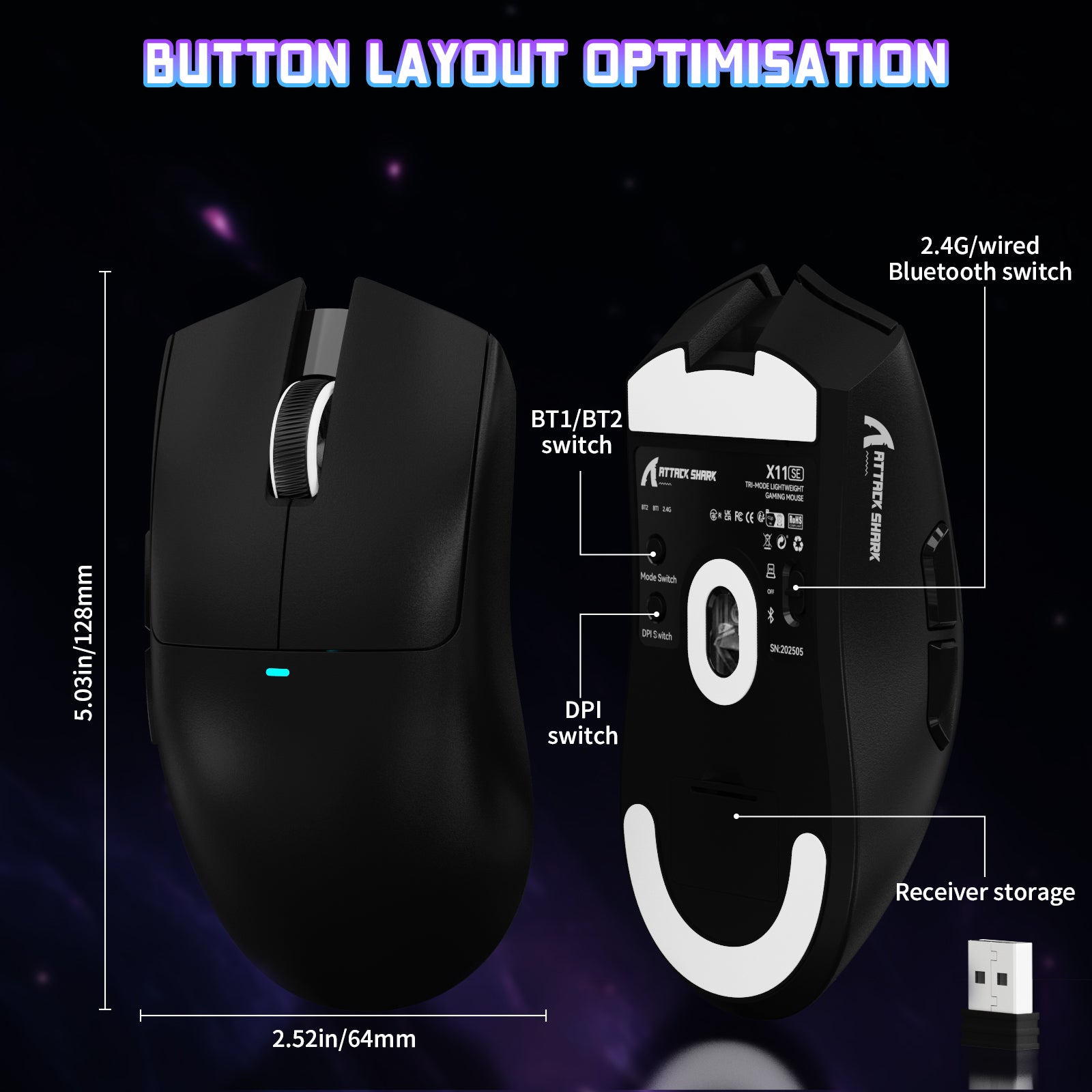
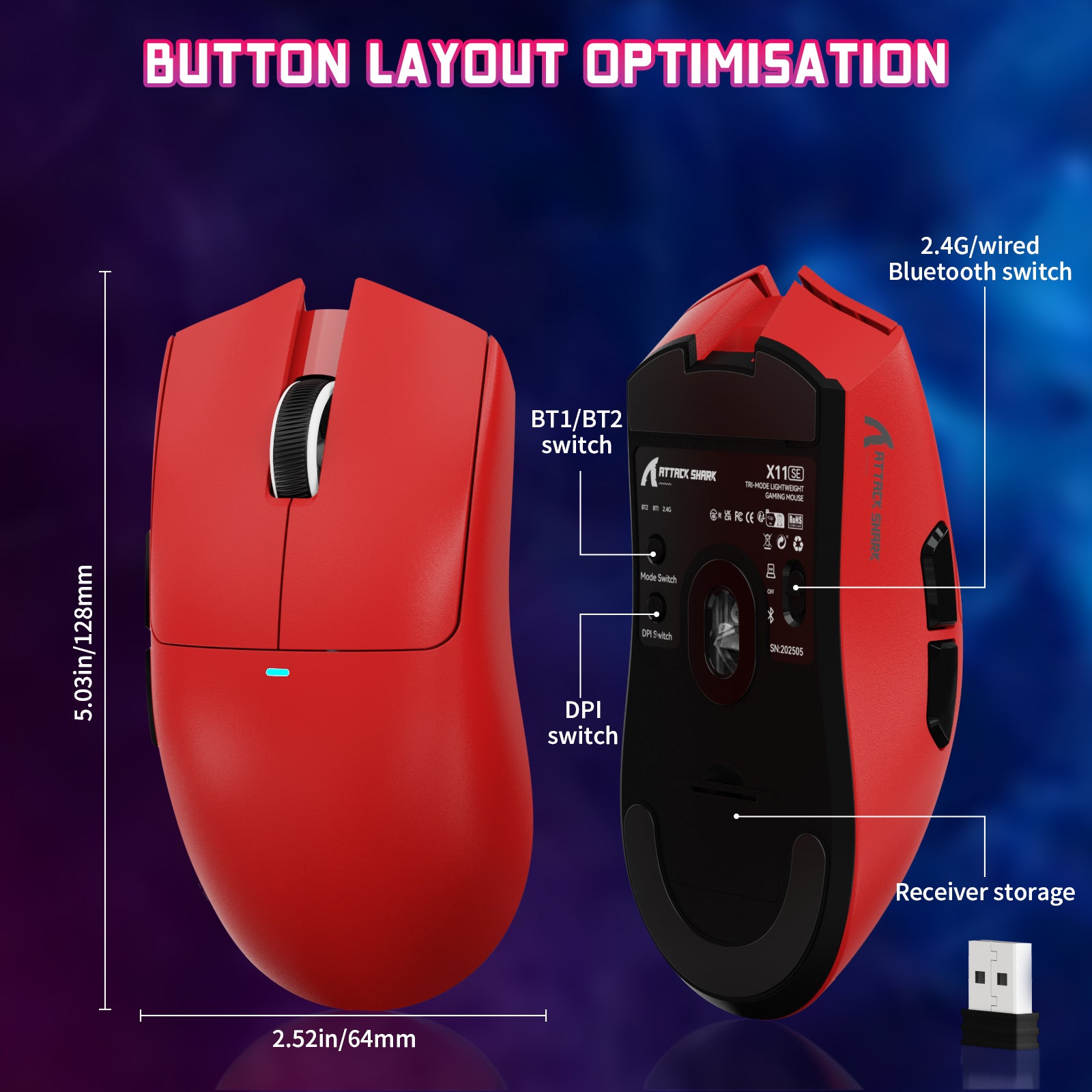
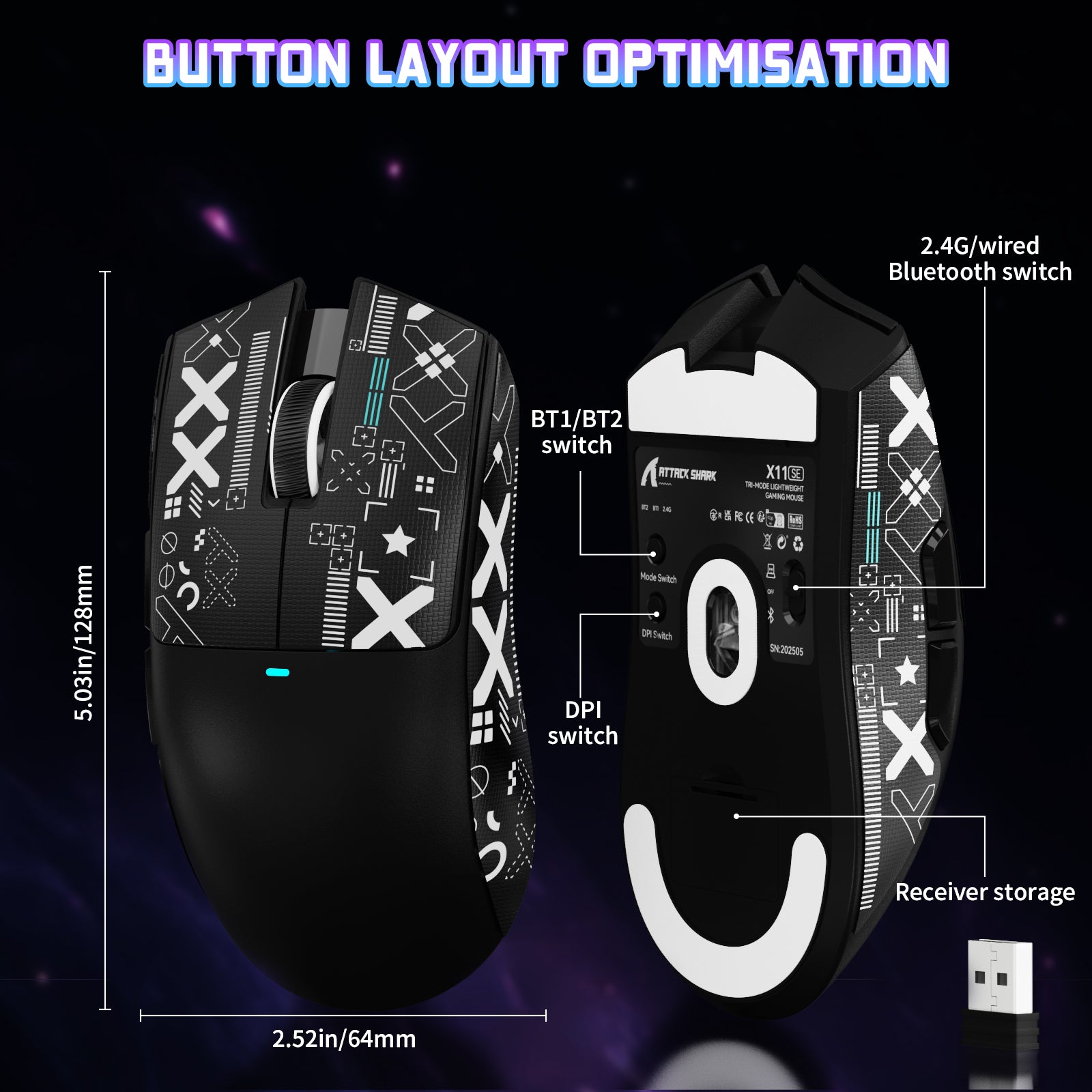
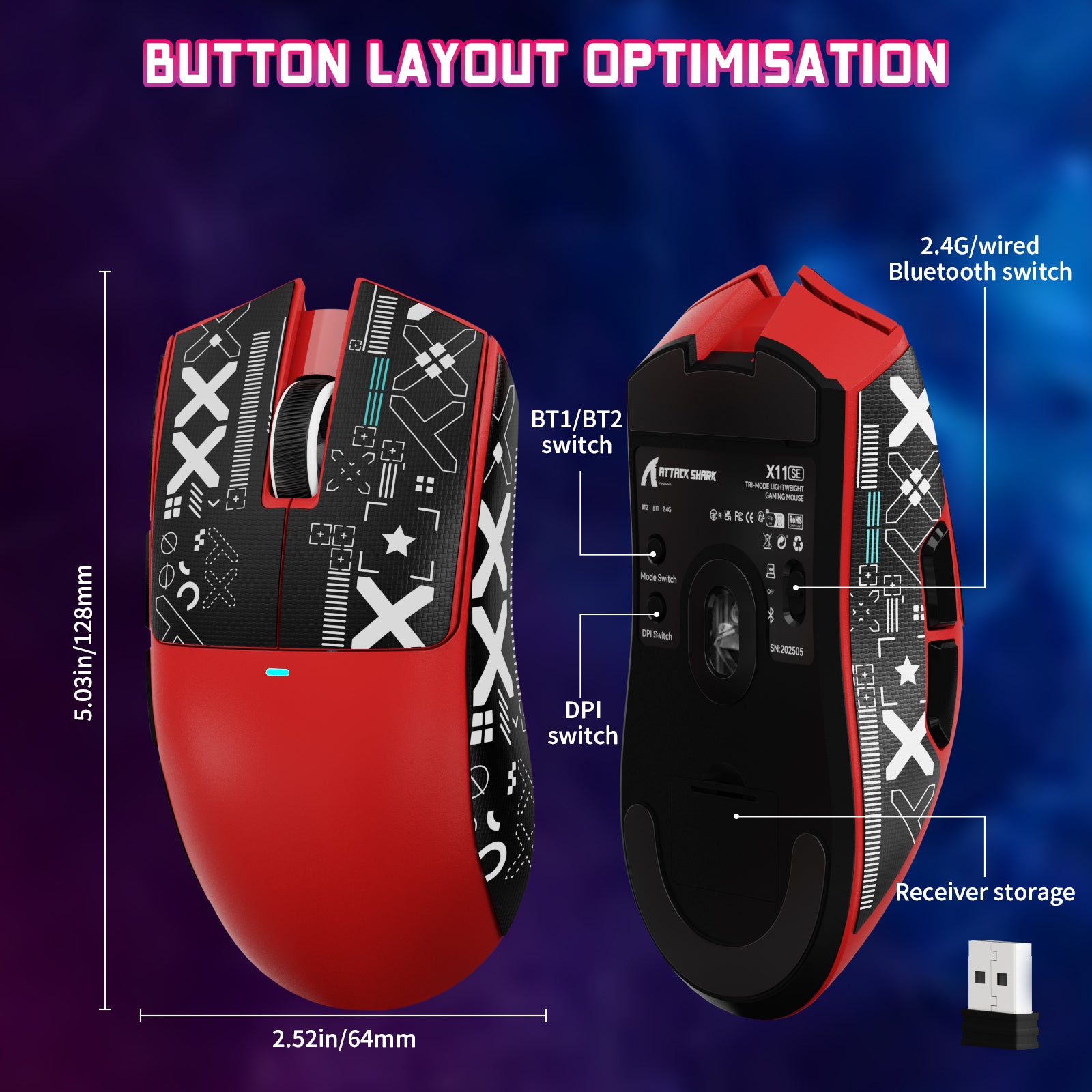
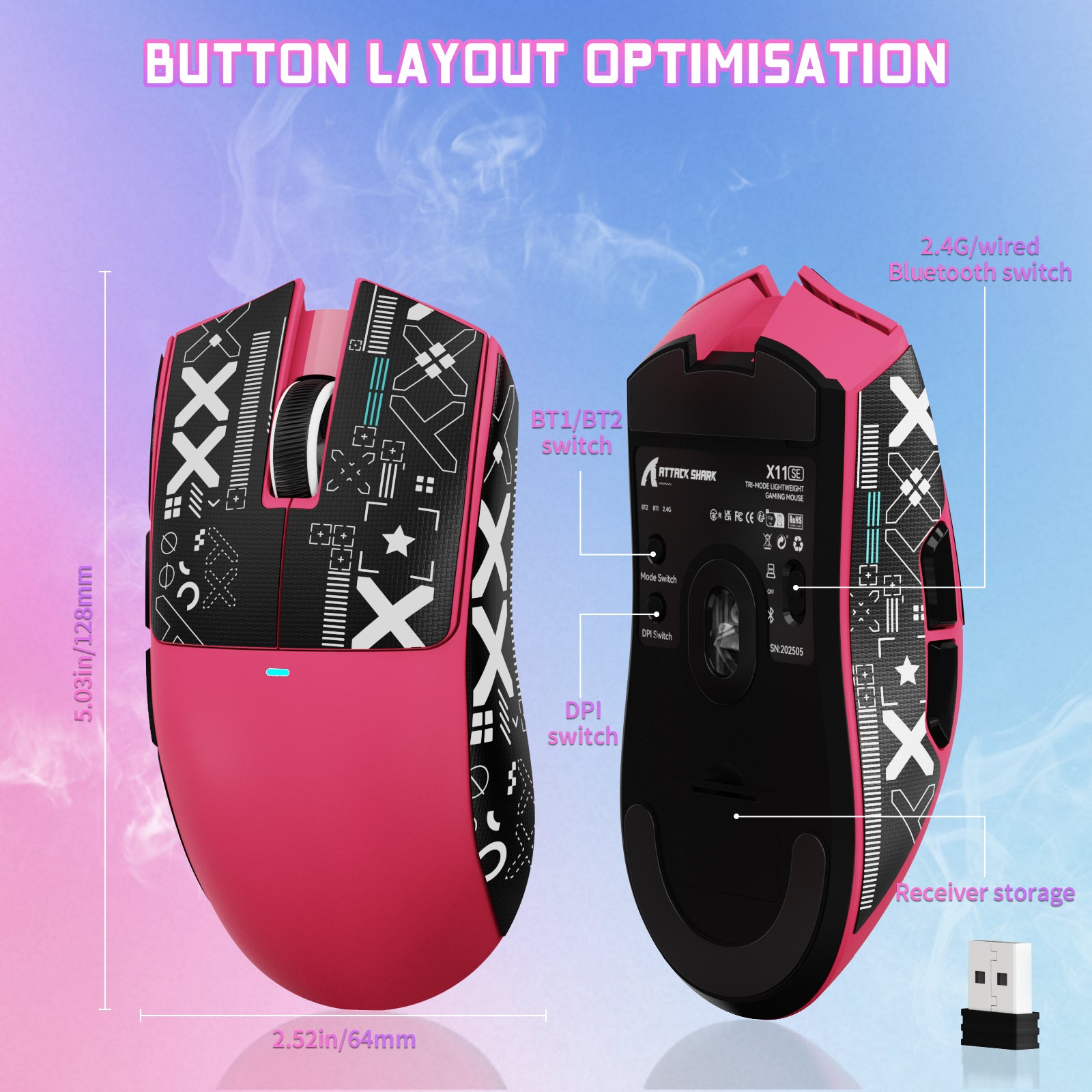
| 寸法 | 128 x 64 x 40 mm | |
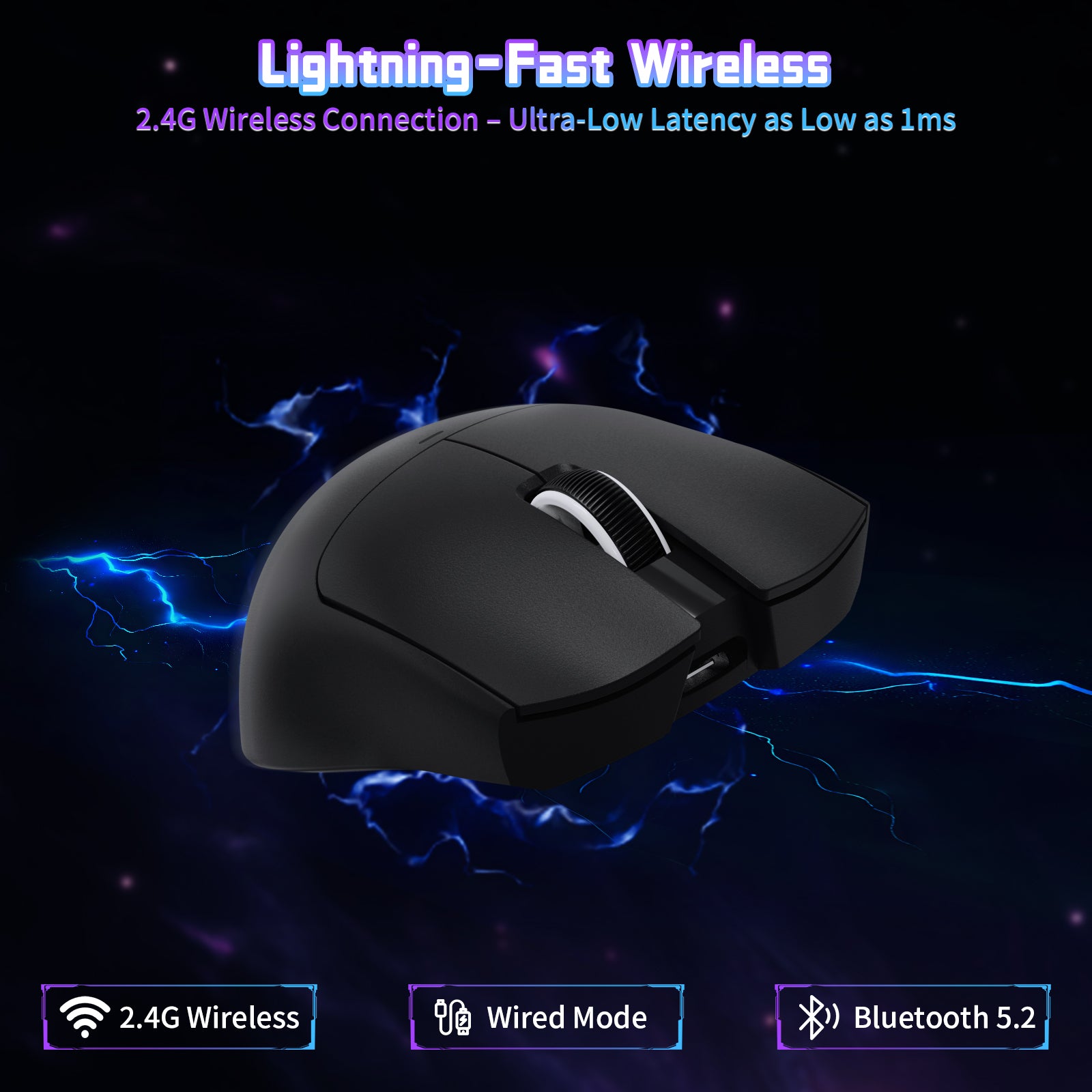
BK52820 3モード
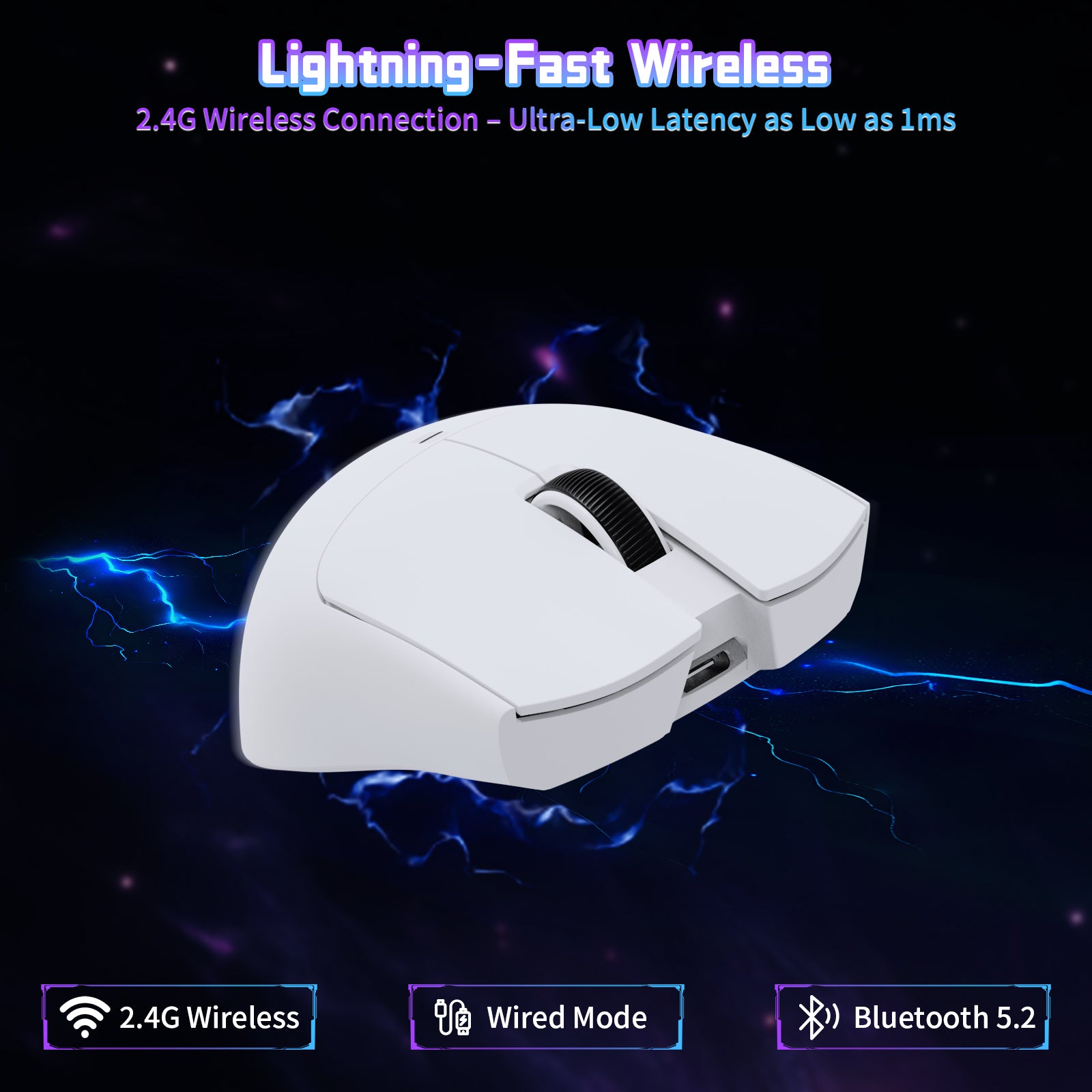
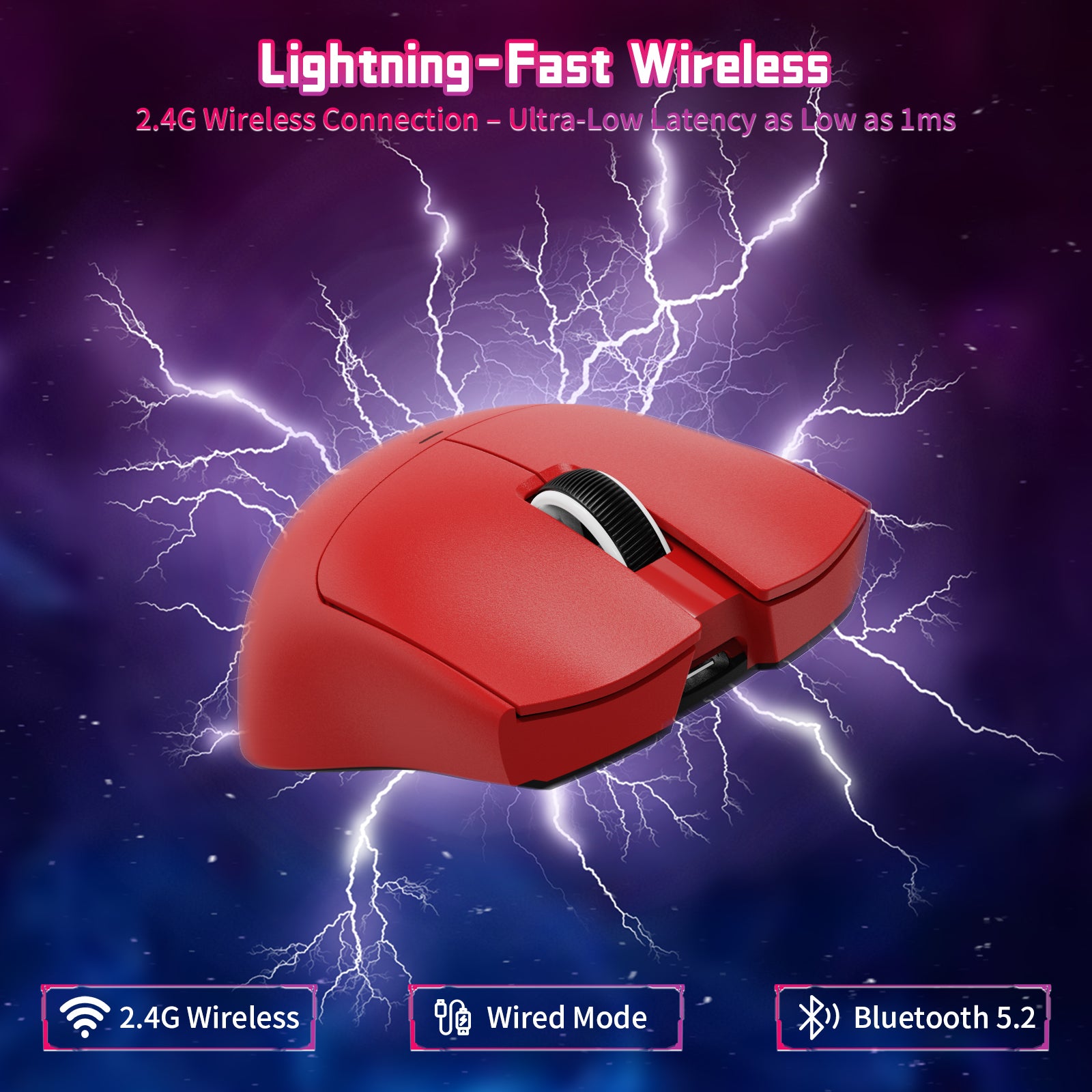
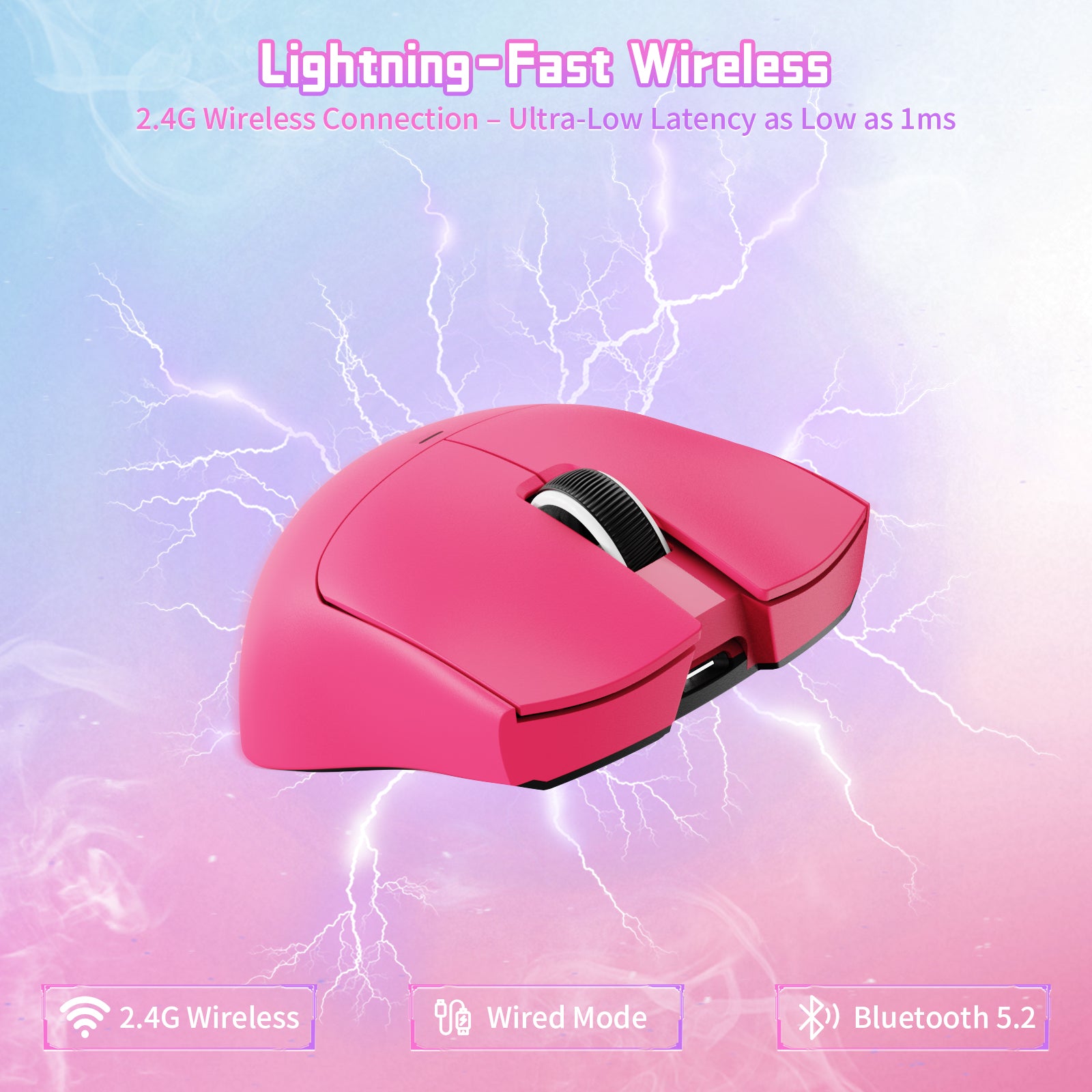
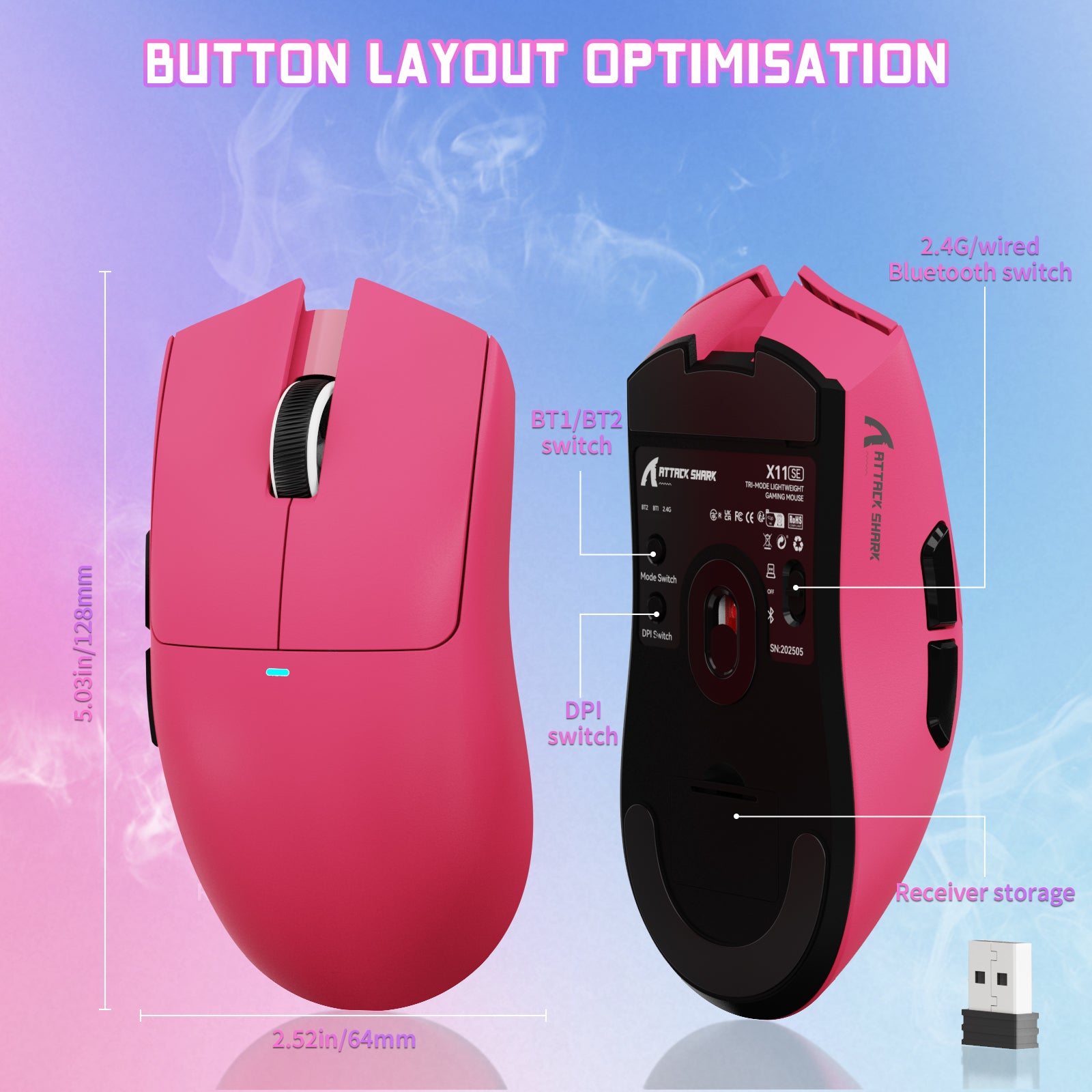
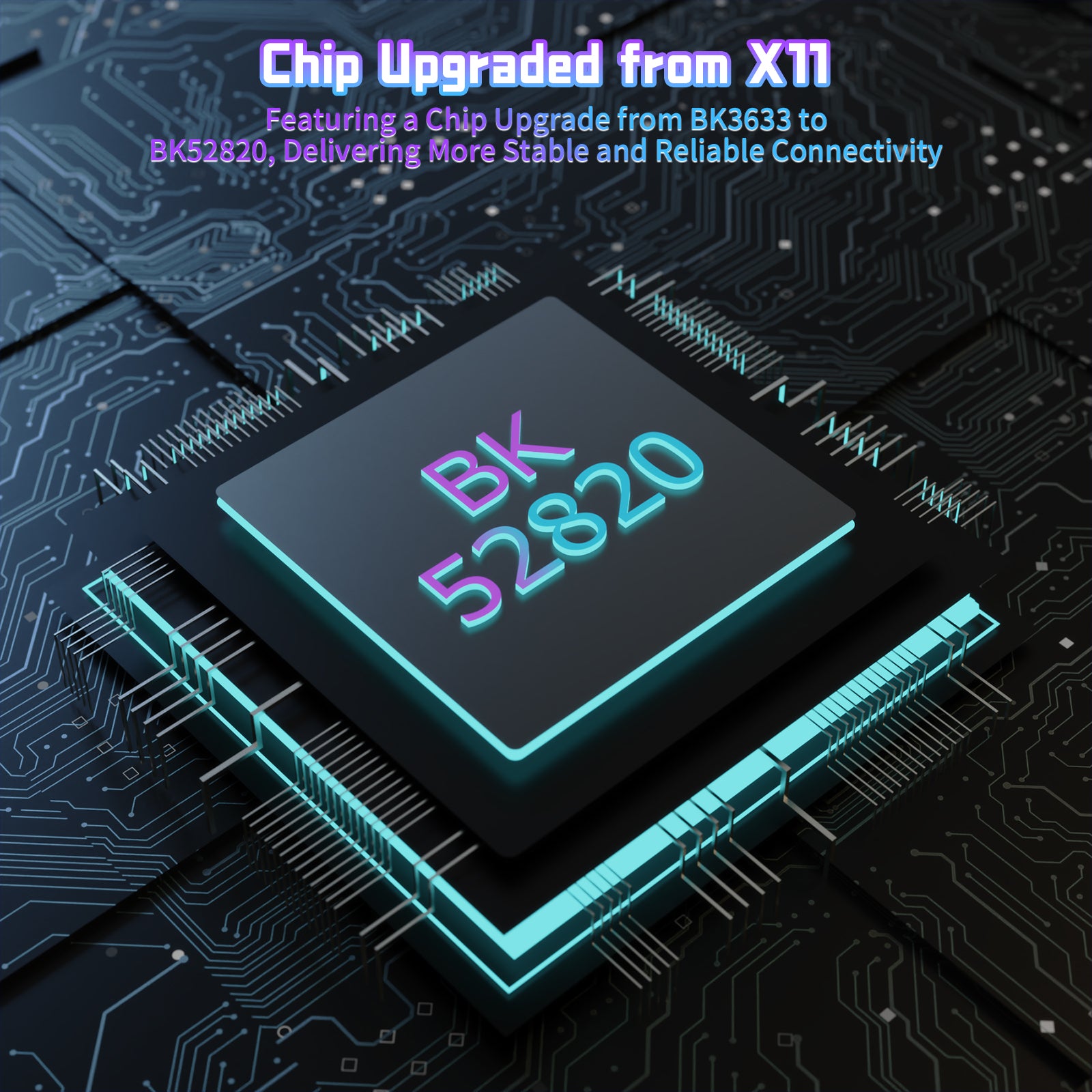
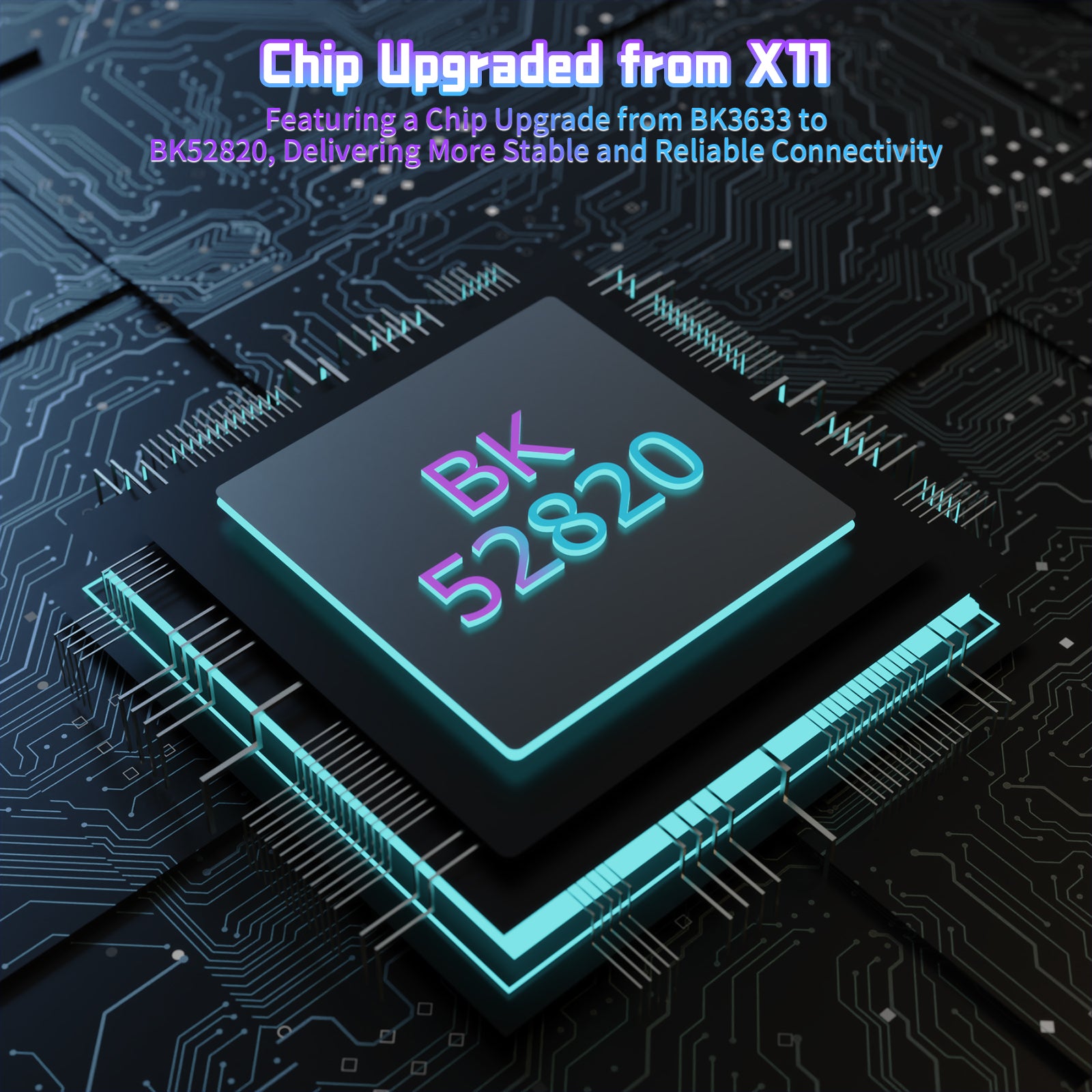
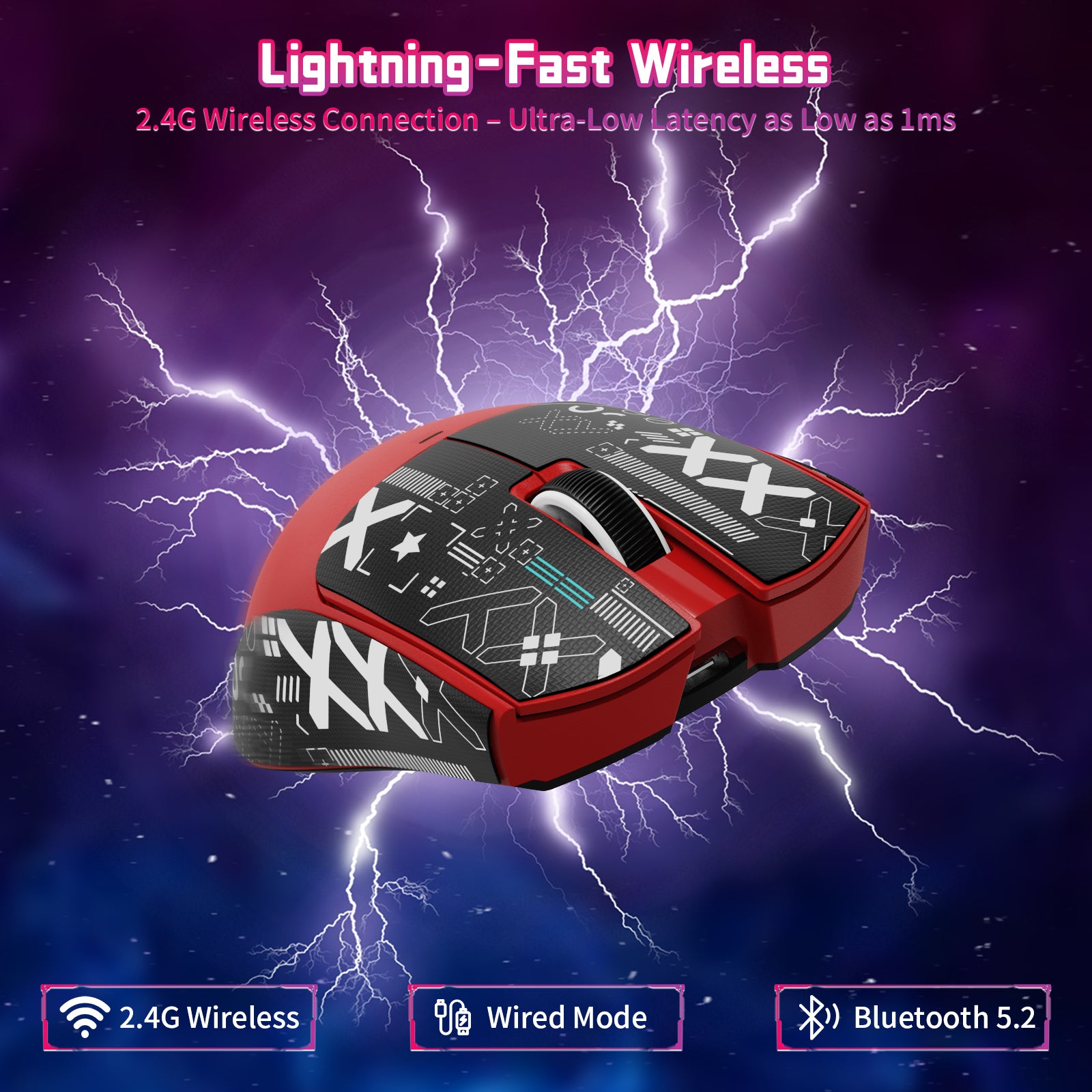
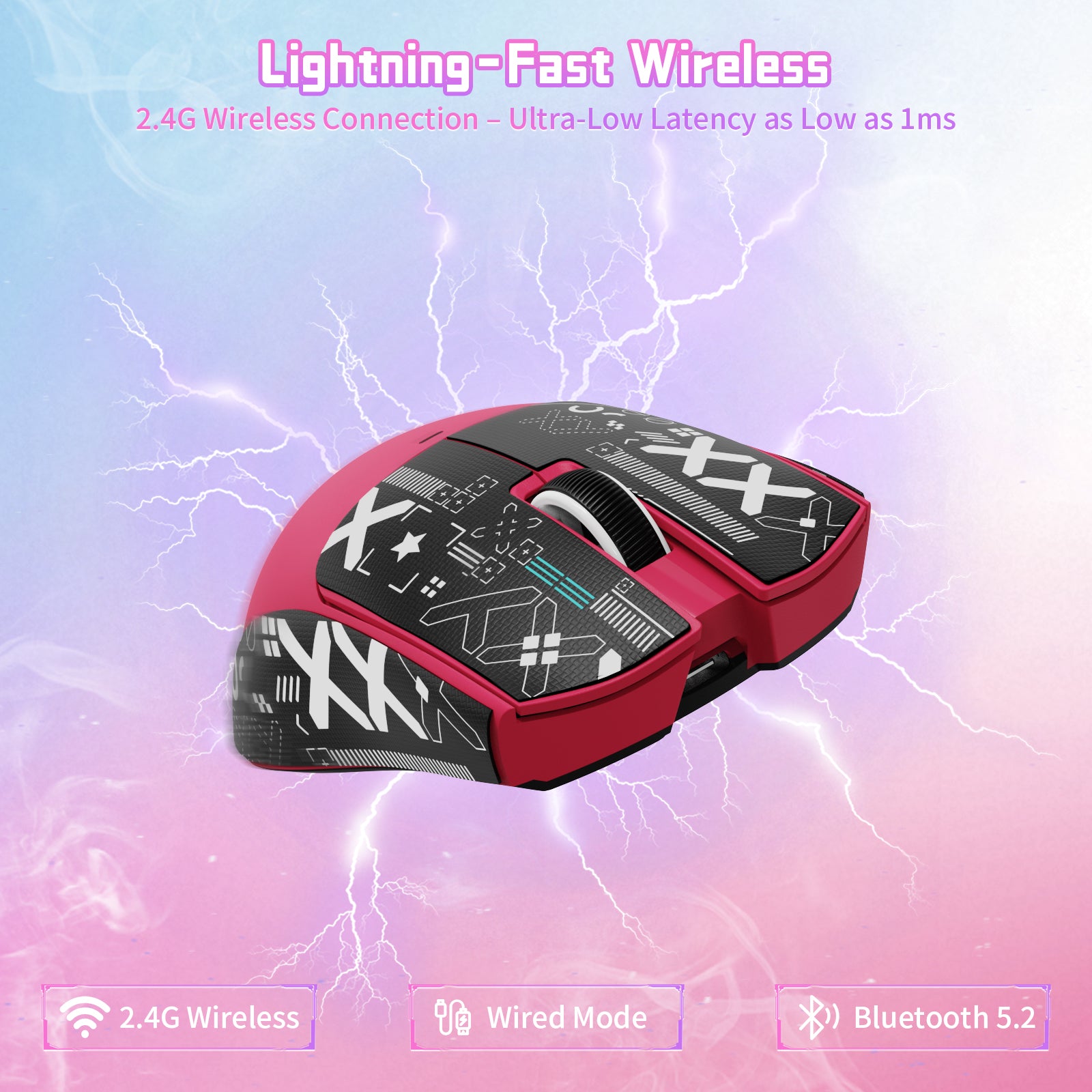
X11SEマウスはBK52820チップにアップグレードされ、さまざまな使用ニーズに対応します。有線USB-C、2.4GHzワイヤレス、Bluetoothの3つの接続モードを搭載しています。マウス背面のボタンでモードを簡単に切り替えられます。有線モードと2.4GHzモードでは最短1msの超低遅延を実現し、シームレスで応答性に優れた操作感を提供します。自宅でもオフィスでも、パソコン、ノートパソコン、タブレットPCに簡単に接続でき、効率的で便利なオフィス・ゲーミング体験を楽しめます。

パフォーマンス PAW3311センサー
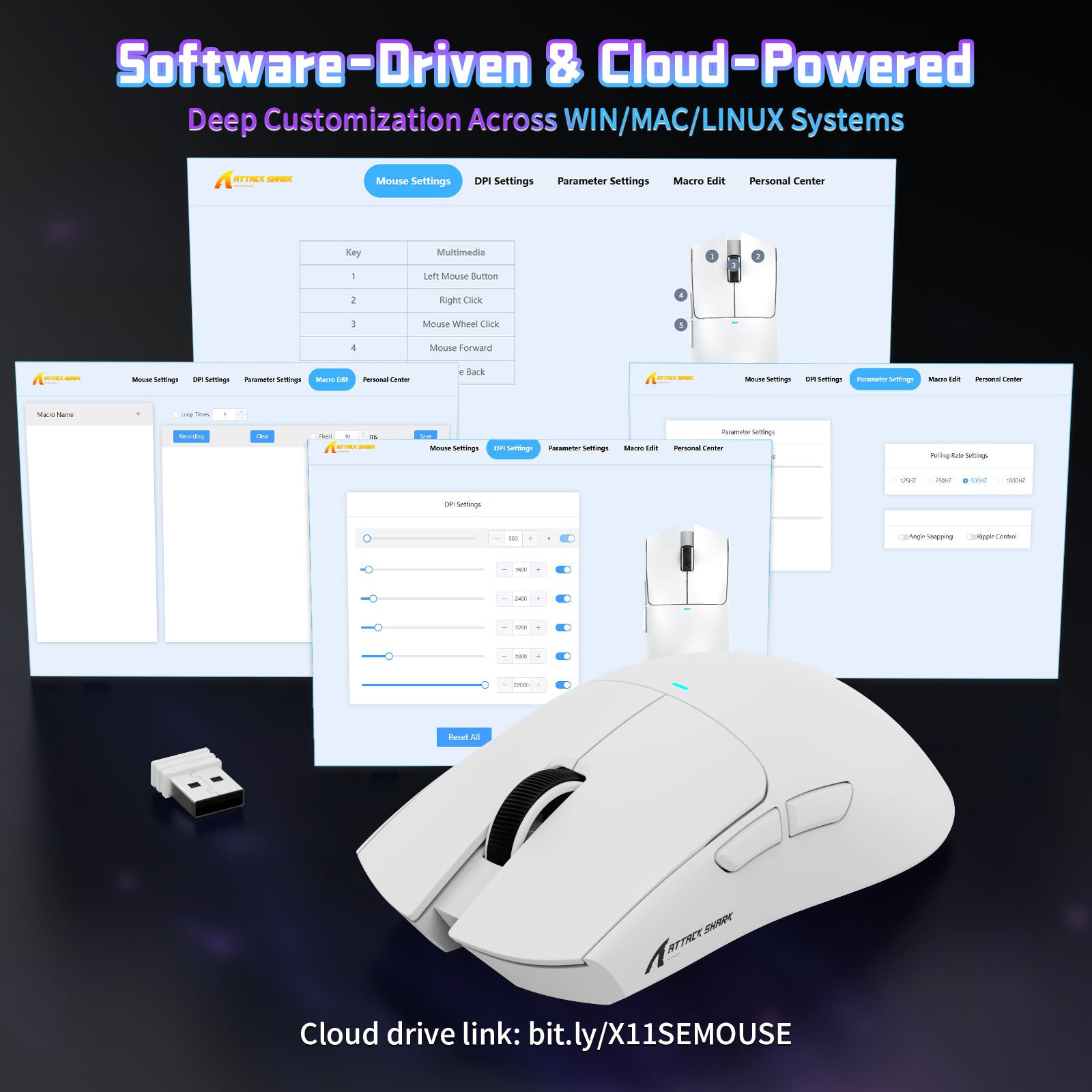
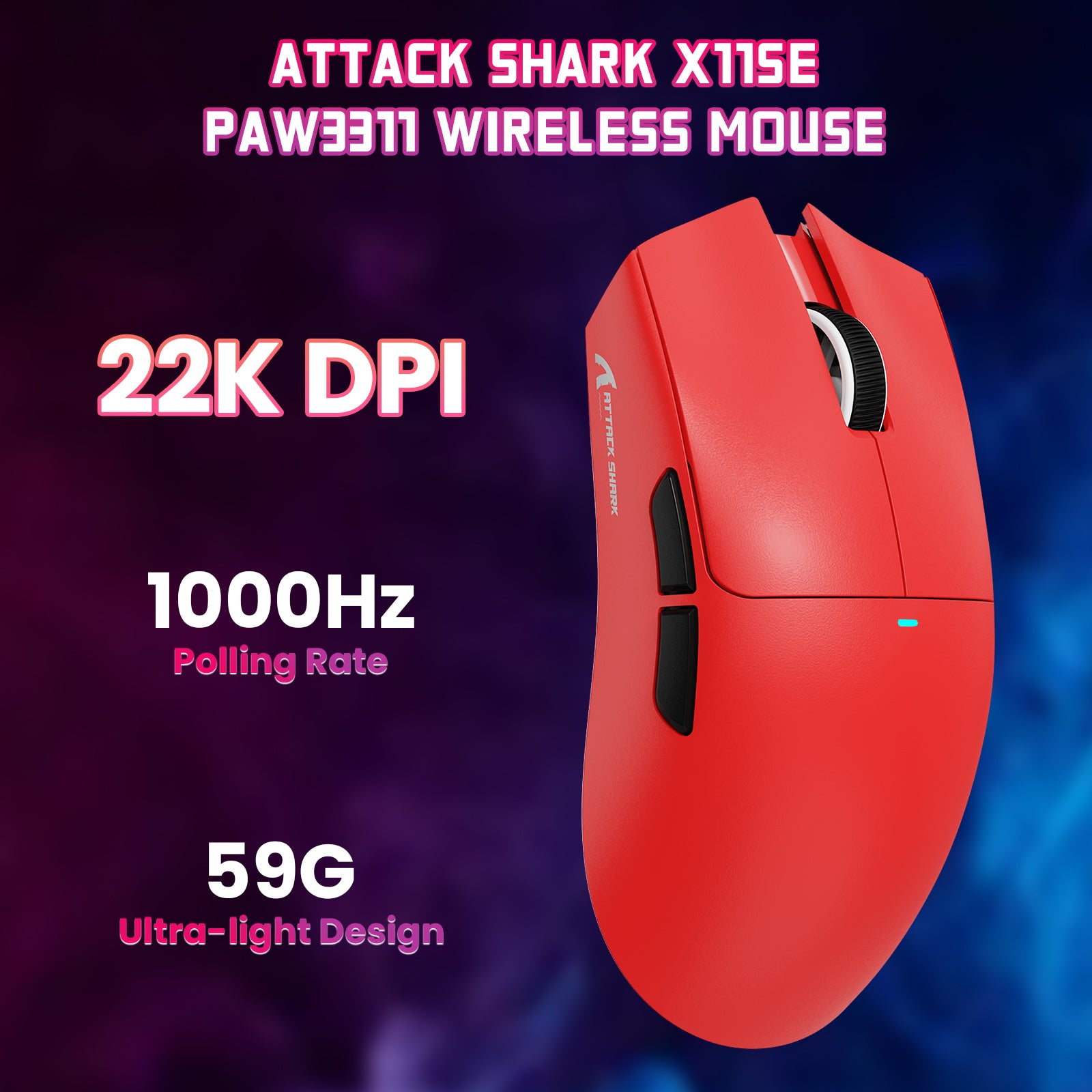
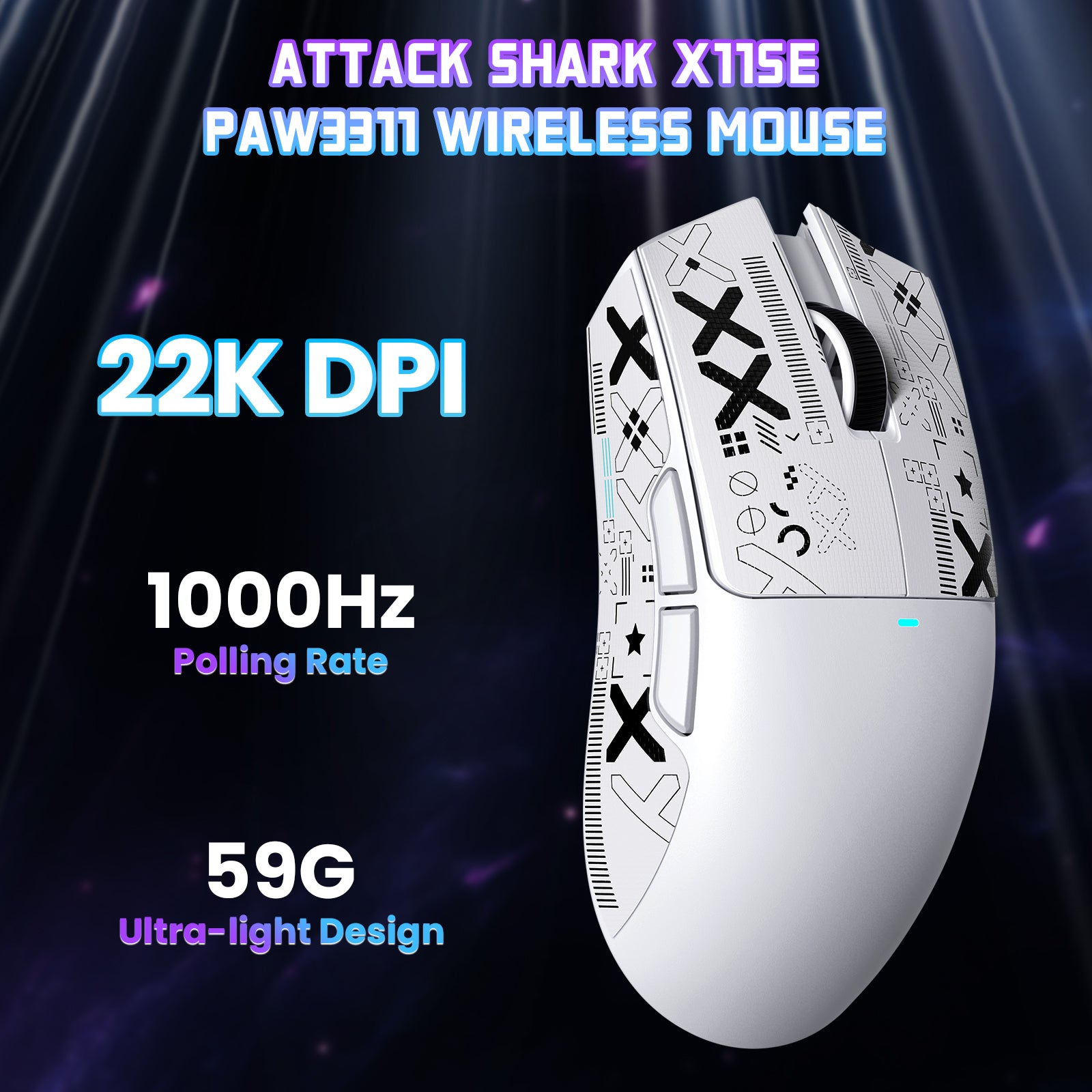
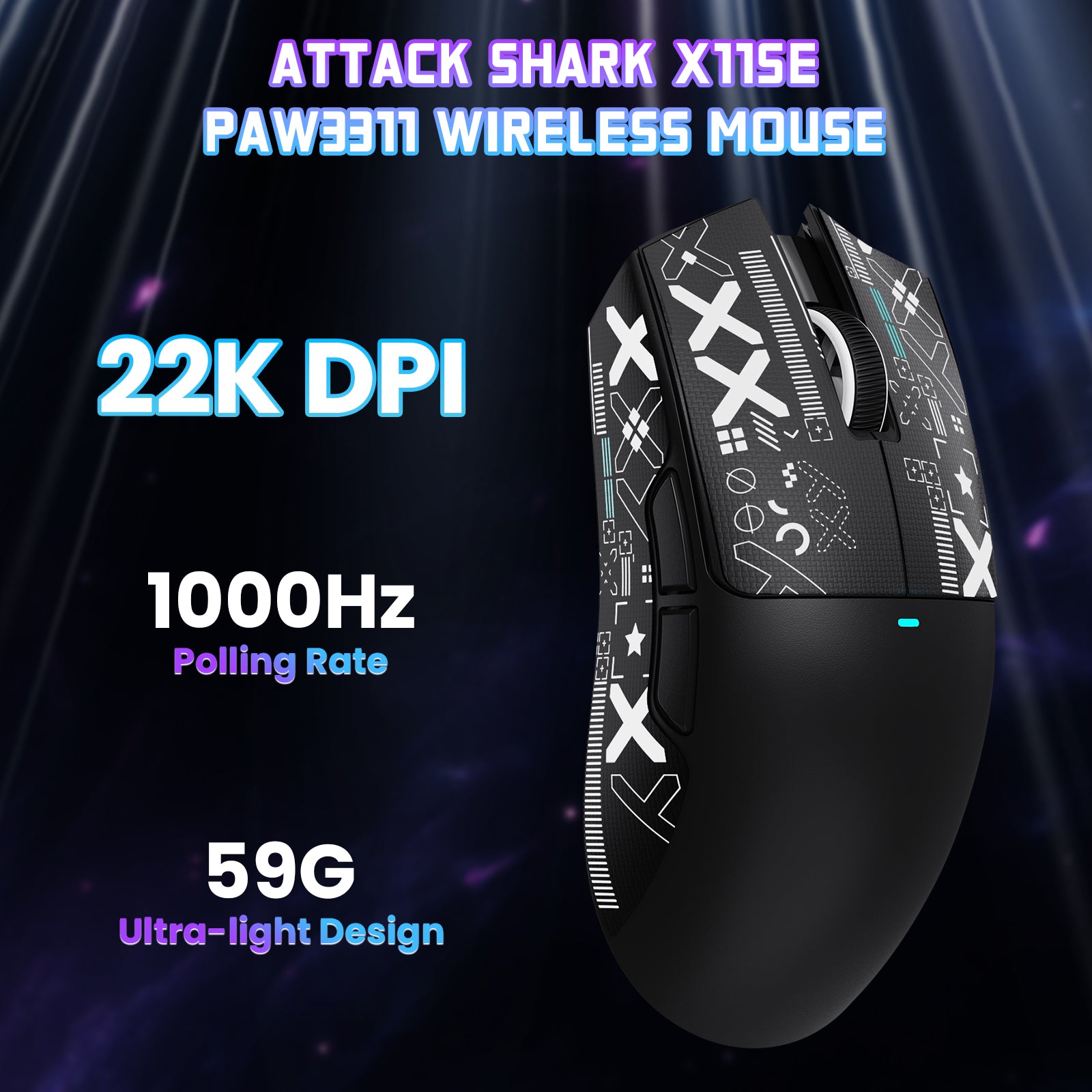
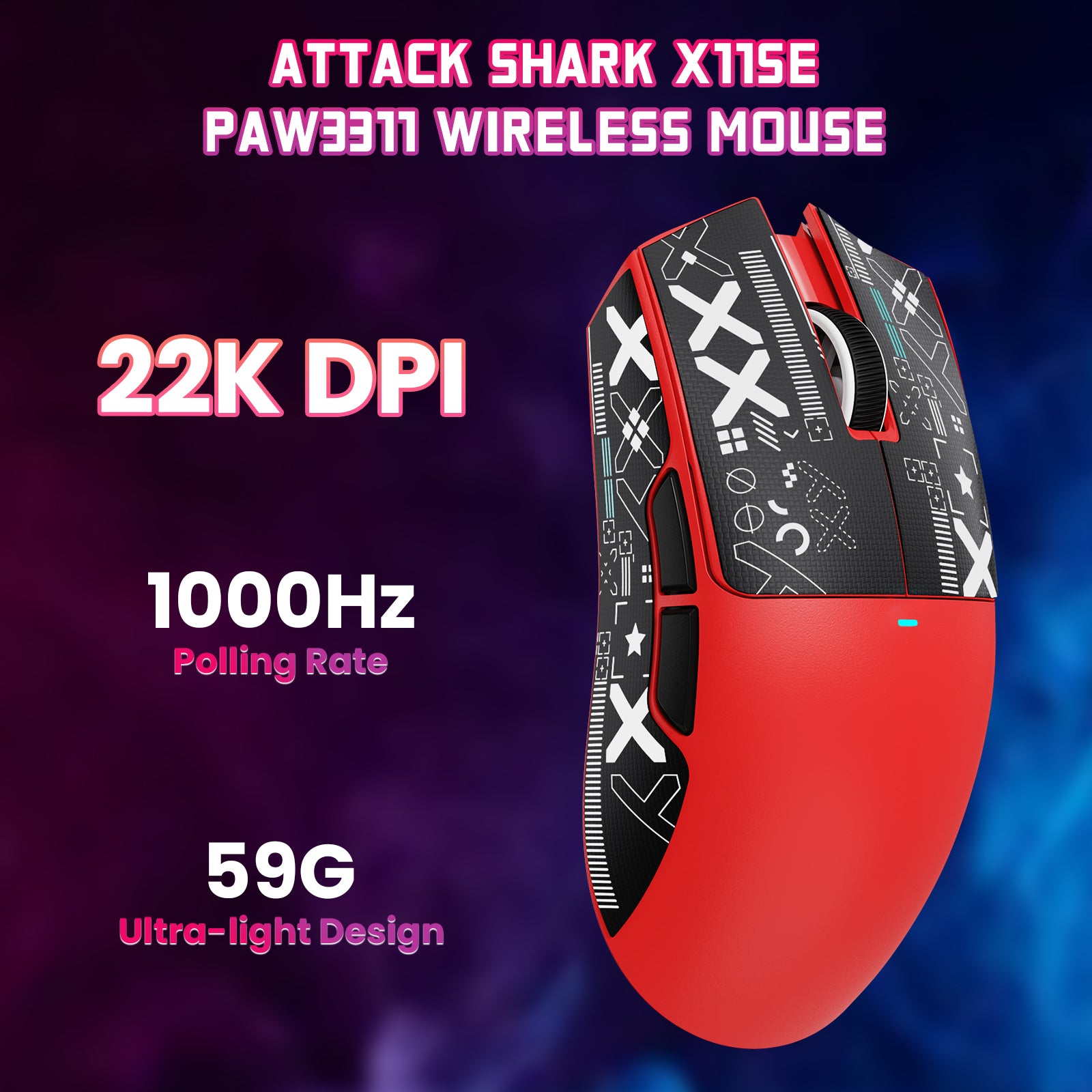
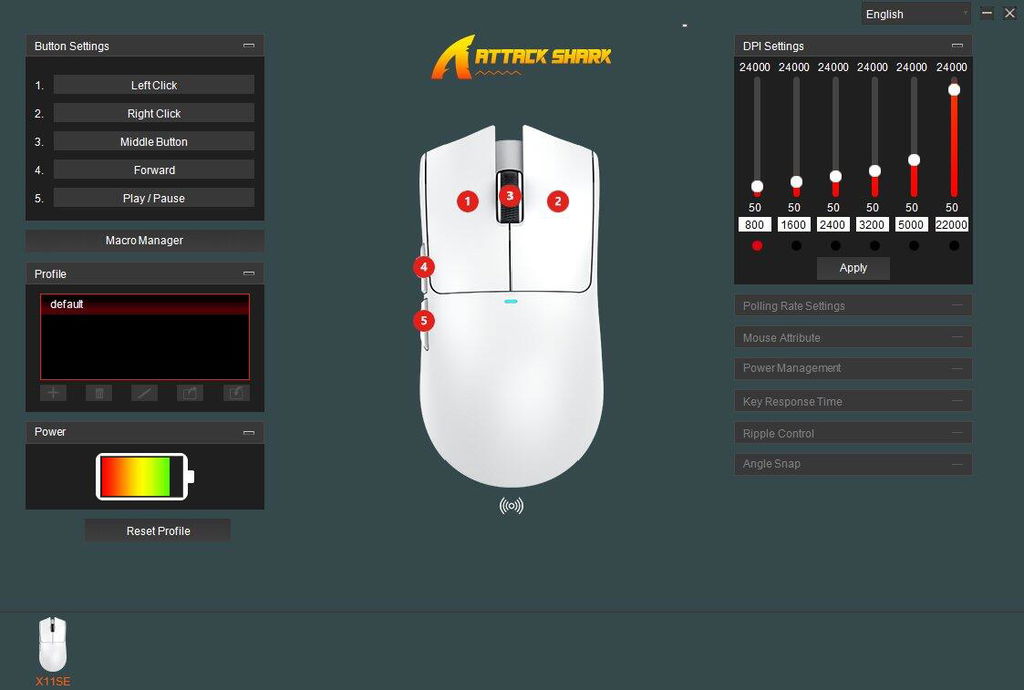
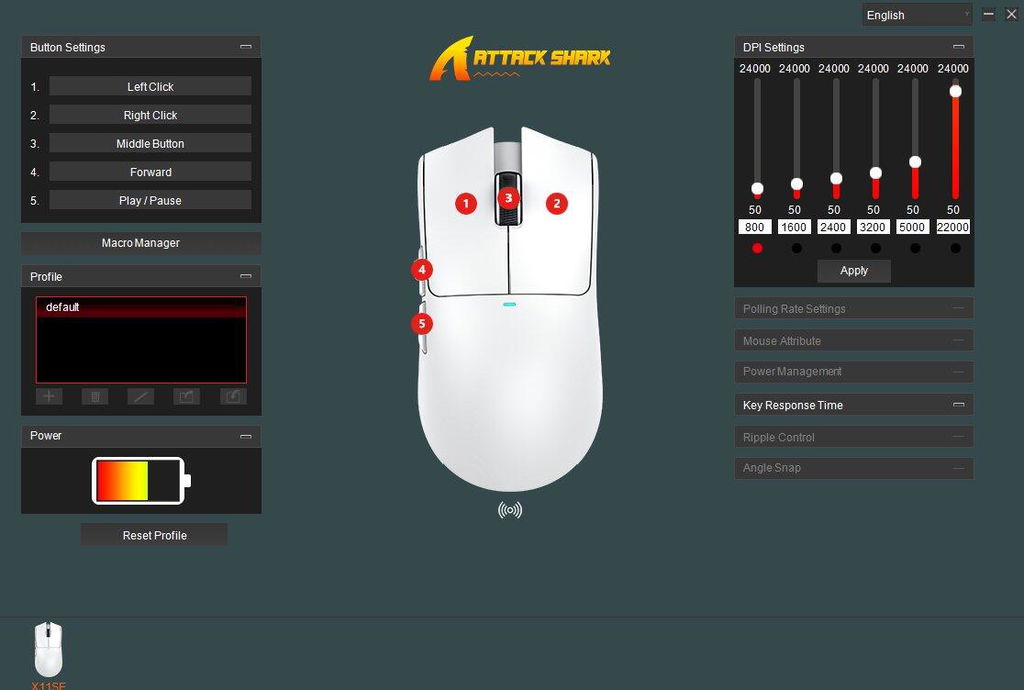
ATTACK SHARK X11SEワイヤレスゲーミングマウスは、6段階の調整可能なDPI(800-1600-2400-3200-5000-22000)に対応したPAW3311光学センサーを搭載し、トラッキング速度は300 IPS、応答速度は1000Hzです。DPI値ごとにマウス内部のライトの色が変わります。頻繁にクリックするオフィスワーカーにも、精密な操作を求めるゲーマーにも対応し、優れたユーザー体験を提供します。

59g超軽量 & 人間工学に基づくデザイン
ATTACK SHARK X11SEの重量はわずか59gです。この超軽量設計により持ち運びが容易で、ゲーミング環境をどこへでも持ち運べます。人間工学に基づいた曲線は快適性を追求して設計されており、手に自然になじんで長時間のゲームセッションでも手の疲労を軽減します。不快感に別れを告げ、より長くプレイを楽しみましょう。

HUYU Switch & 長寿命クリック
このX11SEマウスはHUYU SwitchテクノロジーとTTC Encoderを採用しており、小型・軽量で高い信頼性と敏感な操作性を特徴としています。クリック耐久回数は2000万回で、すべてのマウスクリックを正確に認識し、ゲーミングにもオフィスワークにも適した耐久性と信頼性の高いツールです。

5つのプログラム可能なボタン & 幅広い互換性
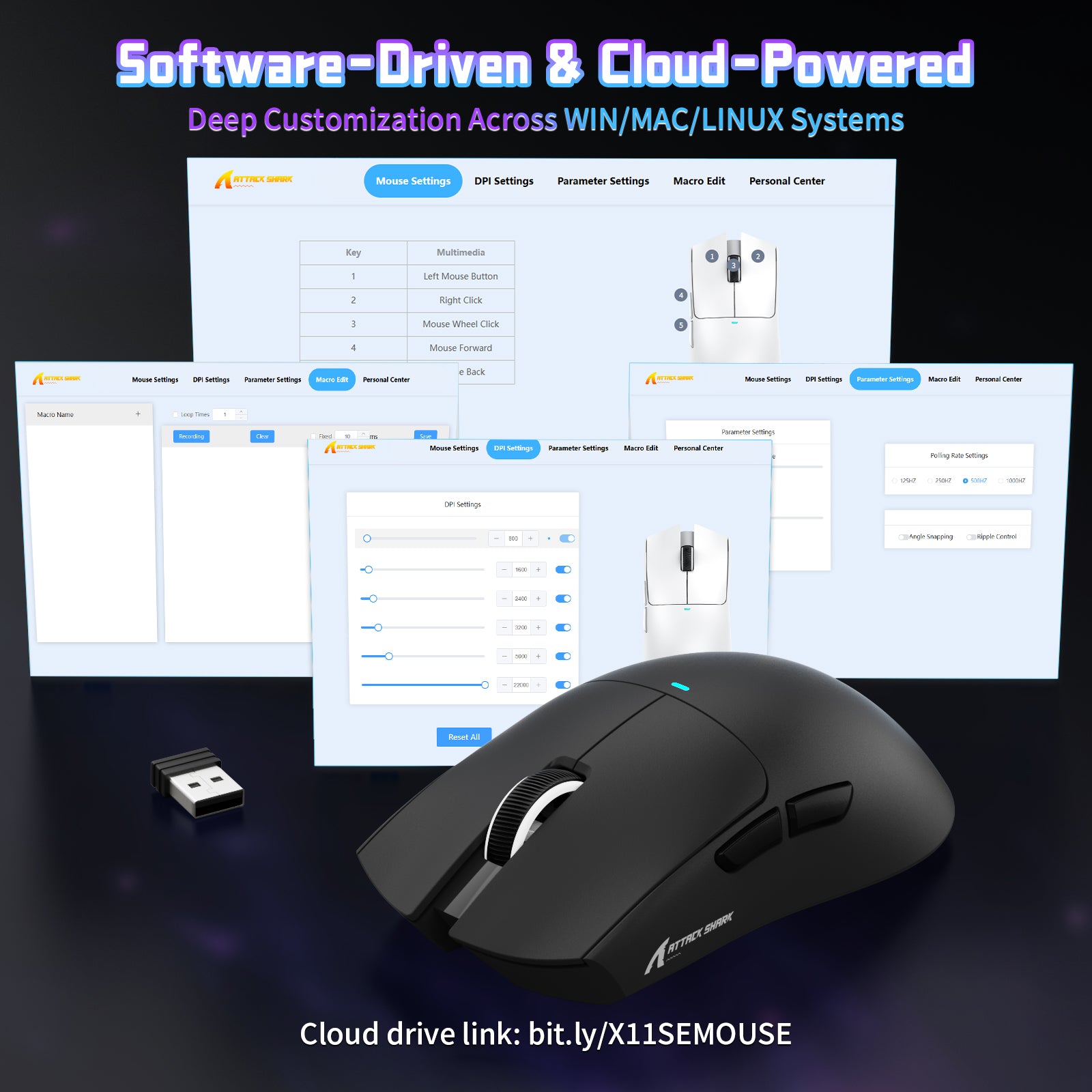
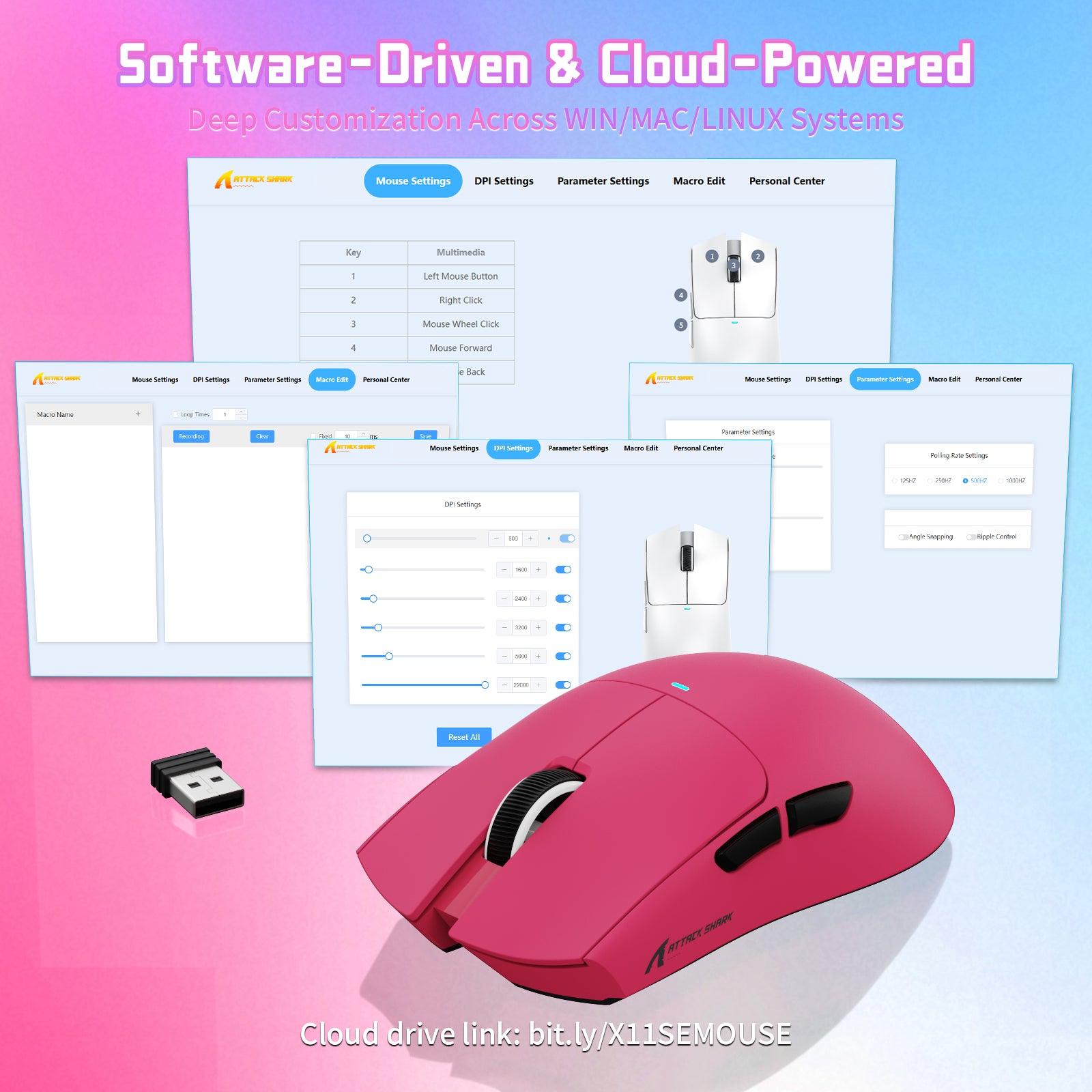
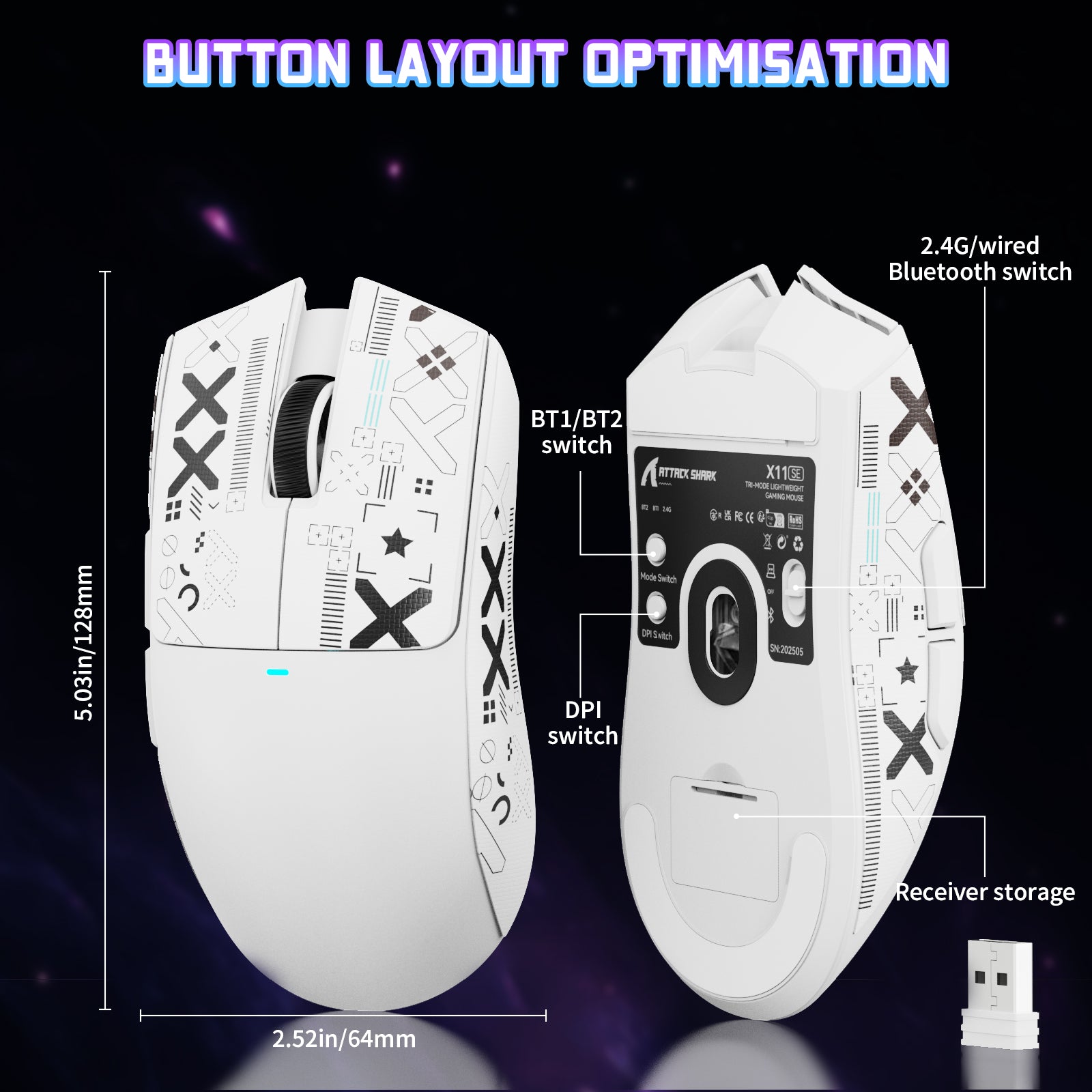
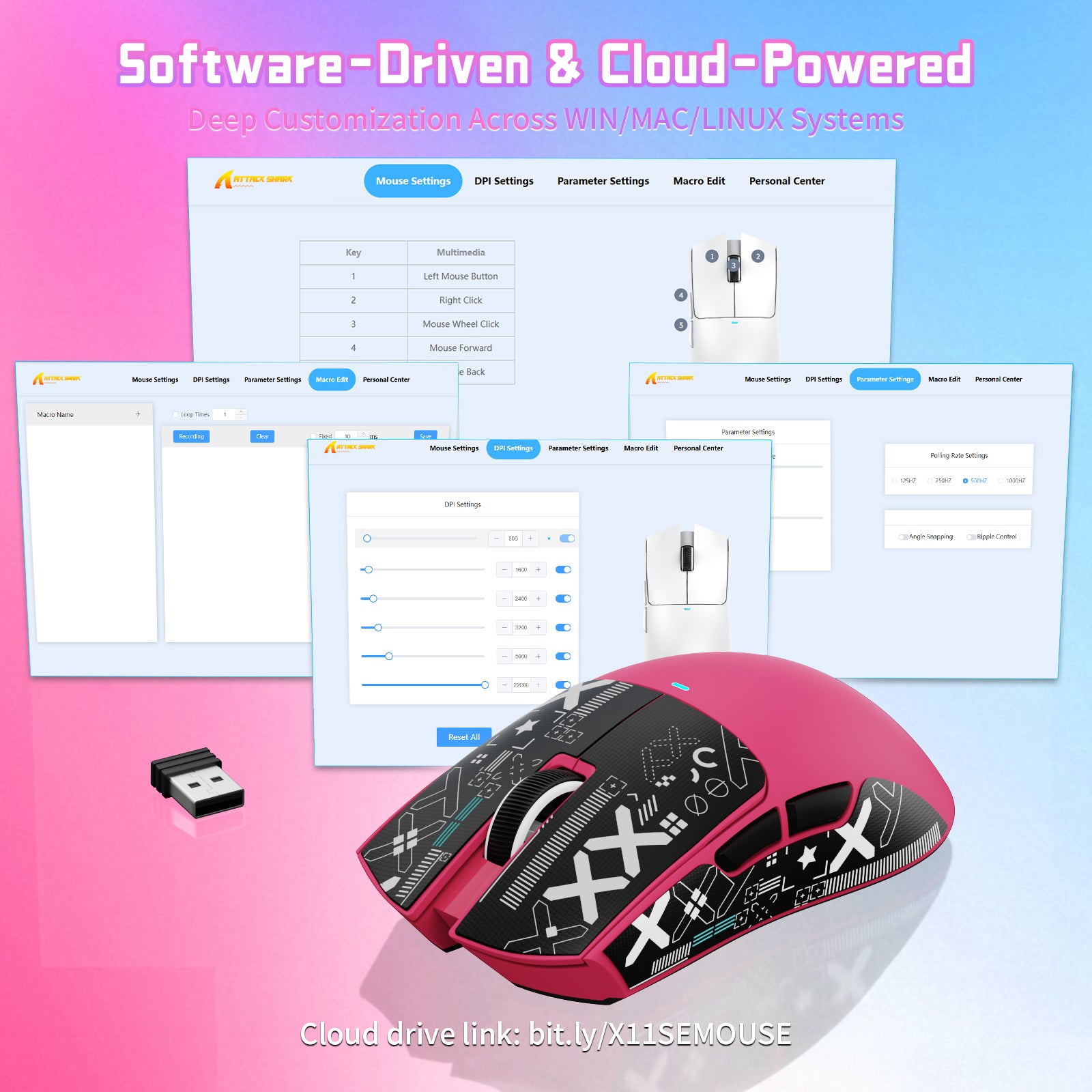
5つのプログラム可能なボタンで操作をカスタマイズできます。ドライバーを介して、マウスのDPI、ポーリングレート、ショートカット、マクロを設定できます。接続モード切替スイッチとワイヤレスレシーバーは底面に便利に配置されています。プラグアンドプレイ対応の有線モードとワイヤレスモードにより、接続を簡単に切り替えられます。ATTACK SHARK X11SEマウスは、Windows XP/VISTA/7/8/10/MACを含む複数のシステムに対応しています。

ドライバーソフトウェアとCloud Power
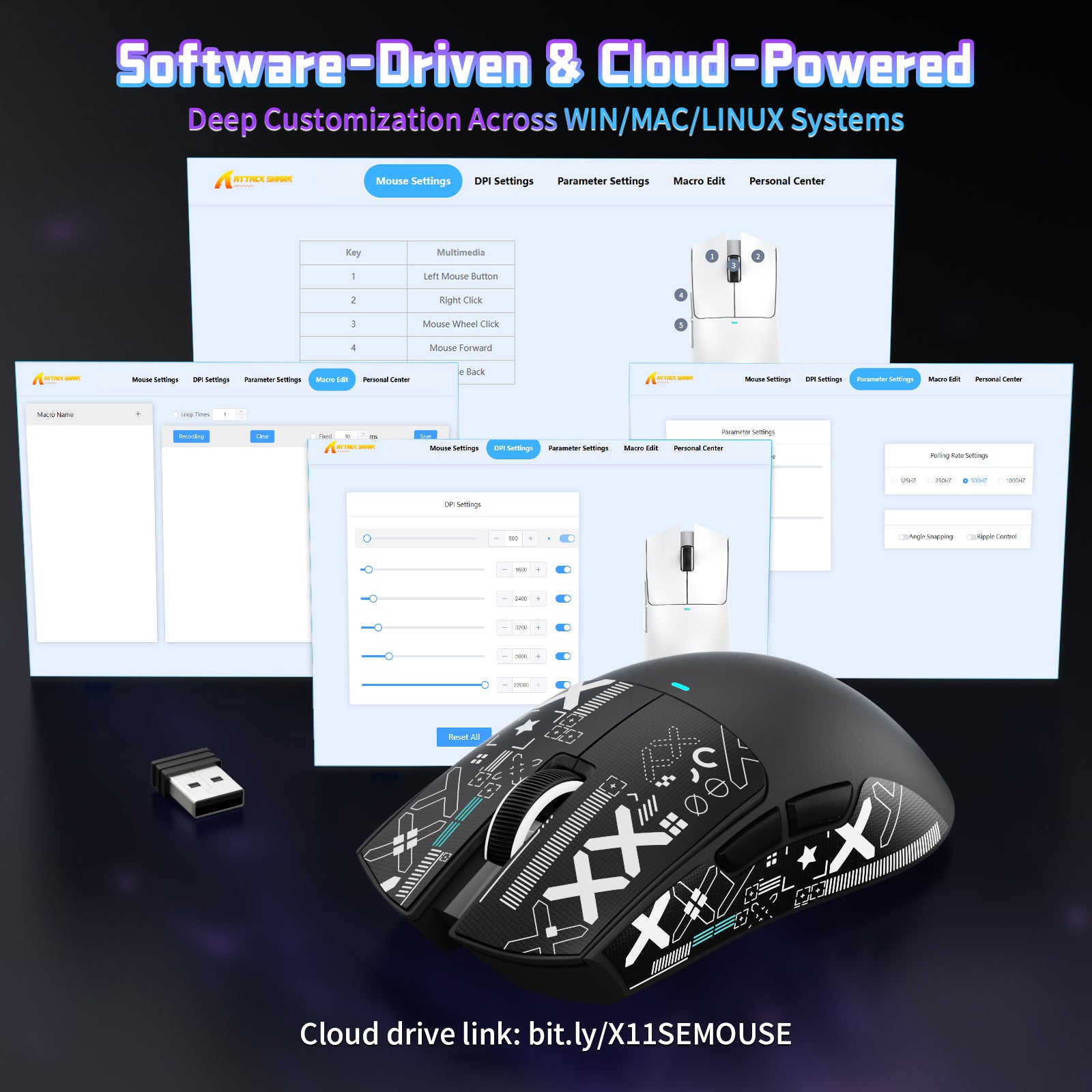
X11SEプロフェッショナルゲーミングマウスには専用ソフトウェアが付属しており、DPI、ポーリングレート、カスタムマクロキーを調整できます。ワンクリックでコンボスキルを実行し、瞬時にレベルアップできます。ウェブベースのソフトウェア版も利用でき、LinuxおよびmacOSシステムでカスタマイズできます。

バッテリー駆動時間65時間と専門サポート
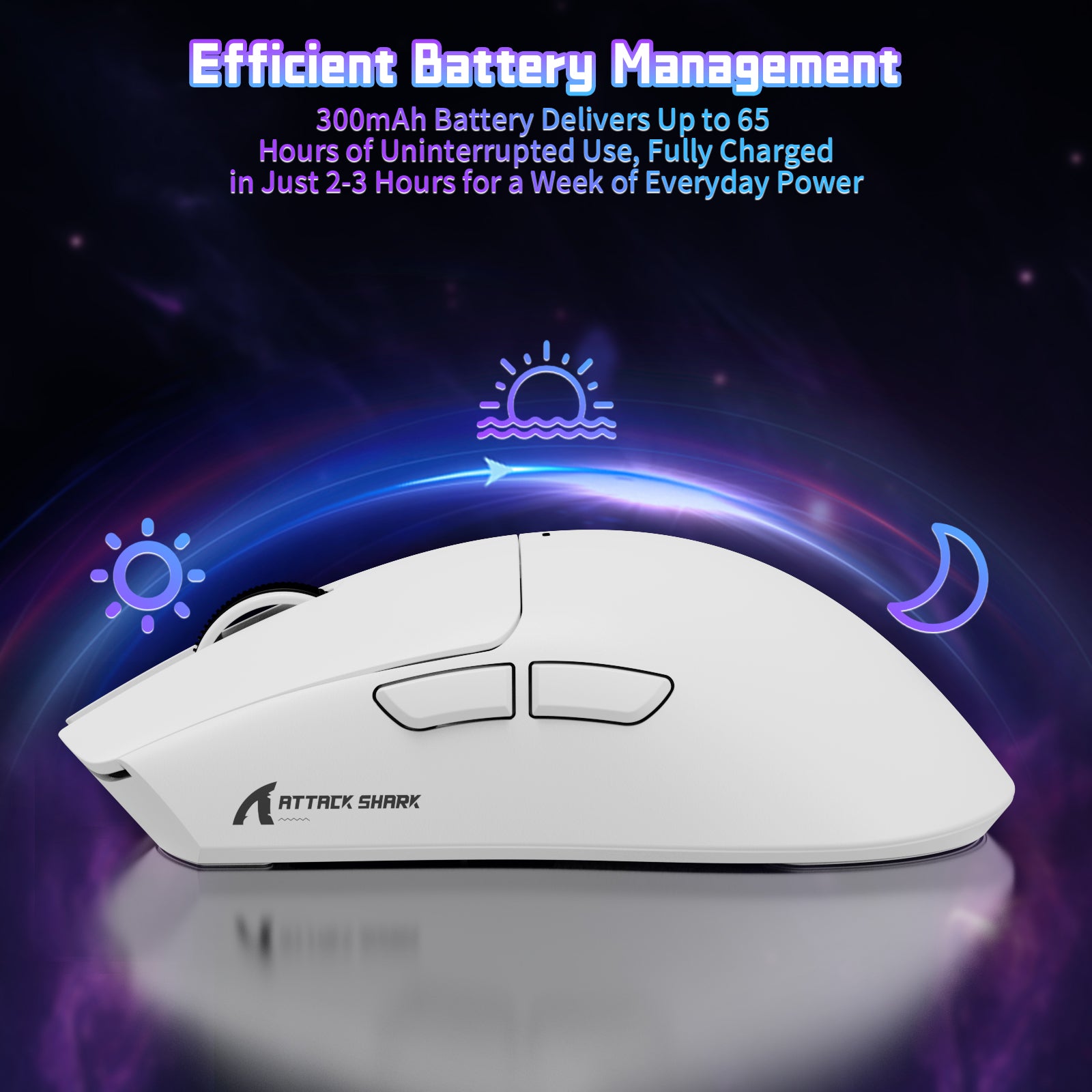
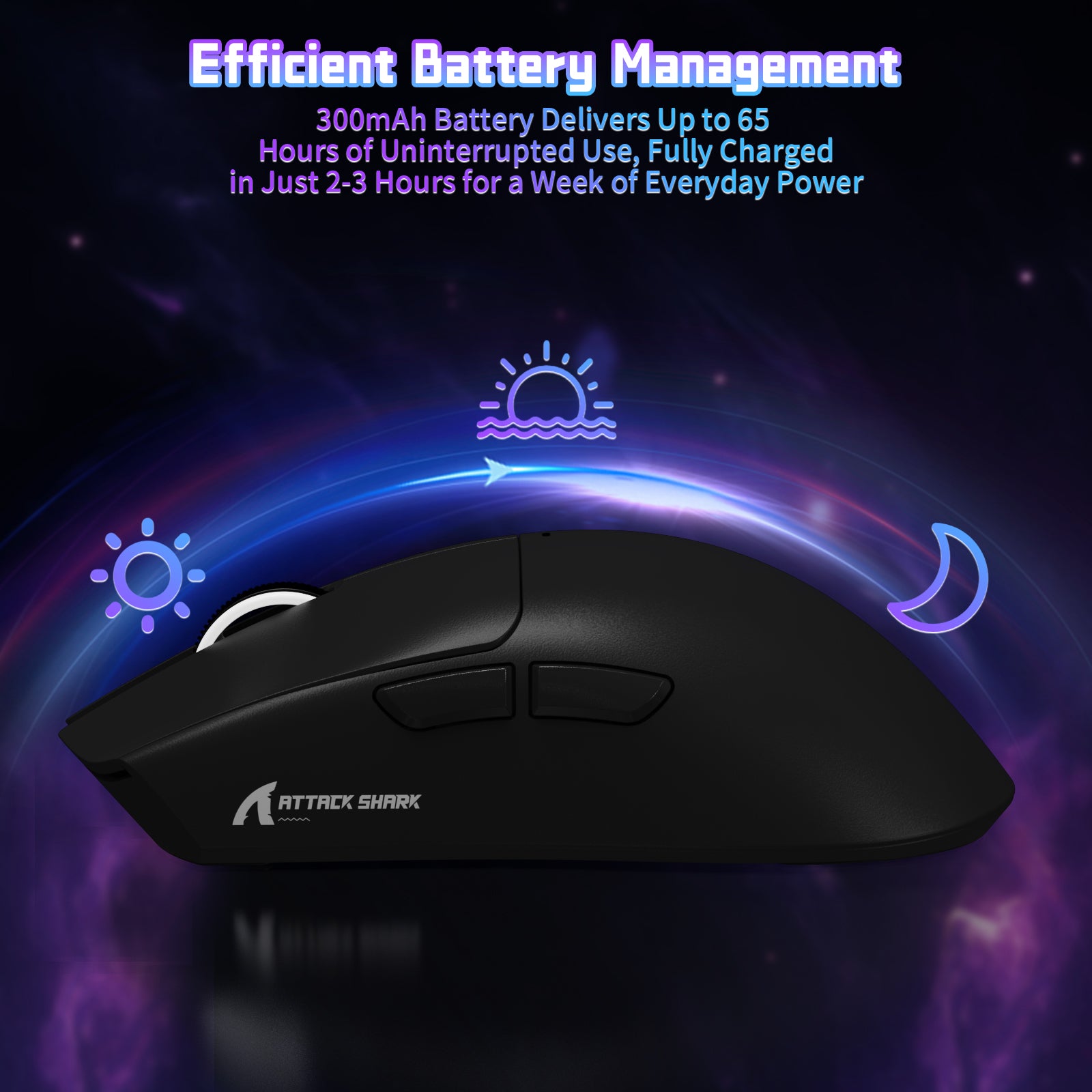
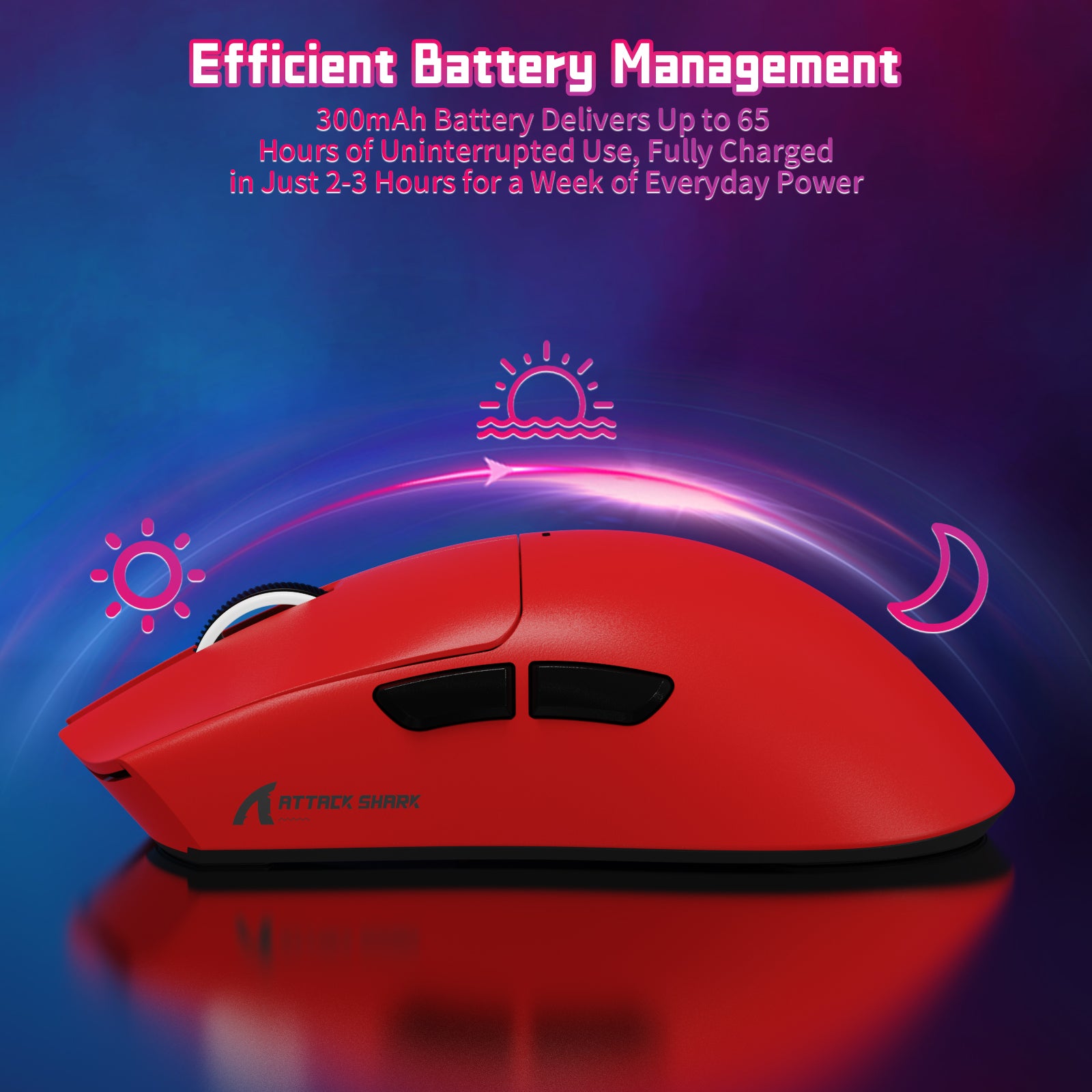
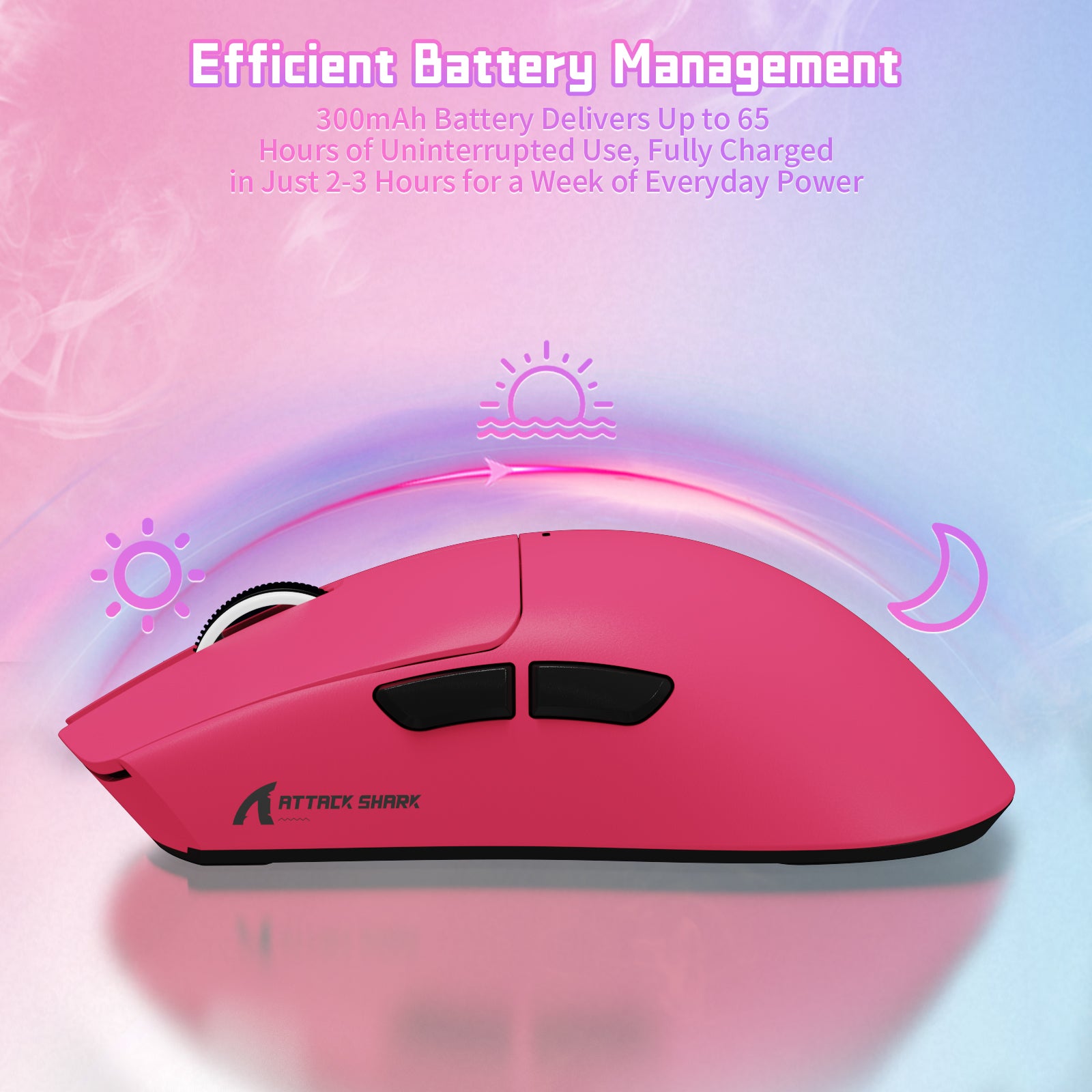
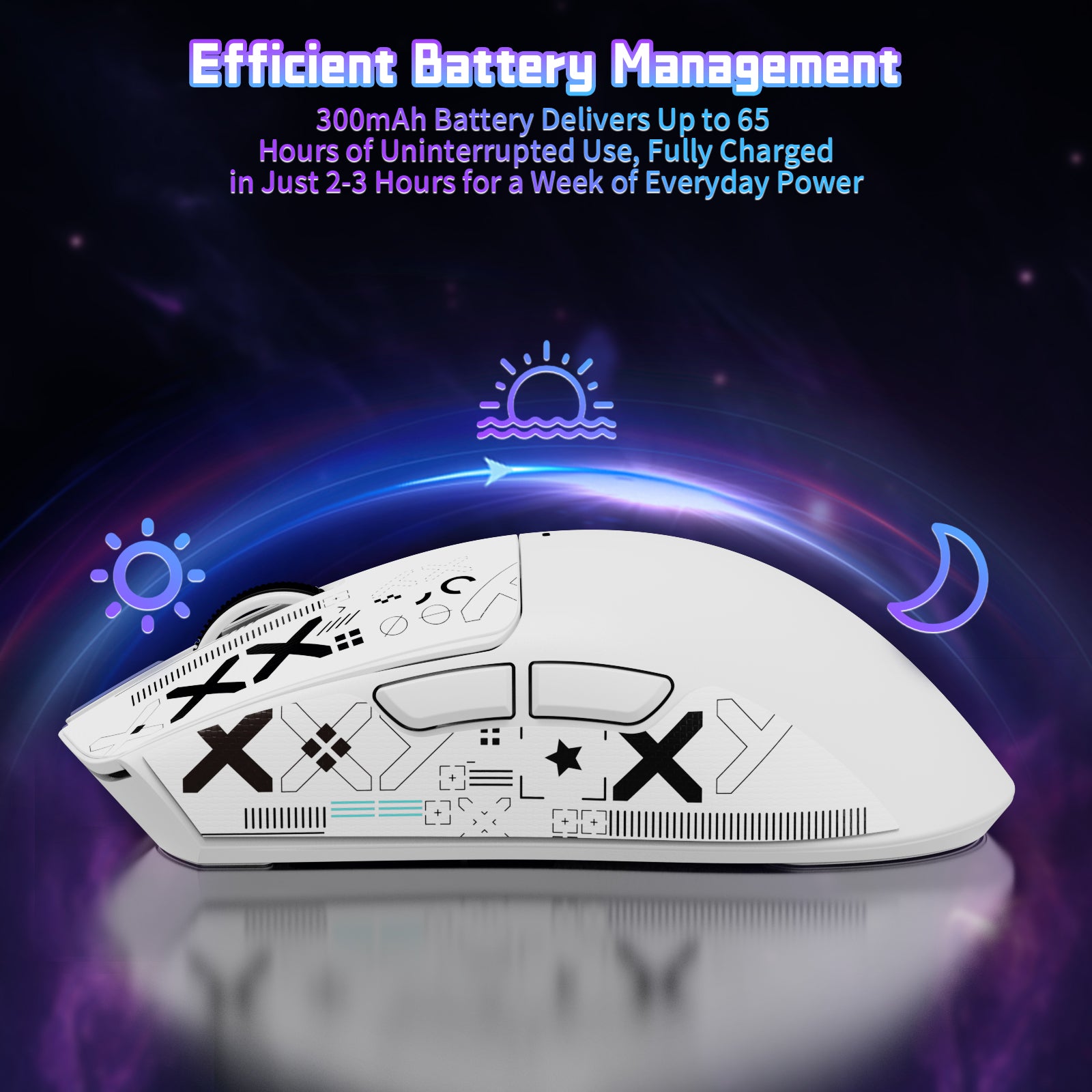
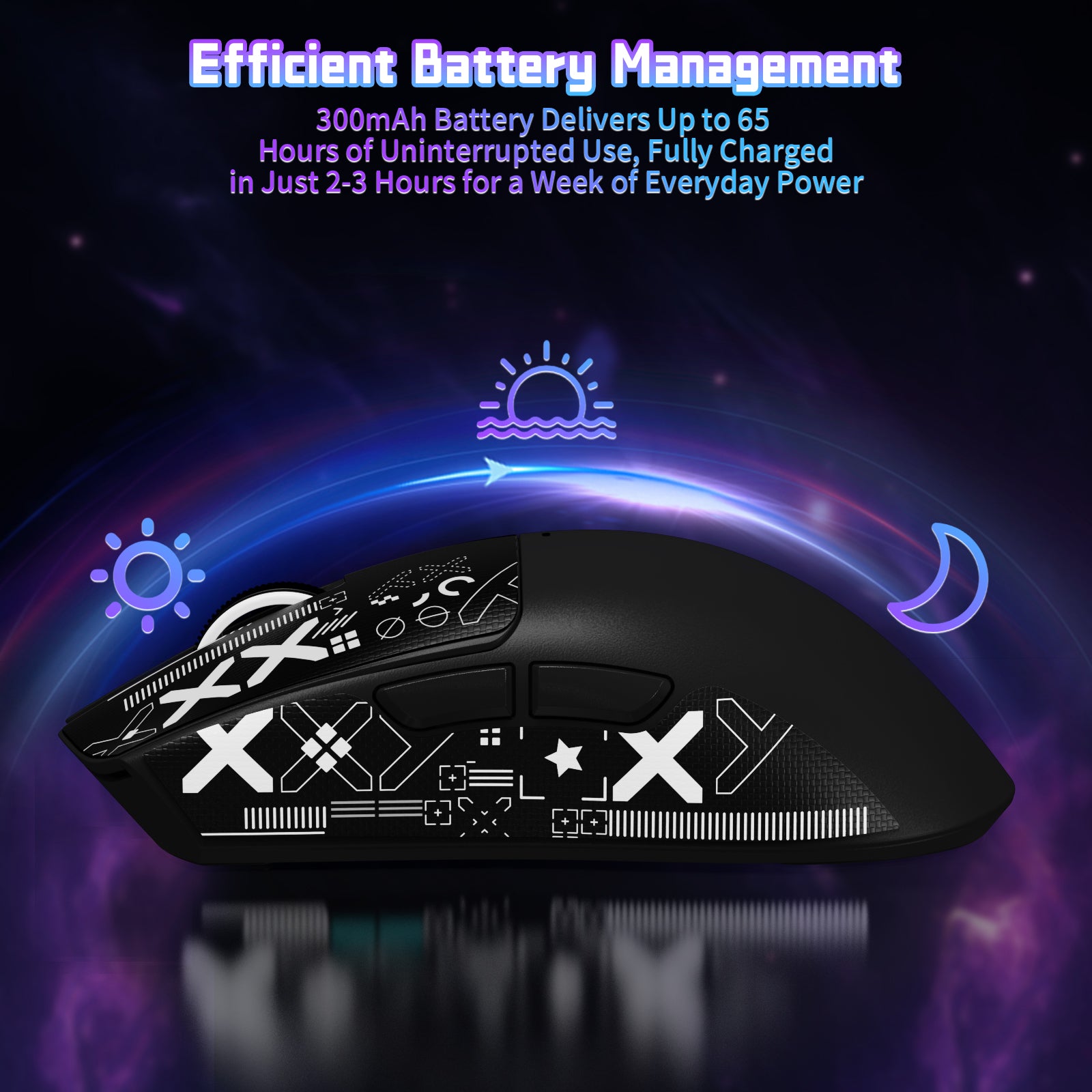
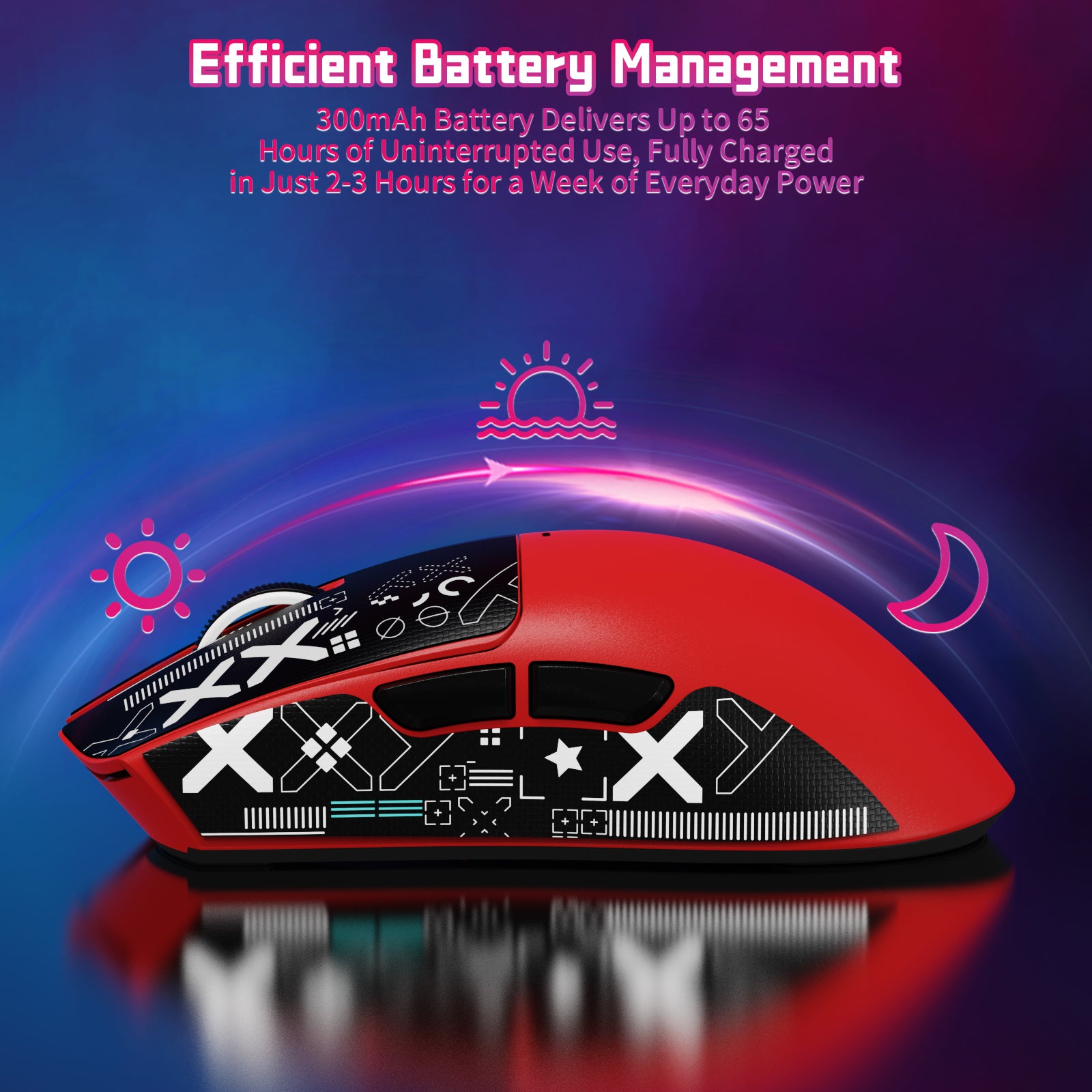
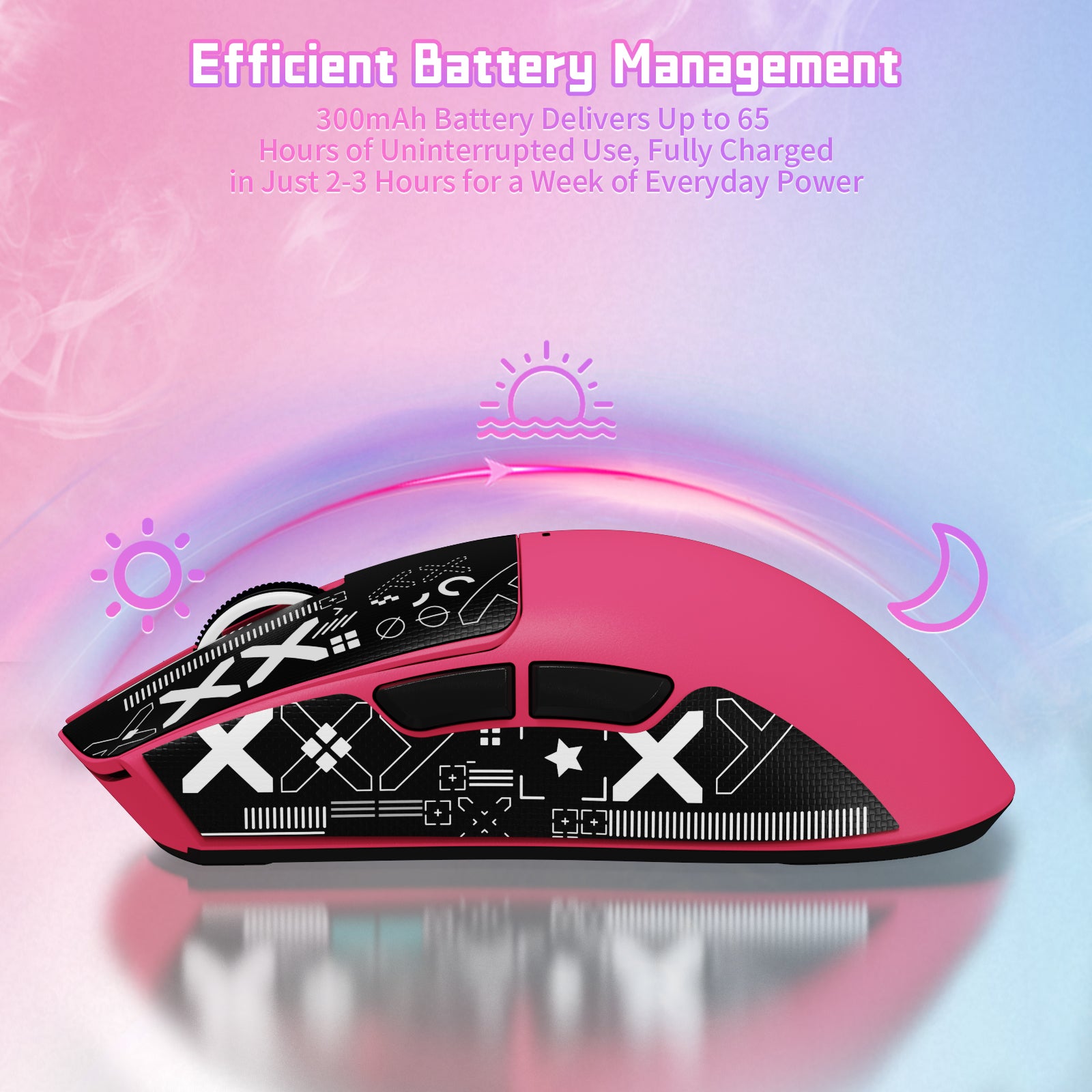
X11SE充電式マウスは超ロングバッテリーを搭載し、1回の充電で最大65時間使用できます。完全充電には約2~3時間かかり、さまざまなゲームを長時間プレイできます。問題が発生した場合は、お気軽にスタッフまでお問い合わせください。1営業日以内に問題を解決いたします。
バッテリー駆動時間は、使用習慣や動作環境によって異なる場合があります。

The ATTACK SHARK X11SE in black is a very nice, if a tad understated, computer mouse. Offering DPI adjustment and handy side buttons, I don't think you will be disappointed with this mouse. Ergonomically, it is easy to hold and maneuver and very conveniently sized. The addition of a rechargeable battery is also a nice touch. This mouse comes in many colors, but I am always a fan of plain black as I don't really enjoy over the top RGB lights or anything like that. I think most users would really like this mouse overall and would recommend it if you're in the market. Pick whatever color you like the most and go for it!


This mouse is nice and light. The amount of connectivity options is fantastic. It can connect to multiple devices and seamlessly switch between them by using the button on the bottom of the mouse. It can connect to 2 different Bluetooth devices as well as the 2.4Ghz USB-A dongle. This mouse weighs almost nothing which is great for some people. I like a little weight to a mouse as it makes the mouse feel a little cheaply made but so far I haven't had any issues with it at all. The left and right buttons are very clicky and satisfying to use. There is also a DPI button on the bottom which allows a wide range of different DPIs. It goes super high to the point if you barely touch the mouse it will go from one side of the screen to the other in a flash making it great for 360 no-scopes for those gamers out there.There is 2 extra thumb buttons which can be assigned different actions.These one comes with adhesive grips with a pretty cool design. The grips grip well but the issue I am having is the grips starting to come off. If I go a day without using the mouse I will have to resecure the grips back to the mouse. My reasons for -1 star.Overall the value and price of this mouse is great and it's not by any means bad. Attack shark makes some fantastic keyboards and finally after trying one of their mice I was happily surprised.Overall a good value and pickup!


This mouse is an absolute win. First off, it’s super lightweight, like blink and you’ll forget you’re holding it kind of light , and the size is perfect if you’ve got larger hands like I do. No more awkward clawing or finger cramps mid-game.I wasn’t sure about those little grip stickers at first (I mean, stickers?), but I gave them a shot and wow total game changer. The material adds a surprising level of comfort and grip. It’s like the mouse just wants to stay in your hand now.Tried it in wireless and wired mode, and it’s been smooth and responsive across the board. Whether I’m gaming or just working on stuff, this thing performs. Bonus points for the 3-mode connectivity love the flexibility, and it even plays nice with my Mac.Oh, and the red? 🔥 Clean, bold, and stands out without being too loud. Honestly, this mouse punches way above its price. 100% recommend!

Je viens tout juste de découvrir la marque avec la X11se, et honnêtement, j’ai été très agréablement surpris. La souris fait tout de suite une bonne impression : elle est très réactive, précise, et agréable à utiliser, que ce soit pour le jeu ou une utilisation quotidienne. Le design est soigné, la prise en main est confortable, et on sent que le produit est pensé pour la performance. Pour une première découverte de la marque, c’est clairement incroyable.
Cela dit, la X11se n’est pas parfaite. Le logiciel peut parfois manquer de clarté et n’est pas toujours très intuitif pour les réglages. Les boutons latéraux, bien que pratiques, peuvent sembler un peu trop sensibles au début. De plus, selon la taille de la main, la souris peut paraître légèrement légère ou moins adaptée aux longues sessions.
Malgré ces défauts, la X11se reste une excellente surprise et offre un très bon rapport qualité-prix. C’est une souris performante qui donne clairement envie de s’intéresser davantage à la marque.
la souris ATTACK SHARK X11se
points positif:de bonne performance pr le prix
un bon polling rate (taux de rafraichissement) de 1000hz
une bonne forme
un point négatif le son est un peux trop fort et fait cheap
et la souris a des bouton en plastique
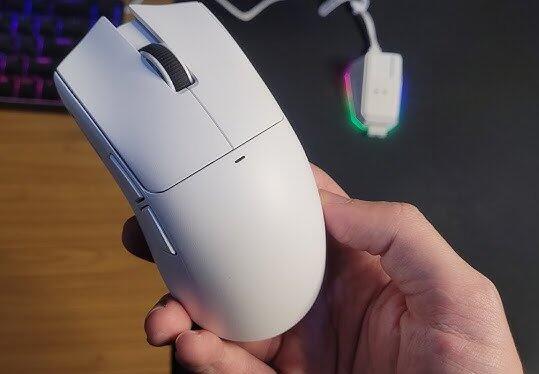
Je ne connaissais pas vraiment la marque Attack Shark avant de tester cette X11 SE, mais j’étais curieux de voir ce qu’elle valait vu son design et ses caractéristiques sur le papier.Première impression plutôt positive, la souris est assez légère (autour de 60 g) et bien équilibrée. En main, elle rappelle fortement la shape de la Viper V3 Pro, pour les avoir comparées il s'agit même d'une copie presque parfaite. Elle sera donc plus orientée pour une utilisation en claw ou palm grip mais reste également utilisable en fingertip pour les grandes mains.Le revêtement est doux, légèrement texturé, et offre une bonne accroche. Des grips sont fournis si besoin, mais personnellement je n’ai jamais aimé la sensation sur mes souris, donc je ne les ai pas installés.Les clics sont réactifs, pas trop durs, et sans trop de pre/post travel. La molette est fluide et silencieuse et les boutons latéraux sont corrects également.Le capteur fait bien le job, la précision est bonne et aucun décrochage à signaler. On est évidemment loin d’un 3395 ou d’un 3950, mais honnêtement la différence ne se ressentira pas à l'œil nu. L’autonomie annoncée de 65 heures me semble réaliste, après plusieurs jours d’utilisation, je n’ai pas encore eu besoin de la recharger.En résumé, je dirais que c’est une bonne surprise pour son prix.


This mouse feels a little cheap at first but that is what you can expect with most mice at such a low weight and at this price point, it's cheap feel isn't terrible though and it comes with some nice grips to help that out while also being good for gaming!The clicks of the buttons are a little loud but i dig it, however some people may not like that and should watch out as this mouse is quite clicky and loud.The mouse tracks very well and the skates included with the mouse feel really good, the mouse has a 1k hz polling rate which is absolutely more than enough for gaming, anything more than that is just marketing garbage.this is a really well priced mouse with a good software for macros etc. i overall highly recommend this mouse.

Pros: • The mouse is extremely lightweight and very comfortable to use. • Suitable for all kinds of grip styles and usage. • The button clicks feel satisfying and responsive.Important Note: • The mouse does not have its own dedicated software. • The software made for the X11 model does not recognize the X11 SE. • You’ll need to download the separate “Attack Shark Mouse Software” (the one for R1/X11SE/X6 series) from Attack Shark’s official website to make it work properly.Overall:At this price, the quality and performance are absolutely worth it.The color looks great, and the hardware performance is more than enough for everyday or gaming use.Also, the DPI button being placed underneath the mouse is a great idea — it prevents accidental clicks during gameplay.Battery life is surprisingly long; it will definitely not let you down.


Pros: • The mouse is extremely lightweight and very comfortable to use. • Suitable for all kinds of grip styles and usage. • The button clicks feel satisfying and responsive.Important Note: • The mouse does not have its own dedicated software. • The software made for the X11 model does not recognize the X11 SE. • You’ll need to download the separate “Attack Shark Mouse Software” (the one for R1/X11SE/X6 series) from Attack Shark’s official website to make it work properly.Overall:At this price, the quality and performance are absolutely worth it.The color looks great, and the hardware performance is more than enough for everyday or gaming use.Also, the DPI button being placed underneath the mouse is a great idea — it prevents accidental clicks during gameplay.Battery life is surprisingly long; it will definitely not let you down.
Best mouse, really light, easy to move, but get the skates makes it so so much smoother
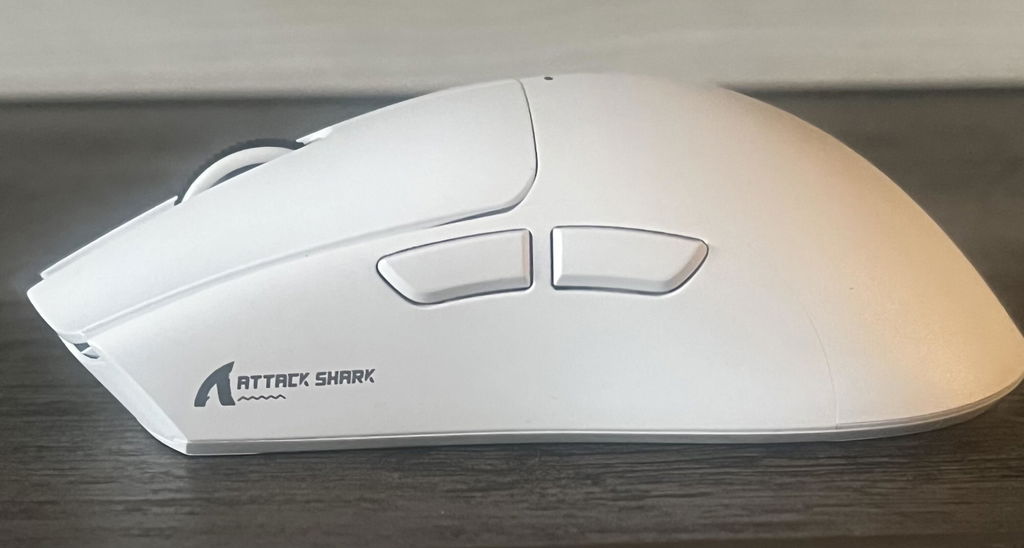
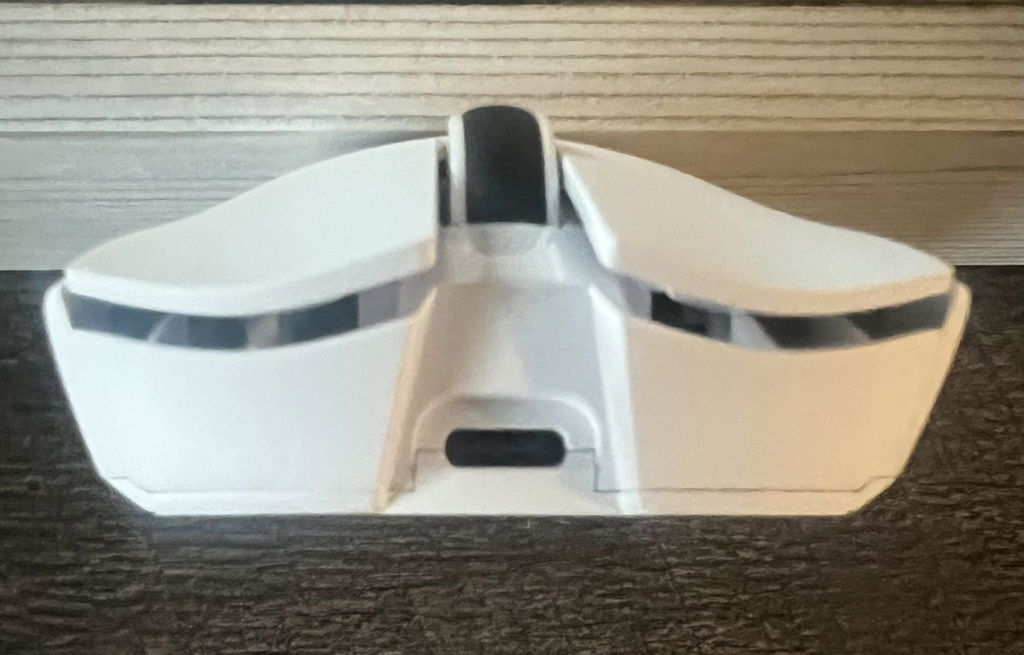
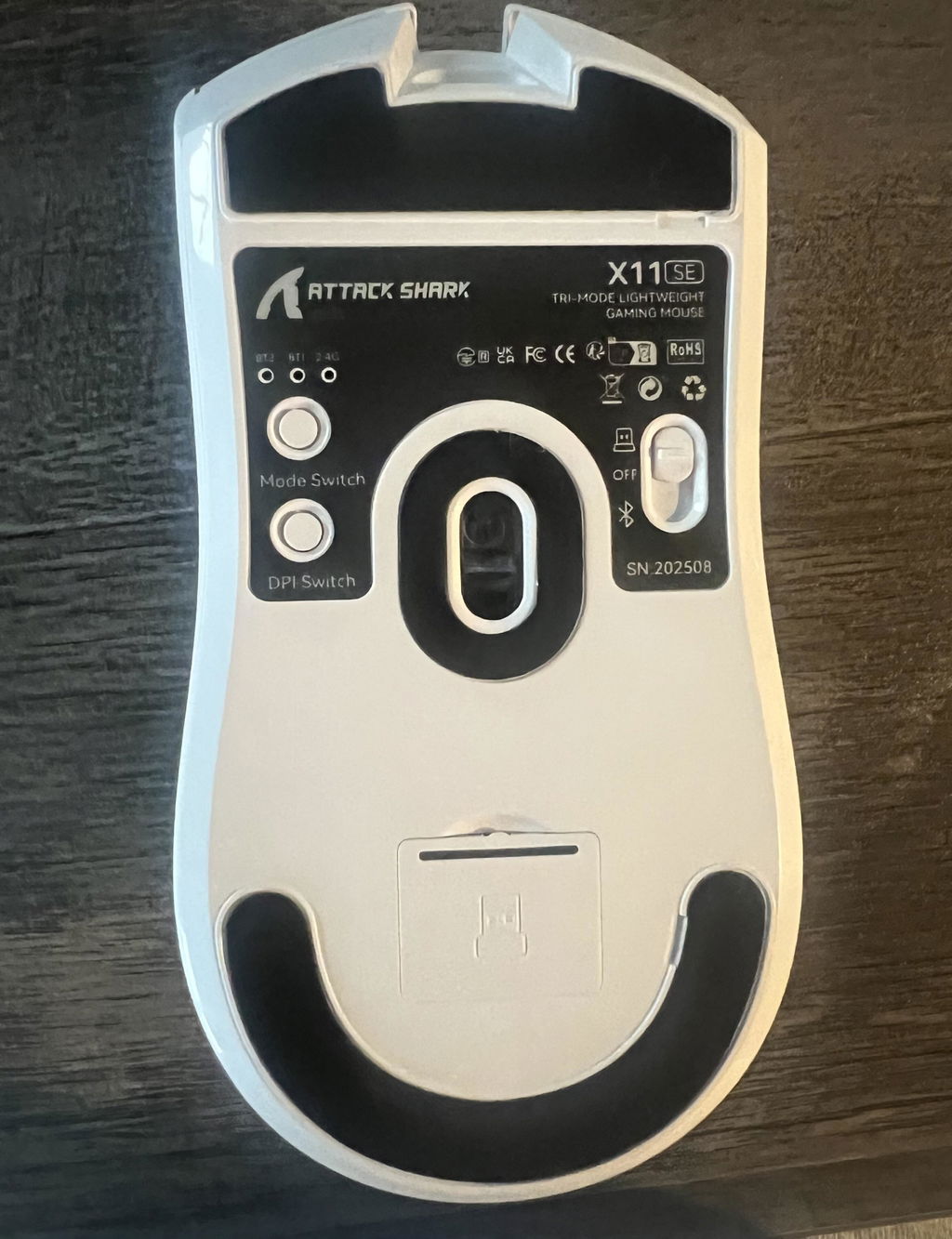
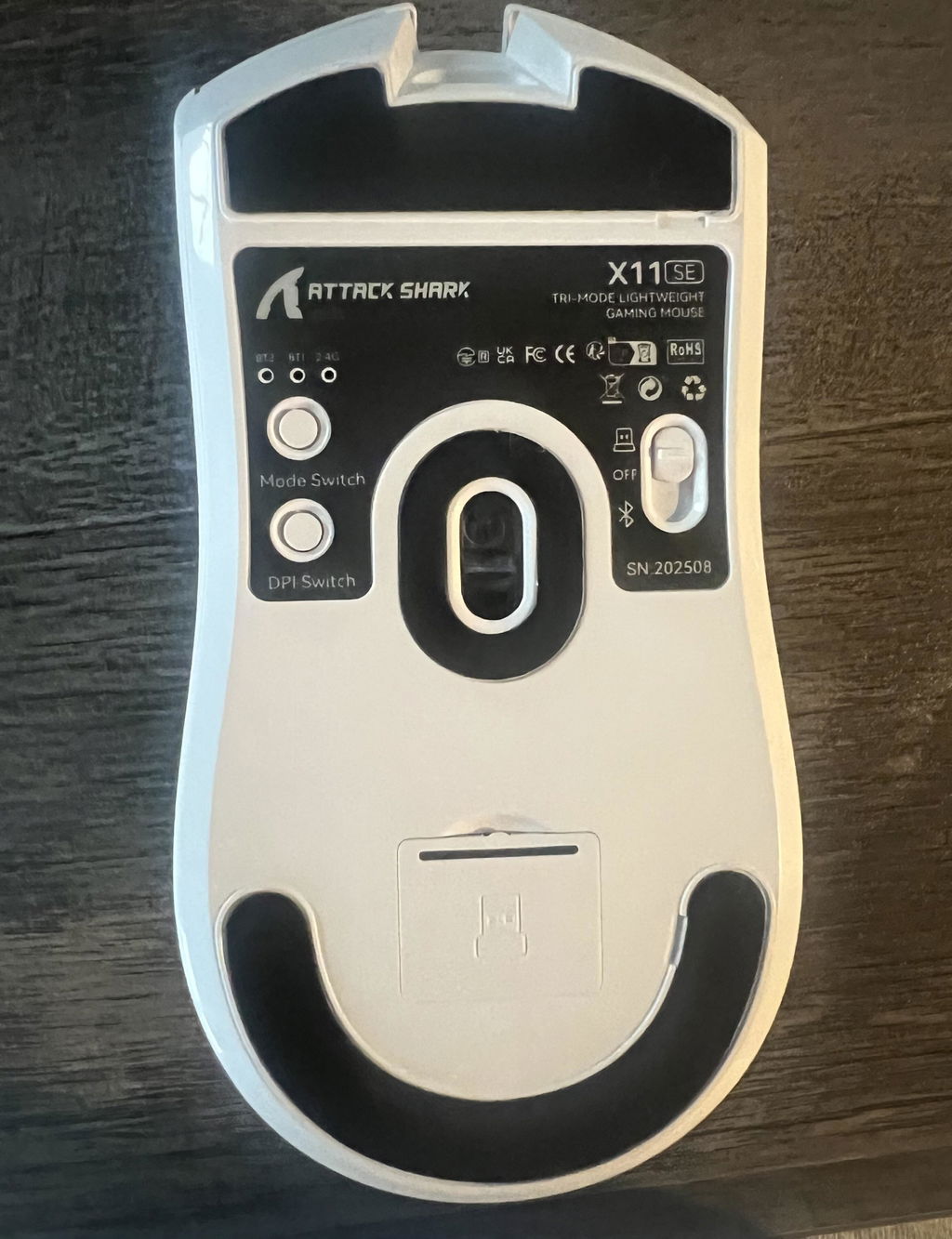
I saw a couple of reviews saying it only works on Xbox wired but I’m using wireless it’s great good budget mouse and it’s not delayed at all wireless on Xbox it’s really light it’s not to big fits perfect in my hand! It’s quite pink for berry red but it’s perfect and the battery life is good not that bad and for a cheap mouse it’s so good and the coloured cable it came with is good just so surprised for its price!

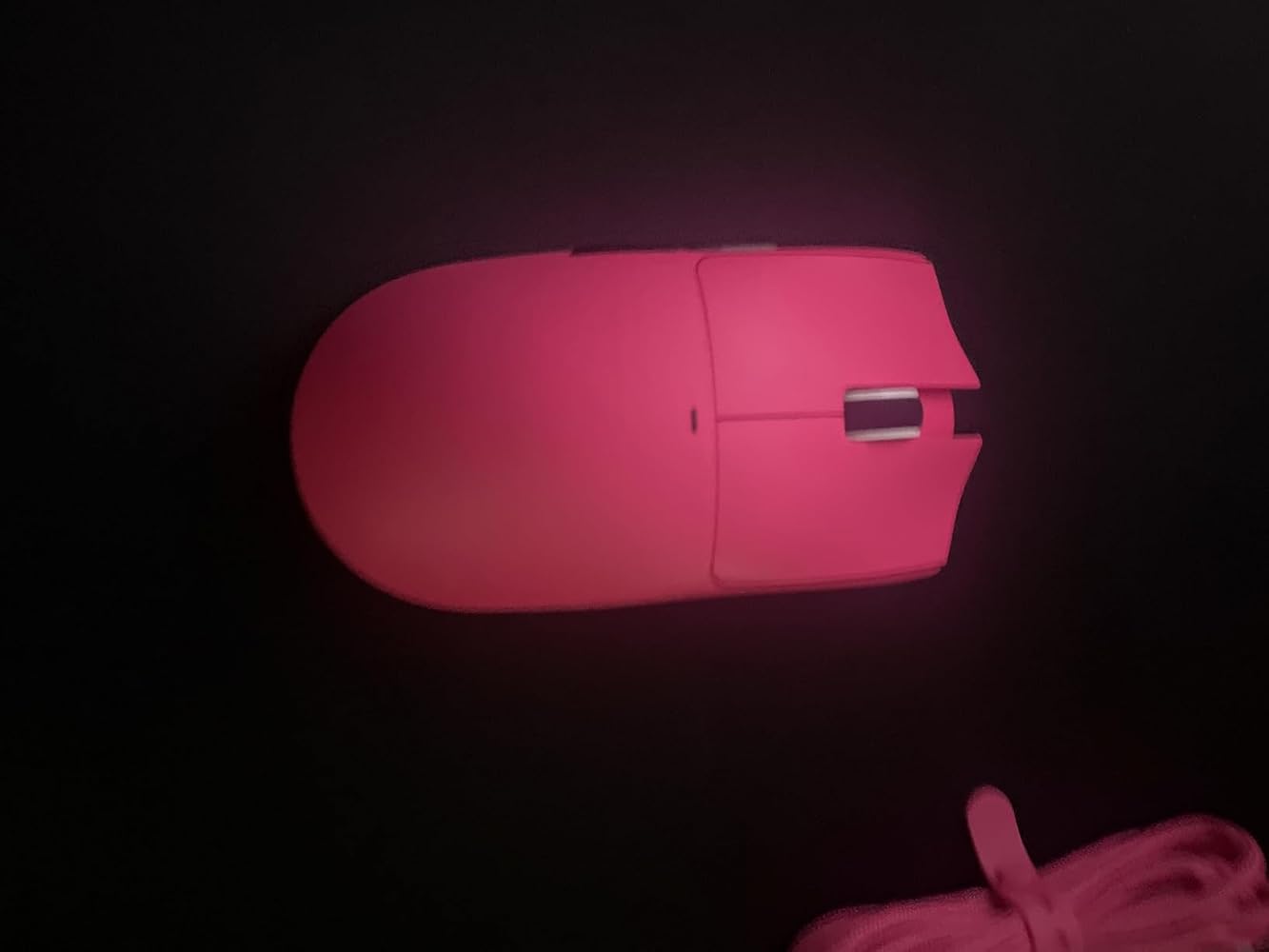
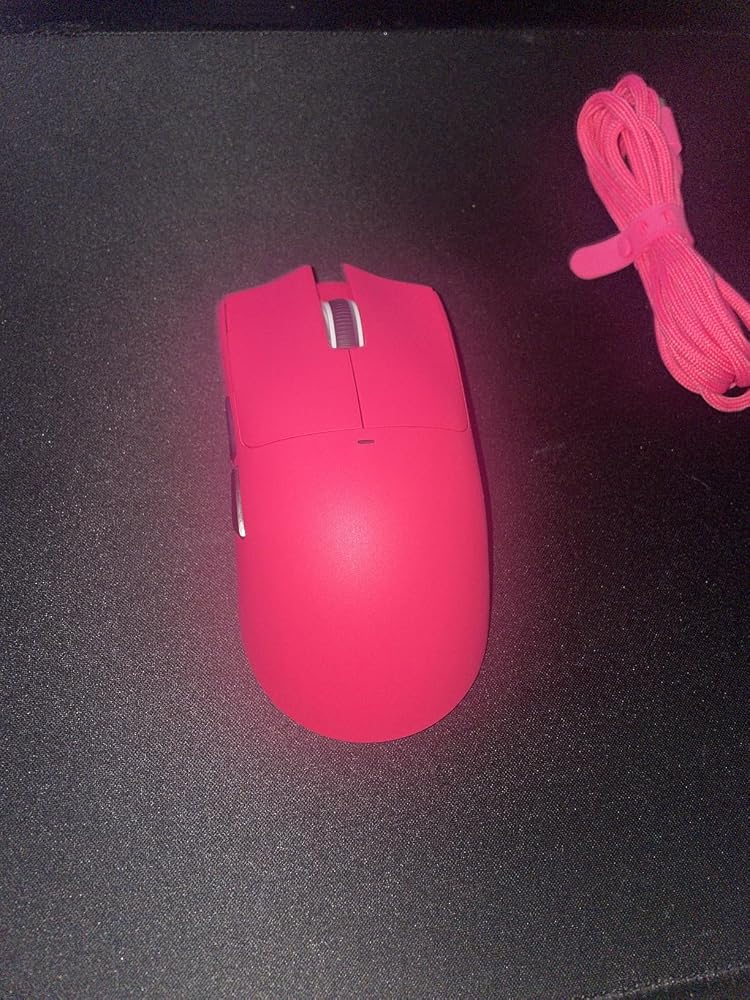
Very similar to my Viper v3 pro in terms of shape and feel. I don’t feel any lag or awkward input delay in my inputs which is good because it’s advertised for gaming. It works very well and the battery life is solid even on higher settings. All while maintaining consistent connectivity throughout my sessions.

Very similar to my Viper v3 pro in terms of shape and feel. I don’t feel any lag or awkward input delay in my inputs which is good because it’s advertised for gaming. It works very well and the battery life is solid even on higher settings. All while maintaining consistent connectivity throughout my sessions.
The media could not be loaded.
This is a large wired/wireless mouse, that can connect via USB, Bluetooth, or an RF Dongle. It can be used with all sorts of devices that support mice, although the supplier is promoting it as a wireless Gaming Mouse.GAMING MOUSE?If you're playing fast combat games online or offline, you want a mouse that reacts fast too, apparently. I've never found mouse speed an issue, more of an excuse; network speed and latency have until recently always been a much bigger problem. Anyway, this is sold as a Gaming Mouse, emphasizing:* High speed data (1000Hz polling) so reacts fast to your movements* Switchable resolution (up to 2200 DPI) making it very sensitive to even small movements* Three different connection options, supported by Windows PCs, X-Box, PlayStation and Macs* Light weight (you can move it fast, with litle effort)* Big and comfortable for long play sessions* Extra buttons for direct access to useful functionsIn truth I'm not playing many games on my PCs at the moment (six months ago I did little else!), so most of this review will be about using the mouse on a Windows PC in a home office role.IN THE BOXIn a tidy retail box, I got:* A large white mouse* A USB-A to USB-C cable (for charging and connecting)* An RF dongle (behind a hatch on the mouse)* A large multi-lingual Instruction Sheet folded many timesThe Instruction Sheet has four little (A7 ?) pages in each language. It's quite good, hurrah!SETTING UPNot much to do:1: Remove the blue plastic film from the skids2: Plug it into a USB socket to charge itUSING ITI've mostly use the Attack Shark mouse with my Windows 10 "office" PC, with side-by-side 1920 x 1080 monitors.USING USB (Windows PC)I started off by plugging the USB lead into the front of the mouse and a USB hub on my PC. After a few seconds, it sprang into light and worked just fine. Initial impressions were that it's big and comfortable, the USB cable is very flexible, and the default settings are fine.Mouse Button 1 (MB1) and Mouse Button 2 (MB2) are large plastic "flaps", very comfortable. Mouse Button 3 (the mouse wheel, MB3) looks and feels a bit more awkward, but works OK. Mouse buttons 4 and 5 are on the left-hand side and a bit harder to find, but that's OK - intrigued to see what they can do for me.USING RF (Windows PC)I removed the USB lead after a few minutes, removed the RF Dongle from its home underneath the mouse, and plugged that in. Then I changed the POWER switch from OFF to the RF DONGLE image. Windows took around 30 seconds to set this up, then the mouse was back - and working just the same. I carried on using the mouse via RF and all seems well and then tried Bluetooth.USING BLUETOOTH (Android Phone)Not at all sure what I'd get, I enabled Bluetooth on my phone and switched the POWER switch to BT. My phone listed X11SEmouse1 as a new device, so I paired with it and now I have a mouse pointer on my phone! I shouldn't be surprised, but I am.I played around for a bit and everything worked as expected; the pointer moves, MB1 launches apps and clicks other buttons such as HOME and BACK.I turned off BT on my phone, held down the MODE button to enter pairing mode for the second BT channel. Turned BT on again on my phone and successfully paired with X11SEmouse2.Having two BT channels is a minor convenience feature. If you need to switch back and forth between your PC and your phone (say), you can pair a different channel with each. I don't think there's any reason to send the same mouse data to two different devices at the same time - unlike (say) streaming audio data to two different smart speakers.BUGSI noticed an odd limitation using Windows. I have a dual screen setup (two 1920 x 1080 pixel LCDs) to give me a 3840 x 1080 virtual desktop. With my usual mice (various brands) this works seamlessly. With the Attack Shark mouse, if I drag a window from the left-hand screen to the righthand screen, as soon as the mouse pointer enters the righthand screen, it stops moving; the window is stuck (and tries to maximise). This is a major annoyance for me, I move windows around a lot!I can move the mouse pointer into the right-hand screen if I'm not dragging a window and it works normally - until I try to drag a window into the left-hand screen, when it gets stuck in the same way.Darn.MOUSE BUTTON 4 & 5By default, these perform a "go forward/go backward" function which depends on the application you're using. For example:* In Windows File Explorer, they move to the previous/next folder if you've been moving around* In Google Chrome they move to the previous/next window on that tab if you've been moving aroundHandy.OTHER BUTTONSThe POWER button is a slide switch with three positions:* OFF means it's turned off UNLESS it's connected to your computer via USB, when it's in USB mode and powered by your USB socket (and charging)* The DONGLE ICON means it...


This mouse so good for Cheap mouse Hungary people my oder is so fast deliverd