


The Physiology of Visual Stress in High-Performance Gaming
Digital Eye Strain (DES), or Computer Vision Syndrome, is not a single ailment but a cluster of physiological responses to suboptimal visual environments. For competitive gamers, the risk is amplified by the duration of exposure and the intensity of focal concentration. Research indicates that the prevalence of DES among heavy technology users is significant, often manifesting as dryness, blurred vision, and headaches (Source: Digital eye strain among university students).
The primary mechanism behind this fatigue involves the ciliary muscles and the iris. In a typical gaming setup, the eye must constantly reconcile the high luminance of the monitor with the ambient darkness of the room. This creates a state of "pupillary hippus," where the pupil rapidly oscillates between constriction (due to screen light) and dilation (due to dark surroundings). This constant mechanical workload on the iris muscles is a leading contributor to the sensation of "tired eyes."
Furthermore, the "contrast ratio" within the field of view is often more critical than absolute brightness. Excessive contrast—such as a bright monitor in a pitch-black room—can lead to retinal bleaching in high-luminance areas while crushing detail in the shadows. Optimal visual performance requires a managed luminance distribution that allows the retina to maintain a stable state of adaptation.
Calibrating RGB Luminance: The 30-40% Heuristic
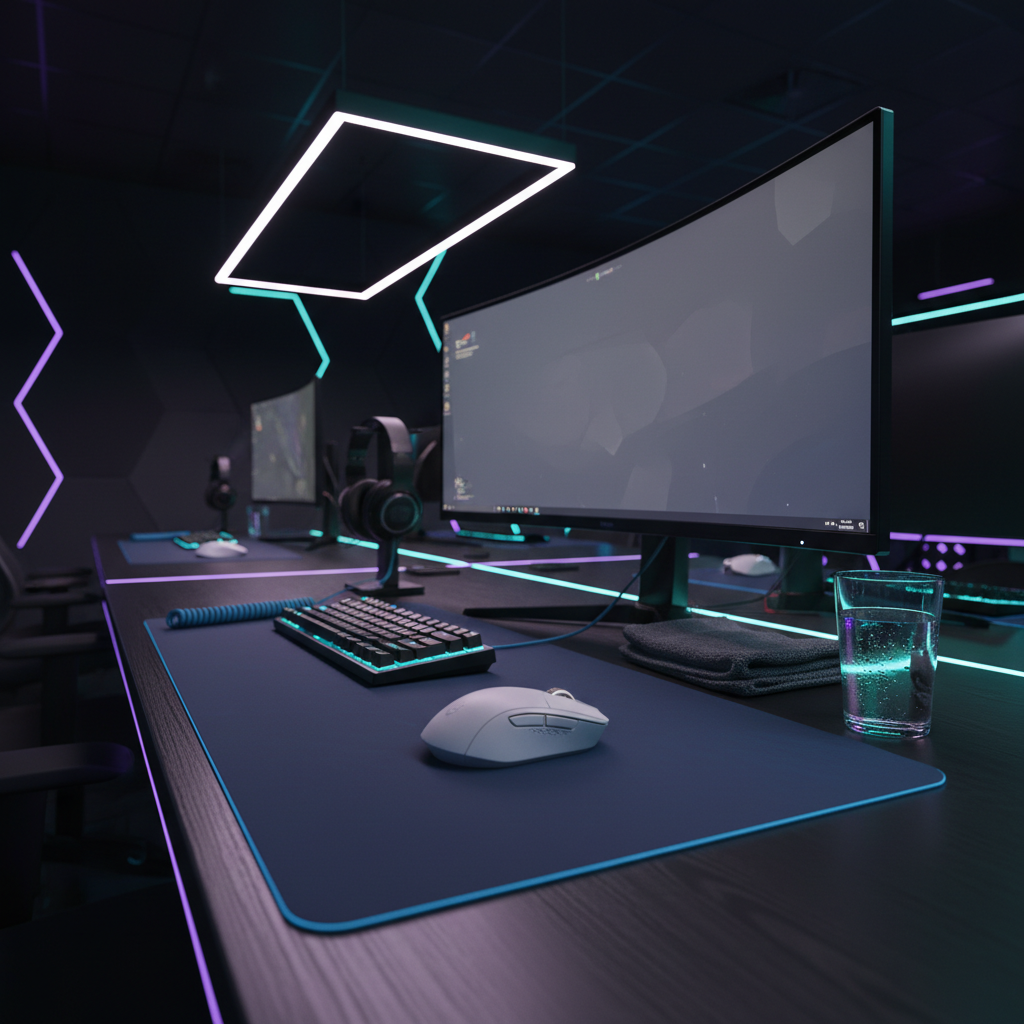
A common mistake in gaming aesthetics is maxing out RGB brightness to achieve a "neon" look. While visually striking, this creates excessive contrast against a dark room, forcing the pupils to adjust every time the gaze shifts from the screen to the keyboard. Based on common patterns from customer support and community feedback (not a controlled lab study), experienced practitioners recommend a specific heuristic for peripheral lighting.
The 30-40% Rule: Set peripheral RGB brightness (keyboards, mouse strips, and bias lighting) to no more than 30% to 40% of the monitor's peak white level.
This setting maintains visual cohesion and prevents the "glare effect" that occurs when peripheral devices become secondary light sources that compete with the primary display. If a monitor is calibrated to 250 nits (a common standard for indoor gaming), the peripheral RGB should ideally not exceed 75-100 nits. This balance ensures that the peripheral light serves as a soft "bias" rather than a distracting spotlight.

PWM vs. DC Dimming
Another technical factor often overlooked is the method of dimming. Many budget RGB controllers use Pulse Width Modulation (PWM), which "dims" LEDs by flickering them at high frequencies. If the PWM frequency is too low, it can cause "stroboscopic effects" or invisible flicker that contributes to eye strain even if the user cannot consciously perceive it (Reference: Flicker fusion threshold - Wikipedia). High-quality controllers utilize high-frequency PWM or DC dimming to provide a steady light output, which is significantly easier on the neurological system during long sessions.
Spectral Management: Beyond the Blue Light Myth
While blue light filtering is frequently marketed as a panacea for eye strain, scientific evidence suggests its benefits are limited compared to managing overall luminous flux and contrast (Source: West Broward Eyecare - Blue Light Evidence). The more significant impact of blue light (wavelengths between 400-490nm) is its role in suppressing melatonin production, which can disrupt circadian rhythms after late-night gaming.
The Kelvin Shift
Instead of relying solely on software blue light filters—which can introduce input latency or color inaccuracies critical for competitive play—users should consider adjusting the color temperature of their ambient and peripheral lighting.
- Daytime/Productivity: A cool 6500K (Daylight) promotes alertness and color accuracy.
- Post-Sunset/Gaming: A shift to a warm 4000K or even 3000K is often more effective.
Warm light reduces the intensity of short-wavelength emissions that trigger the suppression of melatonin (Reference: Blue light from LEDs and melatonin suppression). For gamers, this shift is best achieved through hardware-level RGB customization rather than OS-level filters, ensuring that the game's visual engine continues to render at the intended frame timings without software-induced overhead.
Materiality and Glare: PBT vs. ABS and Surface Reflection
The physical materials of a gaming setup play a silent but pivotal role in visual comfort. Specular glare—the direct reflection of light sources into the eye—is a major source of irritation.
- Keycap Surfaces: Glossy ABS (Acrylonitrile Butadiene Styrene) keycaps tend to develop a "shine" over time due to skin oils. This smooth surface acts like a mirror for under-glow LEDs, creating sharp points of light that can be distracting. In contrast, matte or textured PBT (Polybutylene Terephthalate) keycaps diffuse light more effectively, significantly reducing direct specular glare.
- Mousepad Coatings: High-reflectivity mousepads can reflect the monitor's light back toward the user. Placing a mousepad with a low-reflectivity coating—such as textured fabric or specialized tempered glass with nano-micro-etched surfaces—minimizes these secondary light sources.
- Cable Connectors: Even small details like illuminated metal connectors on cables can contribute to desk-level glare. Choosing braided cables with matte finishes or shielded connectors helps maintain a "dark-room optimized" environment.

Technical Synergy: High Polling Rates and Visual Smoothness
For the performance-focused gamer, visual comfort is also tied to motion clarity. This is where the intersection of monitor refresh rates and mouse polling rates becomes critical.
The 8000Hz (8K) Reality
Modern high-spec mice now offer polling rates up to 8000Hz. Mathematically, this means the device sends data to the PC every 0.125ms (1 / 8000 = 0.000125s). While a 1000Hz mouse (1.0ms interval) is standard, the 8K polling rate reduces the "micro-stutter" of the cursor path.
However, to visually perceive this smoothness, the user must have a monitor capable of rendering it. A 240Hz or 360Hz monitor is required to translate that high-frequency data into a smoother visual experience. Without a high refresh rate display, the system may experience "aliasing" where the mouse data updates faster than the screen can show it, leading to a perceived lack of fluid motion which can increase cognitive load and eye tracking fatigue.
Critical Constraints for 8K Performance:
- CPU Bottleneck: Processing 8000 interrupts per second stresses single-core CPU performance. This is an IRQ (Interrupt Request) processing bottleneck, not just raw compute power.
- USB Topology: Devices must be plugged into Direct Motherboard Ports (Rear I/O). Using USB hubs or front-panel headers can cause packet loss and signal degradation due to poor shielding or shared bandwidth.
- Sensor Saturation: To fully utilize the 8000Hz bandwidth, the sensor must generate enough data. This follows the formula: Packets per second = Movement Speed (IPS) × DPI. At 800 DPI, a user needs to move the mouse at 10 IPS to saturate the link. At 1600 DPI, only 5 IPS is required. Therefore, higher DPI settings are often recommended for 8K stability during micro-adjustments.
Modeling the Competitive Night Gamer
To understand how these factors interact, we modeled a specific scenario: a competitive gamer with large hands (20.5cm) playing in a dark room during extended night sessions.
Scenario Modeling: Nighttime Performance & Ergonomics
| Parameter | Value | Logic / Source |
|---|---|---|
| DPI Minimum | ~2300 | Calculated via Nyquist-Shannon to avoid pixel skipping on 4K displays at high sensitivity. |
| Ideal Mouse Length | ~131mm | Based on the 60% hand-length heuristic for claw grip users with 20.5cm hands. |
| RGB Brightness | 35% | Targeted to match ~40% of a 250-nit monitor to minimize pupillary strain. |
| Estimated Runtime | ~28 Hours | Based on a 300mAh battery using mixed 1KHz/4KHz polling rates (Nordic nRF52840 model). |
| Color Temperature | 4000K | Selected to reduce melatonin suppression while maintaining competitive color cues. |
Modeling Note: This analysis is a scenario-based model, not a controlled lab study. It assumes linear battery discharge and 90th percentile male anthropometrics (ANSUR II data). Actual results may vary based on individual joint flexibility and specific sensor efficiencies.
For this user, the primary friction point is the trade-off between high-resolution precision and battery life. Running at 8K polling can reduce wireless runtime by approximately 75% to 80% compared to 1000Hz. A practitioner's observation suggests that for most night sessions, 2K or 4K polling offers a more sustainable balance of smoothness and battery longevity, especially when the eye is already under the stress of low-light adaptation.
Implementation Checklist for Long Sessions
To optimize a setup for both health and performance, consider the following steps:
- Level the Luminance: Use a monitor light bar or soft bias lighting behind the screen to raise the ambient light level without causing screen glare.
- Audit the Surfaces: Swap glossy ABS keycaps for textured PBT sets. Use a non-reflective desk mat to prevent "light bounce."
- Calibrate by Clock: Use hardware profiles to automatically shift RGB from 6500K to 4000K after sunset.
- Optimize the Path: Ensure high-polling mice are connected to Rear I/O ports. If using 8KHz, increase the base DPI to at least 1600 to ensure consistent packet saturation during slow movements.
- Monitor Health: Adhere to the 20-20-20 rule (every 20 minutes, look at something 20 feet away for 20 seconds) to allow the ciliary muscles to relax.
By moving beyond the "marketing hype" of RGB and focusing on the physiological mechanisms of vision and the technical constraints of hardware, gamers can build a setup that supports both their competitive ambitions and their long-term health. According to the Global Gaming Peripherals Industry Whitepaper (2026), the industry is shifting toward these evidence-based ergonomic standards to ensure the sustainability of professional play.
Disclaimer: This article is for informational purposes only and does not constitute professional medical advice. Digital eye strain can be symptomatic of underlying vision issues; please consult a qualified optometrist if you experience persistent pain or vision changes.
References
- Digital eye strain among university students: a cross-sectional study
- Blue light from light-emitting diodes elicits a dose-dependent suppression of melatonin in humans
- Interventions to reduce short-wavelength (“blue”) light exposure
- Flicker fusion threshold and visual fatigue
- Nordic Semiconductor nRF52840 Power Consumption Models
- Global Gaming Peripherals Industry Whitepaper (2026)


コメントを書く
このサイトはhCaptchaによって保護されており、hCaptchaプライバシーポリシーおよび利用規約が適用されます。