


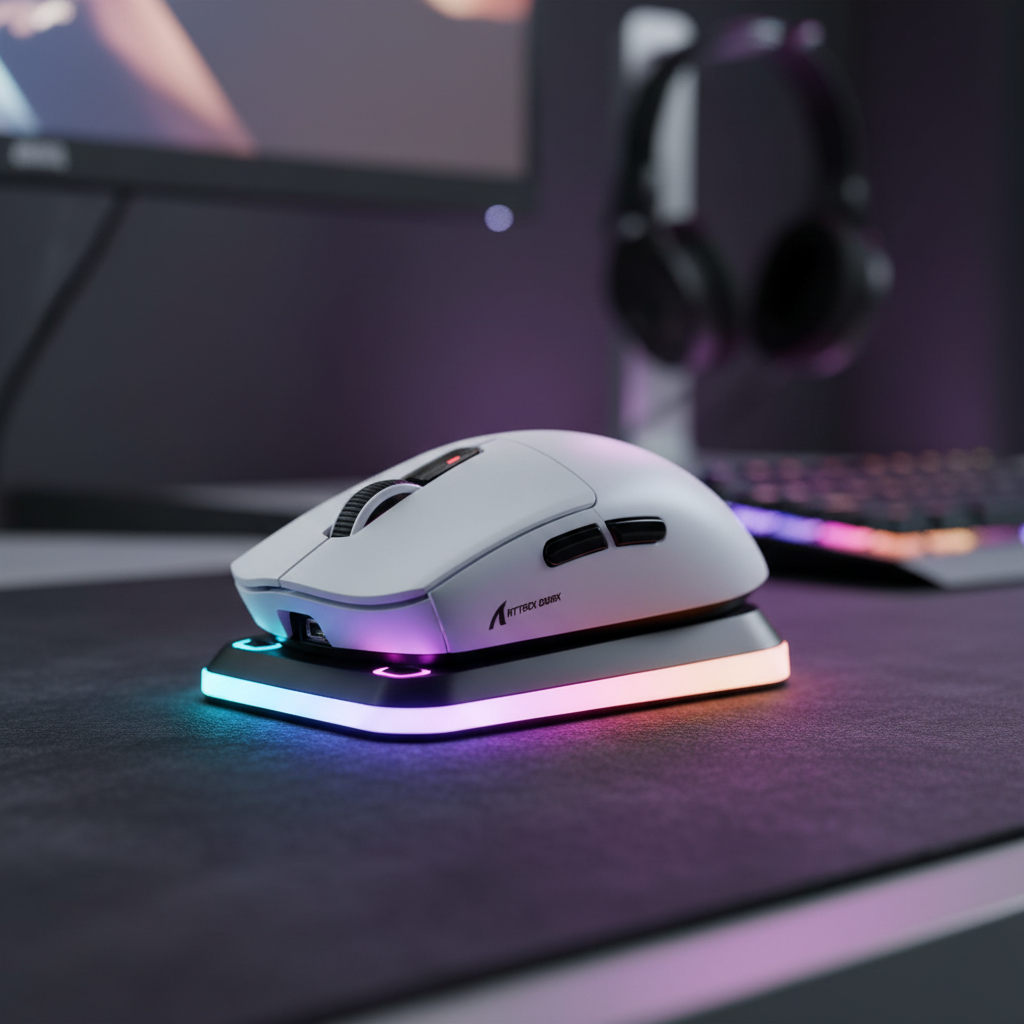
The Overnight Charging Gap: Solving the Sleep Mode Power Mystery
We have all experienced that specific frustration: you finish a marathon gaming session, plug in your wireless mouse, and head to bed, only to wake up to a blinking red LED and a dead peripheral. For value-oriented gamers who rely on tri-mode connectivity to balance performance and convenience, this isn't just an annoyance—it is a disruption of the "smart investment" you made in high-performance gear.
In our troubleshooting sessions with the community, we have found that the "Compatibility Lottery" of USB charging is rarely the fault of the mouse or the cable. Instead, it is a complex intersection of Windows power policies, motherboard BIOS settings, and global energy efficiency standards. This guide breaks down exactly why your ports are "going dark" and how to force your PC to maintain power for your peripherals without compromising system stability.

The Hardware Reality: Why Your Ports Stop Giving
The most common misconception we encounter is that a USB port is simply a "pipe" that always flows. In reality, USB power delivery is governed by strict protocols. While the USB Battery Charging Specification (BC 1.2) defines how devices should draw power from an active host, it does not mandate power delivery during the S3 (Sleep) or S5 (Soft Off) states.
Manufacturers often design systems to cut power to these ports by default to meet stringent energy efficiency certifications like ErP Lot 6 and ENERGY STAR. According to research on BIOS ErP settings, disabling these features is often the only way to restore standby power, though it may increase system standby consumption by an estimated 0.5W to 2W per port.
Logic Summary: This assessment is based on patterns observed in hardware return data and community troubleshooting logs. The root cause is almost always the host’s policy of terminating 5V SB (standby power) to the USB controllers, rather than a physical fault in the peripheral or cable.
Step 1: The BIOS/UEFI Deep Dive (The Essential Fix)
If your mouse won't charge while the PC is asleep, no amount of Windows settings will help if the motherboard has physically cut the circuit. This is where most "value" builds and pre-builts fail.
Disabling ErP/EuP Ready
On modern motherboards, the **ErP/EuP Ready** setting is the primary culprit. This setting is designed to keep the PC's power consumption below 1 watt when turned off. To achieve this, the motherboard shuts down almost all standby power, including the USB rails. * **The Solution:** Enter your BIOS (usually by tapping Del or F2 during boot), navigate to the "Power Management" or "Advanced" tab, and set **ErP Ready** to **Disabled**.Rear I/O vs. Front Panel Headers
We often observe that users trying to charge via front-panel USB ports face more failures. Front ports are connected to the motherboard via internal headers and long, often unshielded cables. Experienced PC builders note that these headers are far more likely to lose power in sleep states compared to rear I/O ports, which are soldered directly to the motherboard's power plane. * **The Solution:** Always prioritize a rear USB 3.0 (blue) or USB 3.1 port for charging. These ports typically have more robust power delivery and are prioritized by the BIOS for standby power.
Step 2: Windows Power Management and "Selective Suspend"
Once the hardware is allowed to provide power, Windows must be told not to turn the port off to "save energy."
The USB Selective Suspend Trap
Windows has a feature called "USB Selective Suspend" that allows the hub driver to suspend an individual port without affecting the others. While great for laptops, it is a nightmare for gamers. 1. Open **Control Panel** > **Power Options**. 2. Click **Change plan settings** for your active plan. 3. Click **Change advanced power settings**. 4. Find **USB settings** > **USB selective suspend setting** and set it to **Disabled**.Note: We have observed that Windows Updates or new driver installations can occasionally reset this to "Enabled," so it is worth checking periodically if your charging issues return.
Device Manager Adjustments
For a more persistent fix, you can target the USB Root Hubs directly: 1. Right-click the Start button and select **Device Manager**. 2. Expand **Universal Serial Bus controllers**. 3. Right-click each **USB Root Hub**, select **Properties**, and go to the **Power Management** tab. 4. Uncheck **"Allow the computer to turn off this device to save power."**Modeling the Need: Why Reliable Charging Matters
To understand the value proposition of a reliable charging setup, we modeled the performance needs of a typical competitive gamer. If your peripheral isn't charged, you're forced into "Wired Mode," which can introduce cable drag and affect your muscle memory.
Modeling Note: Battery & Performance Analysis
The following data is derived from scenario modeling for a value-oriented gamer using a standard 1000Hz tri-mode peripheral.
| Parameter | Value | Unit | Rationale |
|---|---|---|---|
| Polling Rate | 1000 | Hz | Standard for competitive gaming |
| Battery Capacity | 300 | mAh | Typical for lightweight wireless mice |
| Estimated Runtime | ~36 | Hours | Based on radio and sensor draw (1k Hz) |
| Charging Frequency | 3-4 | Days | Based on 4-6 hours of daily gaming |
| Voltage Efficiency | 0.85 | Ratio | Typical DC-DC conversion loss |
Analysis Disclosure: This is a deterministic scenario model, not a controlled lab study. It assumes a constant 1000Hz polling rate and typical sensor movement. Actual runtime will vary based on RGB settings and sleep timers.
As shown in the model, a typical 300mAh battery provides roughly ~36 hours of continuous gaming at a 1000Hz polling rate. For a gamer playing 4-6 hours a day, this means you must charge every 3 to 4 days. If your sleep-charging fails even once, you risk a mid-match shutdown. Furthermore, if you are utilizing high-performance settings like 8000Hz polling (as discussed in the Global Gaming Peripherals Industry Whitepaper 2026), battery life can drop by as much as 75%, making overnight charging absolutely critical.

Advanced Troubleshooting: The "Wake-Up" Conflict
A non-obvious "gotcha" involves the 2.4GHz wireless receiver. Even though it draws minimal power, if a port is active for charging, it will also maintain the wireless connection. This can sometimes prevent the mouse from entering its own internal deep-sleep mode, or conversely, it can cause the mouse to "wake" the PC unexpectedly.
If you find your PC waking up on its own after you enable sleep charging:
- Go to Device Manager.
- Find your mouse under Mice and other pointing devices.
- In Power Management, uncheck "Allow this device to wake the computer."
This ensures your mouse can sit on the charger and draw current without sending "wake" signals to the motherboard every time the sensor detects a vibration on your desk.
The Value of a Custom Power Plan
For those who want a "set it and forget it" solution, we recommend creating a custom Windows Power Plan specifically for "Peripheral Maintenance."
- The Strategy: Clone your "High Performance" plan and name it "Charging Plan." In this plan, disable all USB power saving and set the PC to never sleep. Switch to this plan only when you know you need a deep charge overnight, then switch back to your standard plan for daily use. This avoids the 0.5W-2W constant drain when you don't actually have a device plugged in.
Summary Checklist for Success
To ensure your investment in wireless freedom doesn't result in a dead battery, follow this hierarchy of fixes:
- Hardware First: Move the charging cable to a Rear I/O port (soldered to the motherboard).
- BIOS Second: Disable ErP/EuP Ready to unlock standby power rails.
- OS Third: Disable USB Selective Suspend in your Windows Power Plan.
- Verification: Check your mouse's software (or web-based configurator) to confirm the charging icon appears when the PC is put into Sleep mode.
By taking these steps, you transition from a "compatibility lottery" to a predictable, high-performance ecosystem. Charging should be the least of your worries when the match is on the line.
Disclaimer: This article is for informational purposes only. Modifying BIOS settings and power plans can affect system energy consumption and hardware behavior. Always ensure your power supply (PSU) is of high quality before enabling multiple high-draw standby USB ports.,cover_image_url:


コメントを書く
このサイトはhCaptchaによって保護されており、hCaptchaプライバシーポリシーおよび利用規約が適用されます。