

The Technical Necessity of Strategic USB Port Mapping
The evolution of gaming peripherals has reached a critical threshold where the bottleneck is no longer the sensor’s resolution but the communication pipe between the device and the host system. As 8000Hz (8K) polling rates become the benchmark for competitive play, the margin for error in signal timing has shrunk to 0.125ms (the time interval between reports at 8KHz). At this frequency, standard "plug-and-play" behavior often results in micro-stutters, packet loss, and inconsistent tracking.
Achieving a stable 8K report rate requires more than just high-performance hardware; it demands a strategic approach to USB port mapping and system-level resource management. This guide analyzes the architectural dependencies of high-frequency polling, grounding recommendations in the Global Gaming Peripherals Industry Whitepaper (2026) and established USB-IF protocols.

The Physics of 8K Polling: Timing vs. Bandwidth
A common misconception in the gaming community is that high polling rates fail on older ports due to a lack of bandwidth. In reality, a mouse reporting at 8KHz generates a data stream of approximately 100-200 KB/s—a fraction of the 480 Mbps theoretical limit of USB 2.0 (Source: USB HID Class Definition 1.11). The true bottleneck is signal integrity and interrupt latency.
The 0.125ms Window
At 1000Hz, the system has a 1.0ms window to process a report. At 8000Hz, that window collapses to 0.125ms. If the USB controller is shared with other high-traffic devices (like a webcam or external drive), the resulting "scheduling jitter" can delay a report by just 0.1ms, which is negligible at 1KHz but represents an 80% timing error at 8KHz.
Motion Sync and Deterministic Delay
Modern high-performance sensors utilize "Motion Sync" to align sensor frames with the USB Start of Frame (SOF). While this improves consistency, it introduces a deterministic delay.
- At 1000Hz: The delay is ~0.5ms (half the polling interval).
- At 8000Hz: The delay is reduced to ~0.062ms (based on standard timing models).
This ~0.062ms penalty is a necessary trade-off for temporal consistency, but it assumes the USB controller can handle the interrupt requests (IRQs) without added system-level jitter.
USB Topology: Rear I/O vs. Front Panel Headers
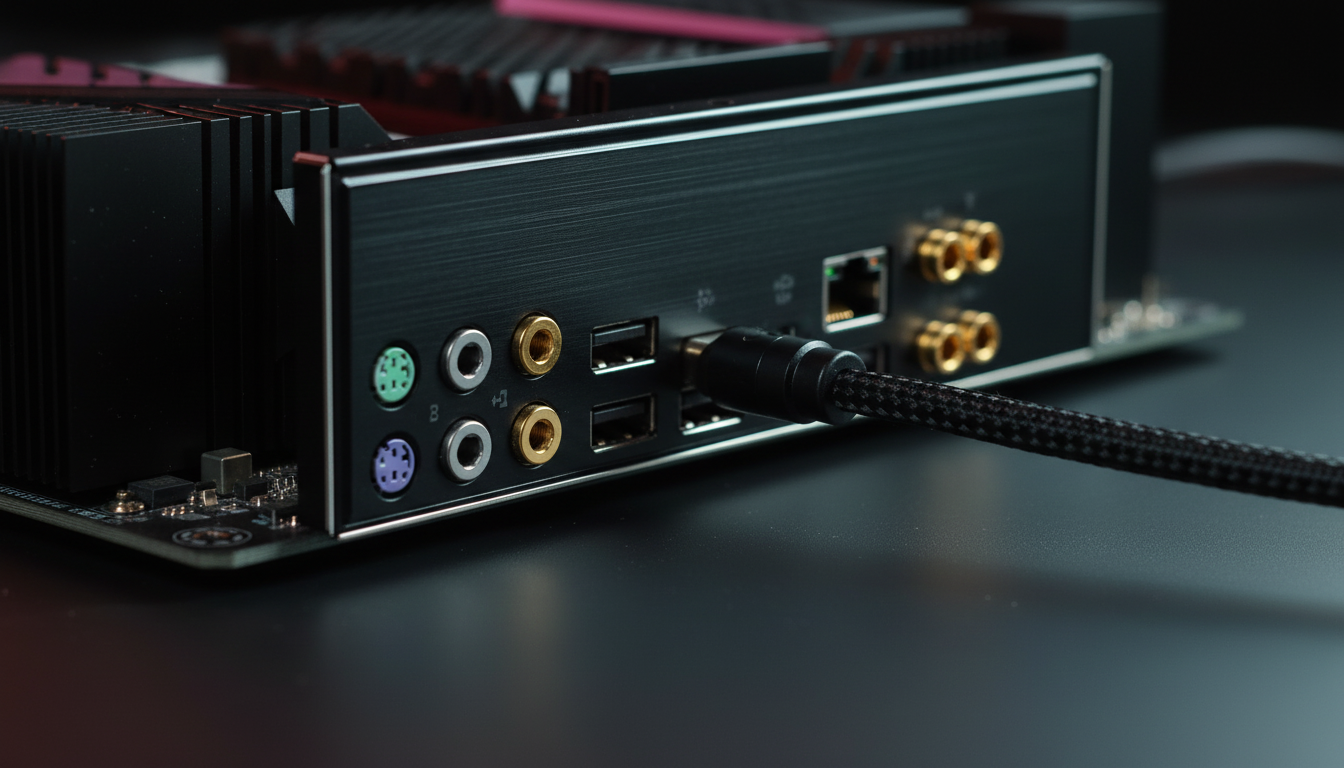
The physical path of the signal is the most common point of failure for 8K stability. Many motherboards utilize multiple USB controllers, and not all ports are created equal.
The Front Panel Trap
Front panel USB ports are connected via internal headers and long, often poorly shielded cables that run through the electrically noisy environment of a PC case. These ports almost always share bandwidth with other front-panel devices through an internal hub controller. For 8K reporting, this introduces electromagnetic interference (EMI) and signal degradation that can lead to "packet drops"—where the mouse appears to "skip" during fast movements.
Rear I/O and Direct Chipset Connections
The most reliable heuristic for 8K stability is using the rear I/O ports soldered directly to the motherboard. Specifically, users should prioritize ports controlled by the primary CPU or chipset rather than third-party controllers (e.g., ASMedia or MediaTek).
- Direct CPU Ports: Typically the top-most USB 3.2 ports on modern AM5 or LGA1700 boards. These offer the lowest possible path to the processor.
- Chipset Ports: Highly stable but may share a bus with SATA or NVMe drives.
Practitioner Observation: We often observe that "USB 3.0" labels are misleading. Based on common patterns from customer support and technical troubleshooting, ports connected via third-party hub controllers frequently exhibit higher DPC (Deferred Procedure Call) latency, which is the primary killer of 8KHz stability.
Windows Optimization: Eliminating OS-Level Bottlenecks
Even with the perfect physical connection, the Windows operating system can interfere with 8K reporting through aggressive power management and inefficient interrupt scheduling.
Disabling USB Selective Suspend
Windows includes a feature called "USB Selective Suspend" designed to save power by putting inactive ports into a low-power state. For an 8K mouse, the OS may misinterpret the micro-gaps between movements as inactivity, leading to catastrophic report drops when movement resumes. This setting must be disabled in the "Advanced Power Settings" menu.
Device Manager: Power Management Tweaks
Experienced users must also navigate to the Device Manager, locate the "USB Root Hub" and the mouse's "HID-compliant device" entry, and uncheck "Allow the computer to turn off this device to save power." This ensures the 5V rail remains consistent, preventing the voltage fluctuations that can desynchronize high-speed wireless receivers.
Interrupt Affinity and IRQ Management
At 8000Hz, the CPU is bombarded with 8,000 interrupts every second. If these interrupts are handled by the same core that is running the game engine, "frame time variance" increases. Using tools to set "Interrupt Affinity" can force the USB controller to communicate with a specific, non-primary CPU core, isolating the peripheral overhead from the game's logic.
Data Saturation: IPS, DPI, and Display Synergy
To actually utilize an 8KHz polling rate, the sensor must generate enough data points to fill the 0.125ms slots. This is governed by the relationship between Inches Per Second (IPS) and Dots Per Inch (DPI).
| DPI Setting | Minimum Movement Speed for 8K Saturation | Rationale |
|---|---|---|
| 400 DPI | 20 IPS | Low data density requires high speed to fill 8,000 slots/sec. |
| 800 DPI | 10 IPS | Standard competitive setting; requires moderate flick speed. |
| 1600 DPI | 5 IPS | High density; 8K is saturated even during micro-adjustments. |
| 3200 DPI+ | <2 IPS | Near-instant saturation; optimal for 8KHz stability. |
The Nyquist-Shannon DPI Requirement
For users on 4K displays (3840x2160), the mathematical minimum DPI to avoid "pixel skipping" is significantly higher than on 1080p. Based on the Nyquist-Shannon sampling theorem, a 4K display at a typical 103° FOV requires approximately 2,300 DPI to ensure every pixel-level movement is captured at high frequencies. Using 400 or 800 DPI on a 4K screen at 8KHz can paradoxically feel "jittery" because the sensor is not providing enough resolution to match the polling frequency and screen density.

Modeling the Trade-offs: Battery and Latency
High performance comes at a cost. Our scenario modeling for a high-performance competitive gamer reveals the significant impact of 8KHz on wireless sustainability.
Method & Assumptions (Scenario Modeling)
- Modeling Type: Deterministic parameterized model based on Nordic nRF52840 SoC power profiles.
- Boundary Conditions: Assumes ideal RF environment; excludes RGB lighting power draw; assumes continuous movement.
| Parameter | Value | Unit | Rationale |
|---|---|---|---|
| Polling Rate | 8000 | Hz | Target performance level. |
| Battery Capacity | 500 | mAh | Standard for lightweight wireless mice. |
| Radio Current Draw | 12 | mA | Estimated draw for 8KHz wireless transmission. |
| Total System Load | 16 | mA | Includes sensor and MCU processing overhead. |
| Estimated Runtime | ~26 | Hours | Calculated: (Capacity * 0.85 efficiency) / Load. |
Logic Summary: While a 1000Hz mouse can typically last 60-80 hours, switching to 8KHz increases the radio duty cycle and MCU processing load, reducing battery life by approximately 60-70%. For professional play, this necessitates a daily charging cadence.
Hardware Selection for 8K Stability
Not all cables and mice are capable of sustaining the signal integrity required for 8KHz. The USB-IF Standards emphasize that cable shielding and connector quality become critical as frequency increases.
Cable Integrity
For wired 8K mice or when charging during play, a high-quality braided cable with effective EMI shielding is non-negotiable. Cables like the ATTACK SHARK C06 Coiled Cable utilize high-quality copper cores and aluminum shielding to prevent signal "noise" from interfering with the high-frequency data packets. For magnetic keyboards also running at high polling rates, specialized cables like the ATTACK SHARK C07 Custom Aviator Cable are designed to support 8K polling without the signal degradation common in generic OEM cables.
The Receiver Environment
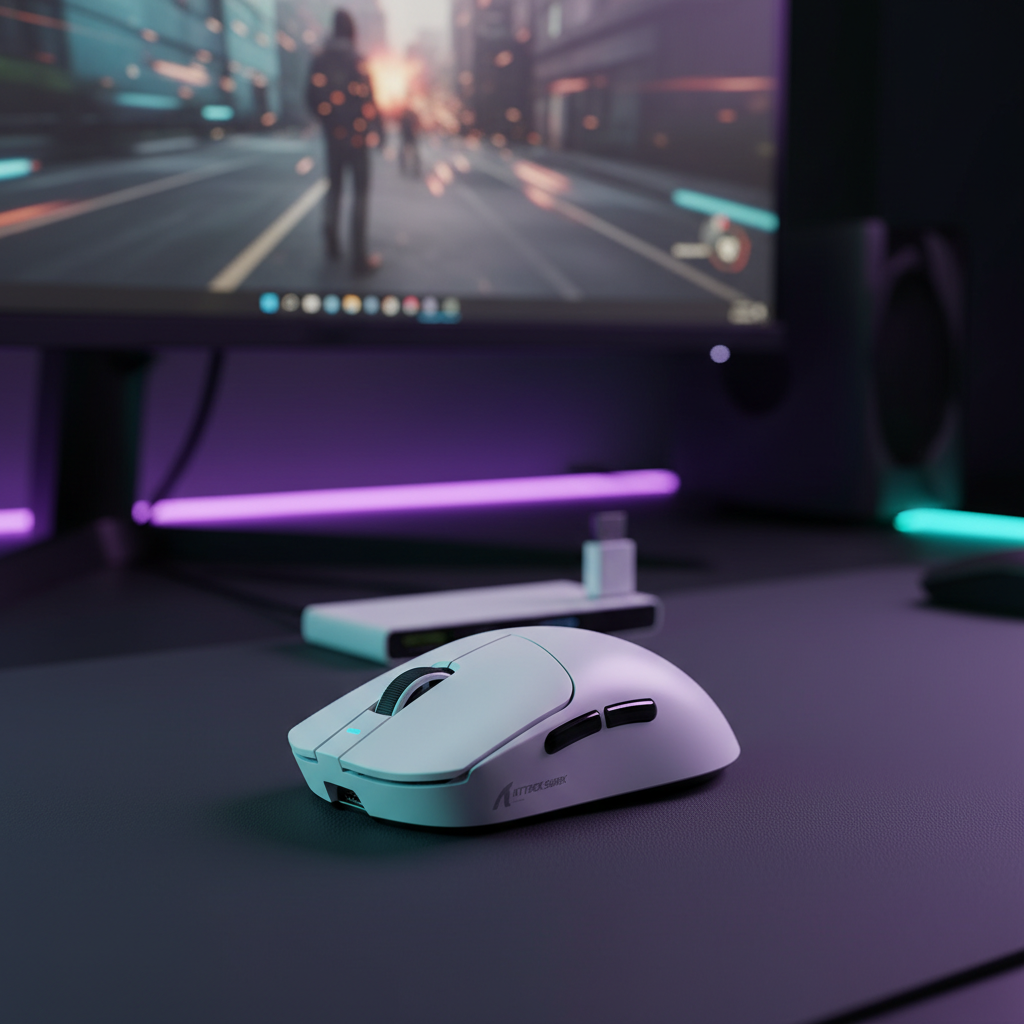
If using a wireless 8K mouse, such as the ATTACK SHARK X8 Ultra, the 8K receiver should be placed as close to the mousepad as possible—ideally within 12-18 inches. Physical obstructions or proximity to 2.4GHz Wi-Fi routers can introduce "jitter" that nullifies the latency benefits of 8KHz.
Regulatory Compliance and Safety
When pushing hardware to its limits, safety standards remain paramount. Devices must adhere to international regulations to ensure stability and user safety.
- FCC/ISED: Crucial for ensuring the 2.4GHz wireless signal does not interfere with other household electronics. (Source: FCC Equipment Authorization)
- IEC 62368-1: The safety standard for IT equipment, ensuring that the high current draw required for 8KHz does not lead to thermal issues in the battery or circuitry.
- UN 38.3: Mandatory testing for lithium batteries to ensure they are safe for transport and high-intensity use.
Summary Checklist for 8K Optimization
To ensure your system is reporting at a consistent 8KHz without jitter, follow this technical checklist:
- Physical Port: Use a rear I/O USB 3.0+ port directly connected to the motherboard chipset. Avoid front-panel headers.
- Cable Quality: Ensure you are using a shielded cable (e.g., ATTACK SHARK C06) to minimize EMI.
- Windows Power: Disable "USB Selective Suspend" in Power Options.
- Device Manager: Disable "Allow the computer to turn off this device" for all USB Root Hubs.
- DPI Scaling: Set your mouse to at least 1600 DPI (ideally 2300+ for 4K displays) to ensure the sensor saturates the 8KHz polling rate.
- Interrupt Affinity: (Advanced) Use an affinity tool to move USB IRQs away from CPU Core 0.
By treating the USB connection as a high-speed data bus rather than a simple peripheral port, gamers can finally eliminate the micro-stutter and latency variance that often plague high-polling-rate setups.
Disclaimer: This article is for informational purposes only. Modifying BIOS settings or system power configurations can affect system stability. Always back up your data and consult your motherboard manual before making hardware-level changes.

コメントを書く
このサイトはhCaptchaによって保護されており、hCaptchaプライバシーポリシーおよび利用規約が適用されます。