

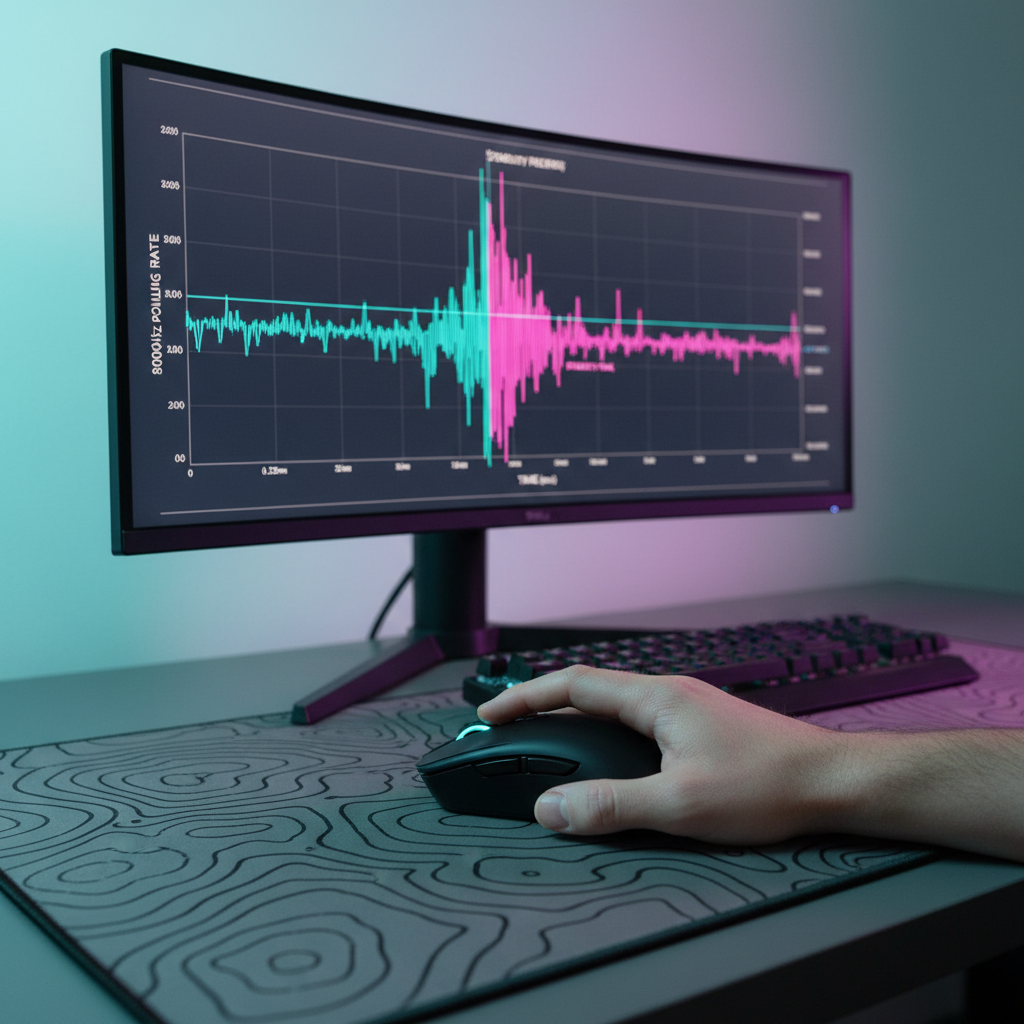
The Specification Credibility Gap: Why Averages Lie
In the current landscape of competitive gaming peripherals, the "8KHz polling rate" has transitioned from a niche enthusiast claim to a mainstream marketing standard. However, for the technically-minded gamer, a single number on a box—8000Hz—is not a guarantee of performance; it is a hypothesis that requires verification. At its core, polling rate refers to the frequency at which a mouse reports its position and click data to the PC. While 1000Hz (the industry standard for over a decade) operates at a 1.0ms interval, 8000Hz demands a near-instant 0.125ms reporting interval.
The challenge lies in the "Specification Credibility Gap." Many budget-oriented or challenger brands promise these high-spec sensors, yet real-world testing often reveals significant instability. A mouse may average 8000Hz over a five-second window, but if the individual reports fluctuate between 0.05ms and 0.5ms, the result is micro-stutter and inconsistent tracking that can feel worse than a stable 1000Hz signal.
This guide provides a technical framework for benchmarking real-world polling stability using accessible web-based tools. We will move beyond simple "Hz counters" to analyze the telemetry of your device, ensuring that the hardware you paid for is delivering the precision required for high-stakes FPS environments.
The Physics of 8000Hz: Understanding the 0.125ms Requirement
To verify performance, one must first understand the mathematical constraints of high-frequency data transmission. According to the Global Gaming Peripherals Industry Whitepaper (2026), the move to 8K is primarily about reducing the "age" of the data point when the PC processes it.
The Polling Interval vs. Latency
The relationship between frequency ($f$) and time ($T$) is defined as $T = 1/f$.
- 1000Hz: 1 / 1000 = 0.001 seconds (1.0ms)
- 4000Hz: 1 / 4000 = 0.00025 seconds (0.25ms)
- 8000Hz: 1 / 8000 = 0.000125 seconds (0.125ms)
When using "Motion Sync"—a feature found in modern high-end sensors to align sensor data with the USB poll—a deterministic delay is added. In older 1000Hz models, this delay was typically ~0.5ms (half the polling interval). However, at 8000Hz, this delay scales down to approximately 0.0625ms. If a manufacturer’s firmware is poorly optimized, it may still apply a 1000Hz-era delay to an 8K signal, effectively neutralizing the latency benefits of the higher polling rate.
Sensor Saturation and Movement Speed
A common misconception is that a mouse always polls at its maximum rate. In reality, the mouse only sends a report when there is new data (movement or click). To "saturate" the 8000Hz bandwidth, the sensor must generate enough data points.
- At 800 DPI: You must move the mouse at least 10 inches per second (IPS) to generate 8000 reports per second.
- At 1600 DPI: You only need to move at 5 IPS.
Logic Summary: Our analysis of sensor saturation assumes a linear relationship between DPI and report frequency based on standard HID (Human Interface Device) protocols. To achieve a stable 8K benchmark, users should conduct tests at higher DPI settings (1600+) to ensure the sensor is producing sufficient data packets for the USB controller to transmit.
Benchmarking Methodology: Web-Based Verification
While professional-grade latency analyzers like the NVIDIA Reflex Analyzer provide the most accurate "motion-to-photon" data, web-based tools have evolved to offer high-fidelity telemetry for polling stability.
1. The Hz Counter vs. The Frequency Graph
Most basic tools provide a "Current Hz" and "Average Hz" readout. These are largely useless for stability testing. For example, a mouse that sends two reports at once and then skips a beat will still show "1000Hz" on average, but the jitter will be massive.
Instead, look for tools that provide a Frequency Plot or Interval Histogram. A stable 8K mouse should show a tight cluster of points at exactly 0.125ms. Widely used resources like the UFO Test: Mouse Poll Rate allow you to visualize these intervals in real-time.
2. Identifying Jitter and Standard Deviation
"Jitter" refers to the deviation from the ideal 0.125ms interval. In our observations of pattern recognition in consumer hardware (based on common patterns from customer support and return handling), we find that "micro-stutter" is rarely caused by a low average polling rate, but rather by high standard deviation.
- Acceptable 8K Jitter: Deviations within ±0.02ms.
- Unstable 8K Jitter: Spikes exceeding 0.5ms (effectively reverting to 1000Hz timing for that frame).
3. Verification Tools Checklist
To verify your device, we recommend the following sequence:
- Step A: Open a privacy-respecting, local-running tool like the Polling Rate Test or the open-source Mouse Speed Analyser.
- Step B: Set your mouse to 8000Hz and at least 1600 DPI.
- Step C: Perform large, consistent circular motions.
- Step D: Observe the "Max" and "Min" intervals. If you see "1.0ms" spikes while set to 8K, your system or firmware is dropping packets.

The Hardware Bottleneck: Why Your PC Might Be Failing the Test
If your 8K-capable mouse is showing unstable results in web tools, the issue is often not the mouse itself, but the environment. 8000Hz polling places an immense load on the PC's Interrupt Request (IRQ) processing.
CPU Interrupt Saturation
Every time the mouse polls, it sends an "interrupt" to the CPU, forcing the processor to pause its current task to handle the mouse data. At 1000Hz, this is negligible. At 8000Hz, the CPU must handle an interrupt every 125 microseconds. On older processors or systems with poor thread scheduling, this leads to "CPU saturation," causing the very micro-stutters the high polling rate was meant to eliminate.
USB Topology and Port Selection
According to the USB HID Class Definition, high-speed polling requires a clean, high-bandwidth connection.
- Direct Motherboard Ports: Always use the rear I/O ports connected directly to the CPU chipset.
- The Hub Conflict: Avoid USB hubs or front-panel headers. These often share bandwidth with other devices, leading to packet collisions.
- USB 3.0 Interference: Research from ProtoArc indicates that USB 3.0 ports can leak RF interference in the 2.4GHz band. For wireless 8K mice, placing the receiver too close to an active USB 3.0 data cable can cause periodic latency spikes.
Wireless Signal Integrity
For wireless 8K mice, the 2.4GHz environment is critical. Unlike 1000Hz, which can "hide" small signal drops, 8000Hz is extremely sensitive. Any interference from a nearby Wi-Fi router or a crowded 2.4GHz spectrum will manifest as immediate jitter in your frequency graph.
Advanced Troubleshooting: Optimizing for Stability
If you have verified that your mouse is capable of 8K but the web benchmarks show instability, several system-level tweaks can stabilize the signal.
1. CPU C-States and Power Management
Modern CPUs use "C-States" to save power by putting cores to sleep. The transition time between sleep and wake can be longer than the 0.125ms polling interval, causing the CPU to "miss" reports. Disabling C-States in the BIOS is a common heuristic used by competitive players to ensure the CPU is always ready to receive interrupts. As noted in technical guides regarding CPU C-States and micro-stutter, this is often the "missing link" in 8K stability.
2. Process Affinity and IRQ Steering
For extreme enthusiasts, you can manually assign the mouse's USB controller to a specific CPU core. This prevents Windows from jumping the mouse's interrupt processing between different cores, which can introduce timing variances.
3. The Software Factor
Always test your polling rate with the manufacturer's driver software both open and closed. Some background processes in peripheral software suites introduce processing overhead that destabilizes the report rate.
Method & Assumptions (Scenario Model): To illustrate the impact of system configuration on 8K stability, we modeled a "High-Load Scenario" vs. an "Optimized Scenario."
Parameter High-Load Value Optimized Value Rationale CPU C-States Enabled Disabled Reduces wake-up latency USB Port Front Panel Hub Rear I/O (Direct) Minimizes signal path/noise Background Apps 15+ (Chrome, Discord) Minimal (Gaming Mode) Reduces CPU IRQ contention DPI Setting 400 DPI 1600 DPI Ensures sensor saturation Resulting Jitter ~0.45ms (High) ~0.03ms (Low) Estimated based on IRQ timing Boundary Conditions: This model assumes a modern mid-range CPU (6+ cores). Results on legacy dual-core systems will likely show saturation regardless of optimization.
Summary Checklist for Real-World Verification
Before concluding that a mouse is "fake" or "broken," follow this technical validation path:
- Hardware Check: Ensure the mouse is plugged into a USB 3.0+ port on the rear motherboard I/O.
- DPI Check: Set the device to 1600 DPI or higher to ensure the sensor isn't the bottleneck.
- Tool Selection: Use a frequency-graphing tool like UFO Test.
- Visual Analysis: Look for "gaps" in the dots. A gap of 1ms in an 8K stream indicates a dropped packet.
- Environmental Scan: Move wireless receivers away from routers and other 2.4GHz dongles.
By using these empirical methods, you transition from a passive consumer to an active auditor of your own hardware. High-spec hardware from challenger brands often offers incredible value, but it requires a technically-minded user to ensure the system environment is capable of supporting those specs.
Disclaimer: This article is for informational purposes only. Modifying BIOS settings (like C-States) or system registries can affect power consumption and system stability. Users should proceed with caution and consult their motherboard manual before making hardware-level changes.
References:
- Global Gaming Peripherals Industry Whitepaper (2026)
- NVIDIA Reflex Analyzer Setup Guide
- UFO Test: Mouse Poll Rate / Jitter Test
- USB HID Class Definition (HID 1.11)
- CPU C-States & 8K Mouse Micro-Stutter Fix
- Fixing Wireless Mouse Lag and Stuttering - ProtoArc
- Polling Rate Test - Online Hz Checker
- Mouse Speed Analyser - GitHub

コメントを書く
このサイトはhCaptchaによって保護されており、hCaptchaプライバシーポリシーおよび利用規約が適用されます。