
Mac Gaming in 2026: The Best Peripherals for Apple Users

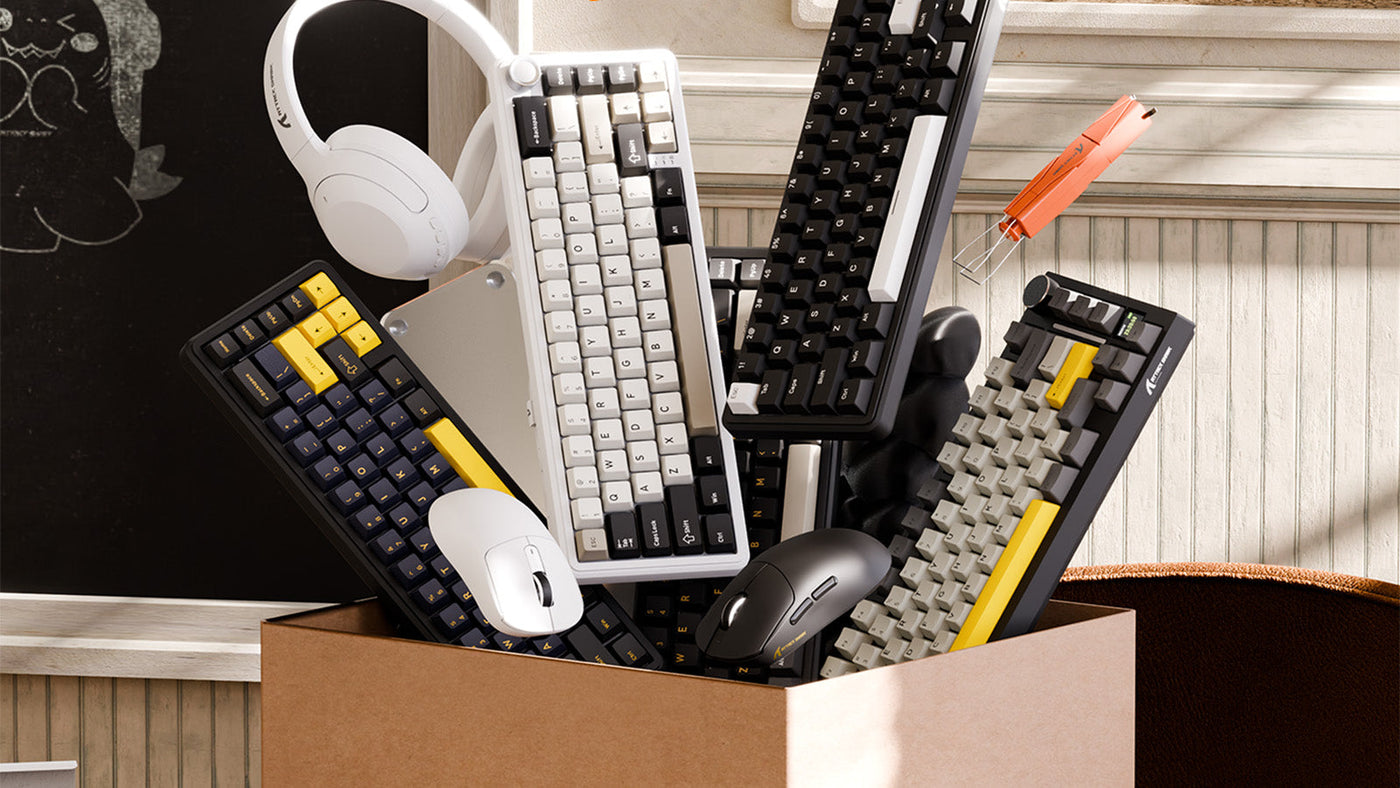
Box filled with various mechanical keyboards, computer mice, and a white headset.

Thanks to the raw power of M-series Apple Silicon chips, Macs can now run demanding gaming titles with high frame rates. However, transitioning from work to play requires the right hardware. Standard PC gaming peripherals often clash with Apple’s minimalist design and frequently lack software support for macOS. This guide details exactly how to select the best peripherals for your Mac. By choosing compatible pointing devices, optimizing your wireless connections, and configuring your software correctly, you can build a seamless desktop setup for both professional productivity and high-performance gaming.

Mechanical keyboard with gradient grey keycaps, a control knob, and a small built-in screen.

1. Select a Mechanical Mac Keyboard

The core of any desktop gaming setup is the keyboard. Choosing a device designed specifically for the Apple ecosystem prevents workflow interruptions and improves your daily typing experience.

Native Layout Matters

Standard Windows keyboards place the Alt and Windows keys where Mac users expect the Command and Option keys. This creates physical muscle-memory errors during fast-paced work or gaming. Purchasing a dedicated mechanical mac keyboard ensures you get the correct physical layout out of the box. You will not have to rely on software workarounds to navigate your operating system efficiently.

Keycap Awareness

When selecting a board, examine the top row of the keycaps. A proper Mac-centric keyboard features the correct media control icons, such as screen brightness, volume, and Mission Control. This allows you to manage your system hardware directly from the keyboard without opening the macOS control center.

Switch Choice

The physical switches under the keycaps dictate your gaming performance. Linear switches (often color-coded red) offer smooth, rapid keystrokes ideal for fast-paced gaming. If you use your Mac primarily for typing code or writing, tactile switches (often brown) provide physical feedback without loud clicking noises, making them perfect for shared office environments.

ATTACK SHARK X85PRO 3モード ガスケット メカニカル キーボード

Price: ¥9,046
75% ANSIレイアウトとアップグレードされたガスケットマウント 最も人気のある75% AINSIレイアウトを採用し、仕事やゲームに最適な選択肢です。充実した内部充填構造。5 層の吸音フォームを内蔵。PORONサンドイッチコットン、8×IXPEスイッチパッド、PET 吸音フォーム、スポンジケースフォーム、底面シリコンパッド。ノイズを最大限に低減し、究極の柔らかさとピュアな打音、スムーズなタイピング体験を実現します。 多機能 TFTスマートディスプレイとノブデザイン X85PROゲーミングキーボードは、スマートTFTカラーディスプレイを内蔵し、カスタムGIF 画像、接続モード、Windows/Mac、バッテリー残量、バックライト、音量など、キーボードの状態を直感的に表示します。内蔵メカニカルノブで、音量調整、モード切り替え、画面操作など、複雑な機能を素早く調整できます。画面とノブをカスタマイズして、より楽しく操作できます。 トリプル接続モードとマルチデバイスタスク X85Proは、Bluetoothまたは2.4GHzのワイヤレス接続、あるいはUSB-Cケーブルによる接続に対応しています。Bluetooth 5.1を搭載し、従来のBluetoothバージョンよりも応答速度が速く、消費電力も削減されています。また、3つのモードを簡単に切り替えられるため、マルチタスクを効率的に行うことができます。4000mAhのバッテリーを内蔵し、長時間の使用が可能です。Windows/Macシステムに対応しています。 ホットスワップ対応&シングルキースロット設計 1.2mm 厚のPCBは、最先端のENIGテクノロジーを採用しています。3/5ピンのホットスワップに対応し、潤滑済みのリニアブルーベリースイッチを搭載しているので、自分だけのキーボードを作る楽しさを味わえます。シングルキースロットPCB 設計を採用し、キーの安定性と入力体験を向上させ、キーの正確な位置と押し心地を実現。キーの跳ね返りやミスタッチを防ぎ、キーボードの感度と応答速度を大幅に向上させます。 プログラム可能なRGBと南向きLED プログラム可能なメカニカルキーボードに内蔵されたRGBライトはすべて、南向きのデザインでカスタマイズ可能です。2 色の射出成形...

2. Bluetooth vs. 2.4 GHz for Mac Users

Mac users traditionally prefer wireless setups to keep their desks clean. However, understanding the technical differences between wireless protocols is crucial for gaming performance.

The Bluetooth Standard

Bluetooth is the default connection method for Apple devices. Using a bluetooth mechanical keyboard keeps your desk free of cables and does not require plugging an external receiver into your Mac's USB-C ports. It is highly convenient for daily office tasks and casual single-player games.

The Latency Reality

Despite its convenience, standard Bluetooth technology introduces input delay. In competitive multiplayer games, this slight latency causes noticeable lag between pressing a key and seeing the action on screen. For fast-paced gaming, you should use peripherals that include a dedicated 2.4 GHz USB dongle, which provides a reliable 1-millisecond response time identical to a wired connection.

Apple’s Bluetooth Optimization

Apple has continuously improved its internal Bluetooth receivers in recent Mac models. For casual gamers, this optimized Bluetooth connection is stable enough. However, the best approach is to buy peripherals that offer "tri-mode" connectivity. You can use Bluetooth for daily web browsing and switch to the 2.4 GHz dongle when you launch a competitive game.

Black wireless gaming mouse on a rock, with backlit software settings screen showing DPI and button mapping.

3. The Case for a White Wireless Mouse

Apple workstations are known for their sleek, silver, and minimalist designs. Adding bulky, black plastic gaming peripherals often disrupts this visual consistency.

Visual Harmony

A clean desk environment improves focus. Choosing a white wireless mouse maintains the minimalist Apple aesthetic while providing high-end gaming performance. It blends seamlessly with aluminum MacBooks, Studio Displays, and light-colored desk mats, ensuring your setup looks professional during video calls and stylish during gaming sessions.

Beyond the Magic Mouse

The default Apple Magic Mouse is excellent for touch gestures but fails completely as a gaming device. Its flat ergonomic profile causes hand cramps during long sessions, and its single-surface design prevents you from clicking the left and right buttons simultaneously. You must replace it with a dedicated gaming mouse to play modern titles effectively.

Tech Specs for Mac

When shopping for a Mac-compatible gaming mouse, look for a flawless optical sensor and a polling rate of at least 1000Hz. Ensure it features programmable side buttons. A high DPI (Dots Per Inch) range is also essential for navigating large 4K or 5K Retina displays quickly without picking up the mouse constantly.

ATTACK SHARK V8 超軽量エルゴノミックワイヤレスゲーミングマウス

Price: ¥10,985
右利き用エルゴノミクス形状 | 59gの超軽量ゲーミングマウス 中型から大型の手向けに設計されたこの軽量ワイヤレスゲーミングマウスは、右利きに最適なエルゴノミクス形状と、バランスの取れた59g±3gの軽量ボディが特徴です。FPS、eスポーツ、そしてハイペースなPCゲームにおいて、自然なグリップ感、正確なコントロール、そして一日中続く快適さを提供します。 Nordic 54L15チップ | 500mAhの長時間バッテリー | 低遅延ワイヤレスマウス 最新の Nordic 54L15 チップセットを搭載した V8 は、0.168 ミリ秒の超低クリック遅延と、内蔵の 500mAh バッテリーによるワイヤレス再生時間の延長を実現し、競争力のあるゲームに最適です。 PAW3950...

Keyboard RGB Software on macOS

The biggest challenge for Mac gamers is peripheral software compatibility. Many major gaming brands still design their customization apps exclusively for Windows.

Before buying, verify that the manufacturer offers native keyboard rgb software for macOS. Without this software, you cannot change the lighting colors, remap specific keys, or update the device's firmware. If a brand does not support Mac, look for devices with onboard memory. You can plug the keyboard into a Windows PC once, use the PC software to save your custom lighting and macros directly to the keyboard's internal memory, and then plug it back into your Mac. Alternatively, explore open-source macOS applications that allow you to control generic RGB lighting without proprietary software.

4. Mapping Mac Shortcuts to Gaming Gear

High-end gaming peripherals feature extra buttons. Mapping these inputs to macOS functions bridges the gap between gaming and professional productivity.

Use your mouse software to assign Mac-specific tasks to your extra mouse buttons. Mapping the side buttons to "Mission Control" or "Show Desktop" allows you to navigate between open applications instantly without reaching for your trackpad.

If you accidentally purchase a Windows-layout device or want to customize your mechanical mac keyboard further, use the native macOS System Settings. Navigate to the Keyboard section and select "Modifier Keys." Here, you can physically swap how the operating system reads the Command, Option, and Control keys to fit your exact typing preferences.

macOS features a native Game Mode that automatically prioritizes CPU and GPU performance while reducing background task usage. You can map a specific macro key on your keyboard to instantly close heavy background applications (like video editors or large browsers) to ensure Game Mode operates with maximum system resources.

5. Set Up Your Mac Gaming Hub

Modern Macs rely entirely on USB-C ports. Organizing your connections ensures your gaming hardware performs without interruption.

USB-C Ecosystem

Because most 2.4 GHz gaming dongles still use older USB-A connections, you need a high-quality Thunderbolt or USB-C hub. Plug your dongles directly into the hub rather than using cheap individual adapters. Keep the hub positioned away from external hard drives to prevent wireless signal interference.

Power Management

Gaming mice consume battery power rapidly due to their high polling rates. Keep a braided USB-C cable routed near your mousepad. This allows you to quickly plug in and charge your white wireless mouse mid-game without stopping your session or searching for a wall outlet.

Travel-Ready Gear

MacBooks are highly portable gaming machines. Packing a compact bluetooth mechanical keyboard allows you to play games at coffee shops or hotels without carrying extra dongles or cables. Look for a 75% or 65% layout board that fits easily into your standard laptop bag.

FAQ

Do all gaming keyboards work on a Mac?

Yes, the basic typing functions of any USB or Bluetooth keyboard will work on a Mac automatically. However, the proprietary keyboard rgb software required to change lighting colors or program macros often only works on Windows. Always check for macOS software compatibility before purchasing.

Can I use the Apple Magic Mouse for gaming?

No, it is highly discouraged. The Magic Mouse does not allow simultaneous left and right clicks, which is a mandatory mechanic in almost all modern first-person shooters and role-playing games.

Is Bluetooth fast enough for gaming on a Mac?

For slow-paced strategy games or casual single-player titles, Bluetooth is perfectly fine. However, for competitive, fast-paced games like shooters, Bluetooth latency will cause a noticeable delay. You should always use a 2.4 GHz USB dongle or a wired connection for competitive gaming.

前後の記事を読む

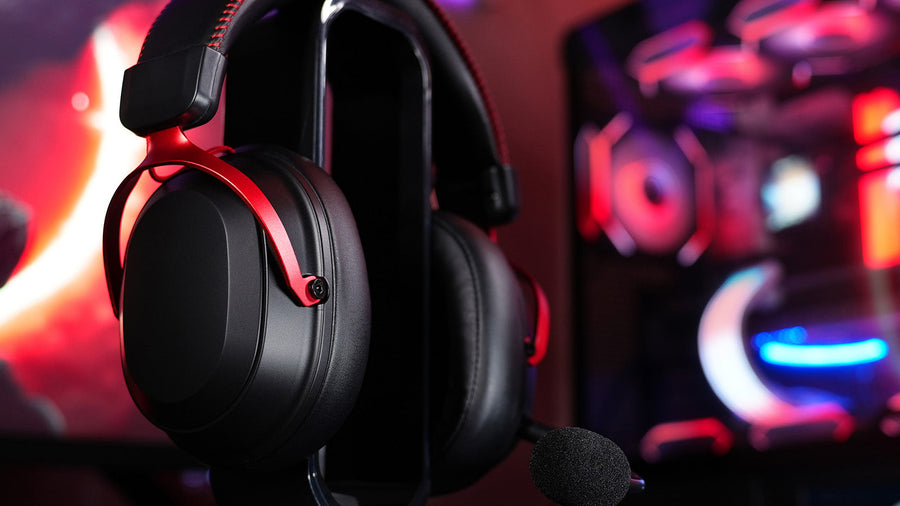
A close-up of a sleek black over-ear gaming headset with striking red metal arms resting on a stand
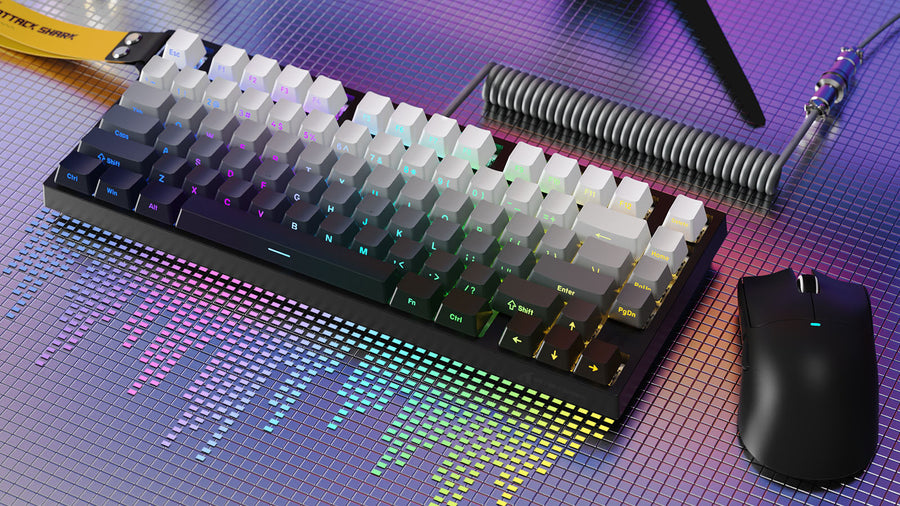
Compact mechanical keyboard with gradient keycaps, coiled cable, and black gaming mouse.

コメントを書く

このサイトはhCaptchaによって保護されており、hCaptchaプライバシーポリシーおよび利用規約が適用されます。