
Game Mouse

Why Your Setup is Lagging

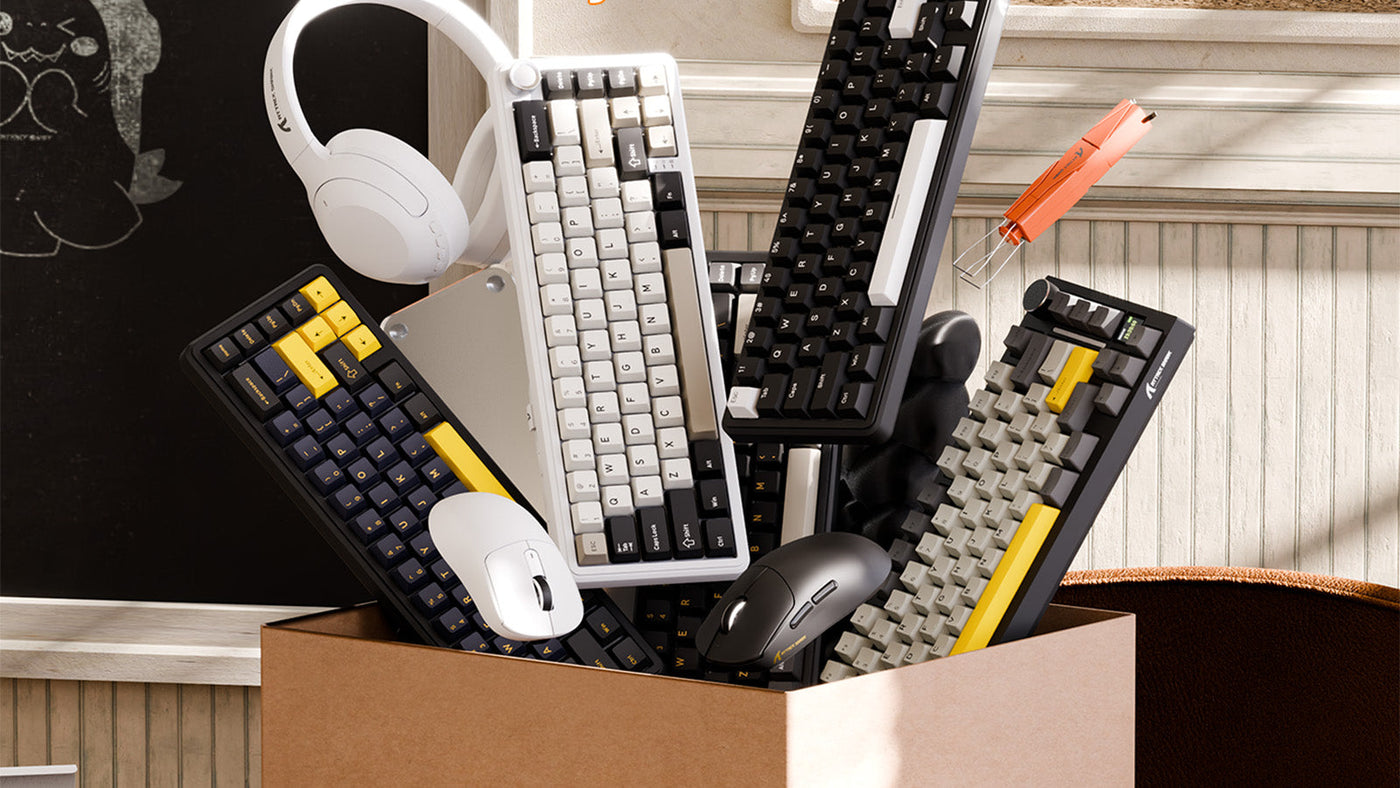
A dynamic, overflowing arrangement of gaming peripherals bursting out of a cardboard box

Experiencing a delay between moving your hand and seeing the action on screen can easily ruin your gaming experience. Often, players blame their internet connection or graphics card, but the actual issue usually lies in peripheral latency. Understanding how your hardware communicates with your computer helps you identify the root cause of these delays.

This guide will help you check your mouse polling rate, evaluate your equipment, and apply practical solutions to make your system highly responsive.

High-angle close-up of the Attack Shark R68 mechanical keyboard featuring a compact layout

Understand Device Communication Speeds

Learning how your hardware sends signals to your computer is the first step in fixing latency. Grasping polling rate meaning and other basic concepts helps you make informed adjustments to your current gear.

How Updates Work

In simple terms, this measurement indicates how many times per second your device reports its physical position to the computer. It is measured in Hertz (Hz). For example, a 1000Hz mouse polling rate means the device updates its location 1,000 times every single second. A higher number generally translates to a more frequent update cycle, which helps your on-screen crosshair track your physical hand movements accurately.You can easily test your current setup using a mouse polling rate tool.

Tracing the Data Pipeline

When you move your hand, the sensor processes the surface data and sends it to your screen. The update frequency dictates the speed of this data delivery. If the rate is set too low, the computer receives fewer location updates. This creates a small but noticeable gap between your physical motion and the visual response. By increasing the update frequency, you reduce this gap and ensure your inputs register much closer to real time.

A side-profile close-up of a white Attack Shark wireless gaming mouse

Evaluate High-Speed Data Transmission

Upgrading your equipment to support ultra-fast data transfer sounds appealing on paper. However, it is important to weigh the visual benefits against the potential performance costs for your computer system.

Evaluating the Smoothness Factor

The gaming community frequently debates 1k vs 8k polling rate setups. Upgrading to an 8000Hz device sends eight times more data per second compared to a standard 1000Hz device. This massive increase in data transmission can make high-speed tracking look incredibly smooth, especially on monitors with a 240Hz refresh rate or higher. However, noticing the visual difference between a 1k vs 8k polling rate largely depends on individual human perception and the specific game you play.

Monitoring CPU Impact

Choosing an 8000Hz setup introduces a hidden performance cost. Processing 8,000 updates every second requires substantial processing power. If you have an older processor, handling this heavy data flow might cause your game to drop frames or stutter. In these cases, the high update speed actually creates more display lag than it solves. It is helpful to monitor your system performance before committing to maximum settings.

Finding the Sweet Spot

Most users experience diminishing returns when pushing past 1000Hz. While comparing a 1k vs 8k polling rate shows a technical numerical advantage for the 8k side, a stable 1000Hz setting remains highly reliable for the vast majority of players. It provides a very responsive experience without placing heavy stress on your computer hardware.

Choose Between Cable and Cordless Options

Players often struggle to decide between a wired or wireless mouse. Years ago, cables were strictly required for fast-paced play due to severe wireless delay. Today, modern 2.4GHz technology has nearly closed that gap. When testing high-end devices, the latency difference between a wired or wireless mouse is usually less than one millisecond. For standard human reaction times, this tiny fraction of a second is generally imperceptible during actual use.

While speed is no longer the primary issue, signal interference can still cause tracking problems. Routers, phones, and other desk gadgets emit signals that might disrupt a 2.4GHz connection. To maintain stability, place your USB receiver as close to your playing area as possible. If your environment has heavy signal congestion, choosing a wired or wireless mouse might come down to whether you prefer a guaranteed physical connection or untethered movement.

ATTACK SHARK K75 透明メカニカルキーボード

Price: ¥8,797
透明キーキャップ K75は究極の透明性を追求し、高品質の透明ポリカーボネート素材で作られています。キーキャップ全体が透明で、RGBライティング効果をより鮮やかに演出します。 オープンソースキーボード K75キーボードは完全にオープンソースのキーボードで、キーの完全なカスタマイズが可能で、QMK/VIAをサポートしています。Webページでのオンラインキー変更に対応しており、スペースキーをEnterキーに変更したり、すべての文字を並べ替えたりできます。 ドライバーソフトウェア ドライバソフトウェアはシステム言語をインテリジェントに識別し、複数の言語をサポートします。操作はシンプルで便利です。ソフトウェアを使用して、各ボタンの照明や音楽モードを設定したり、各ボタンにマクロをプログラムしたりすることもできます。 ノブのデザイン クールな有線ゲーミングキーボードの右上隅にユニークなノブがあり、それを回すことで音量を調整できるほか、それを押すことでキーボードのバックライトのオン/オフを切り替えることもできます。 パーソナライズされたキャラクター キーキャップの文字は、パーソナライズされたサメのテーマでデザインされており、Backspace Enter などの文字はスタイリッシュでクール、ユニークで、あなたの個性を際立たせます。 RGB 照明 イルミネーションキーボードにはXX 種類のRGBライトがあり、透明なキーキャップが光損失を最小限に抑え、豪華なライトがデスクトップをより簡単に照らします。 カスタムコイルケーブル 無料のコイル状 USB C...

Manage Delay in Typing Devices

Your aiming device is not the only piece of hardware that can slow you down. Keyboards also contribute to system latency based on how they connect and operate.

Identifying Input Lag in Keyboards

Peripherals go beyond just your mouse. A wireless gaming keyboard can also contribute to overall system latency. Unlike aiming sensors that constantly stream location data, a keyboard only sends data when a switch is physically pressed down. However, the connection method heavily dictates how fast that keystroke reaches your screen.

Selecting the Right Connectivity Mode

To avoid input lag, use the correct connection type on your wireless gaming keyboard:

  • 2.4GHz Connection: Use this for fast-paced action. It utilizes a dedicated USB receiver to deliver a rapid update speed.
  • Bluetooth Connection: Use this for general typing. Bluetooth uses less battery power but has significantly higher latency.
  • Wired Mode: Use this when charging the device to ensure zero signal interference.

Balancing Battery and Performance

Many peripheral manufacturers include power-saving modes. When a wireless gaming keyboard battery runs low, the internal hardware might automatically lower its transmission speed to conserve energy. To prevent sudden input lag during a match, keep your devices sufficiently charged. It is also helpful to check your software settings to ensure performance mode stays active even at lower battery levels.

Update Essential Software Components

Great hardware still relies on optimized software to function correctly. Keeping your mouse driver updated helps prevent unexpected stuttering and input delay.

Hardware is only half the equation; your mouse driver controls how your operating system interprets the physical hardware. Outdated firmware can cause tracking stutters, missed clicks, or inconsistent data delivery. Manufacturers regularly release a new mouse driver to patch these specific bugs and improve sensor efficiency. Checking the manufacturer website or dedicated software suite once a month ensures you run the most stable version available.

Inside your software utility, you can find several settings that impact latency. For instance, adjusting the "debounce time" dictates how quickly the switches register a click. Setting this too high creates artificial delay. Similarly, features like "Motion Sync" attempt to align sensor data with your computer processing cycle. While this improves tracking consistency, it can add a tiny amount of motion delay. Reviewing these settings helps you prioritize pure speed or tracking smoothness.

ATTACK SHARK R1 ワイヤレス ゲーミングマウス

Price: ¥4,153
羽のように軽い59Gデザイン 最高のパフォーマンスを求めるゲーマーのために設計されたR1は、革新的な液体窒素冷却射出成形プロセスにより、わずか59gという軽量化を実現しました。この超軽量構造により、より速く、より正確な操作が可能になり、長時間のゲームセッション中の疲労を軽減し、ゲームプレイにおける優位性をもたらします。 プログレードPAW3311センサー フラッグシップモデルPixArt 3311センサーを搭載したR1は、驚異の18,000DPIでピンポイントの精度を実現します。6 段階の調整レベルにより、日常的なタスクからプロレベルのゲーミングまで、あらゆる動きを完璧な精度で追跡します。 シームレスなトライモード接続 指先一つで多彩な機能を操作できます。高性能 BK3633チップを搭載し、安定したUSB-C 有線接続、遅延のない2.4GHzワイヤレス接続、そして便利なBluetooth 接続の3つの接続モードに対応しています。背面のボタンで簡単にモードを切り替えられるので、あらゆるシーンに対応します。 65 時間持続するバッテリー バッテリー切れの心配はもう不要です。R1の充電式バッテリーは耐久性に優れ、2 時間の充電で最大 65 時間使用できます。実際の使用状況シミュレーションに基づいて設計されているため、何日も途切れることなく安心してゲームをプレイできます。 触覚TTCエンコーダ 精密に調整されたTTCエンコーダーで、武器の切り替えを直感的に操作できます。鮮明でタクタイルなレスポンスと素早いリバウンドを実現するよう緻密に調整されたスクロールホイールは、明確なスケール感を提供し、一瞬のアクションが勝敗を分けるFPSゲームに最適です。 カスタマイズ可能なドライバーソフトウェア...

Apply Practical Setup Adjustments

Making physical and systematic changes to your desk area can yield immediate improvements. A few smart adjustments will help your computer process inputs faster.

Picking Low-Latency Gear

If you want to immediately reduce lag, start by evaluating what is currently on your desk. Using your knowledge of polling rate meaning allows you to look at specifications critically rather than just buying the most expensive option. Select a reliable wired or wireless mouse that fits your hand comfortably, and pair it with a responsive device that offers a dedicated 2.4GHz receiver.

Optimizing Your System Ports

Sometimes the issue is not the device, but where you plug it in. Try these quick system tweaks to improve data flow:

  • Plug directly into the motherboard: Avoid using external USB hubs or front-panel case ports, as they can add minor delays.
  • Separate wireless receivers: Keep your aiming device receiver and keyboard receiver away from each other to prevent localized signal interference.
  • Close background applications: Shut down unnecessary programs to free up CPU resources, ensuring your computer can handle high data rates smoothly.

Ensuring a Lag-Free Experience

Fixing system lag involves looking closely at how your equipment communicates with your computer. By understanding fundamental concepts like polling rate meaning and properly managing your hardware settings, you can eliminate frustrating delays. Whether you prefer the reliability of a wired or wireless mouse, or value the clean look of a wireless gaming keyboard, proper configuration makes a major difference. Apply these hardware and software adjustments to ensure your inputs register instantly, giving you a highly responsive experience.

FAQs

What is a good mouse polling rate for casual gaming?

A standard 1000Hz is highly recommended for most players. It offers a great balance of responsiveness and low system strain.

Does a wireless gaming keyboard need an 8000Hz update speed?

Generally, no. Keyboard inputs do not require the continuous tracking data that an aiming sensor does. A 1000Hz connection is highly sufficient.

Why does my game stutter when I use a high update frequency?

This usually happens when your CPU struggles to process the massive influx of data. Lowering the setting from 8000Hz back down to 1000Hz inside your mouse driver often fixes the stuttering.

Should I buy a wired or wireless mouse for a laptop setup?

A wireless option is often more convenient for laptops due to fewer tangled cords, provided you use a strong 2.4GHz connection rather than Bluetooth.

前後の記事を読む

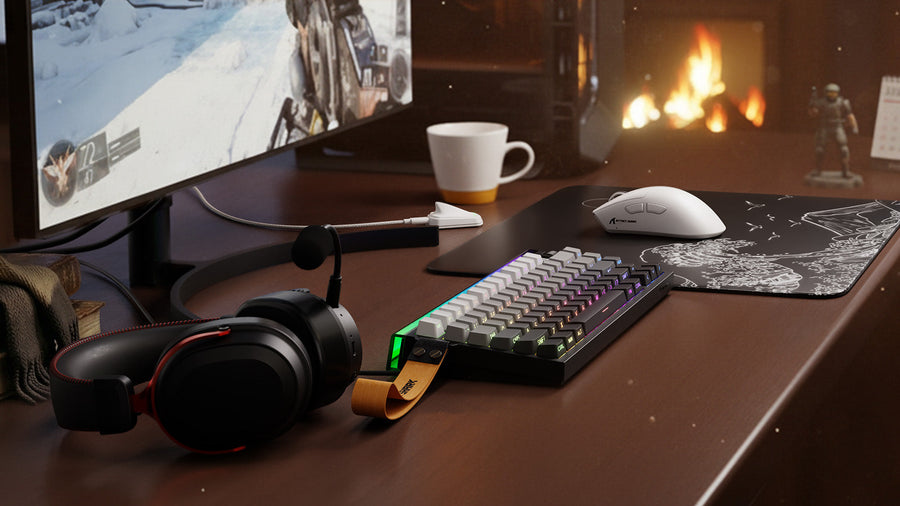
A cozy gaming desk setup featuring a compact mechanical keyboard with a yellow strap, a white wireless mouse on a graphic mousepad, and a black headset with red accents
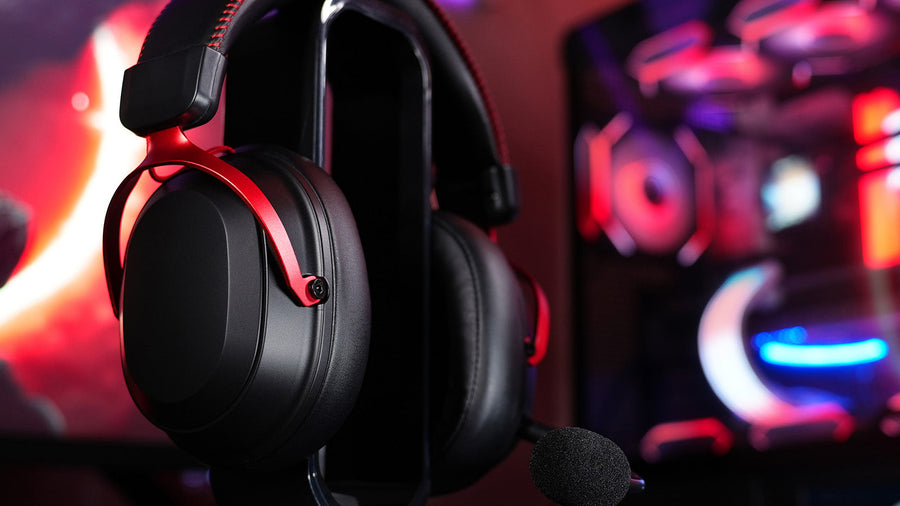
A close-up of a sleek black over-ear gaming headset with striking red metal arms resting on a stand

コメントを書く

このサイトはhCaptchaによって保護されており、hCaptchaプライバシーポリシーおよび利用規約が適用されます。